Showing posts with label studio. Show all posts

10.31.2013

Happy Halloween! DIY Decor

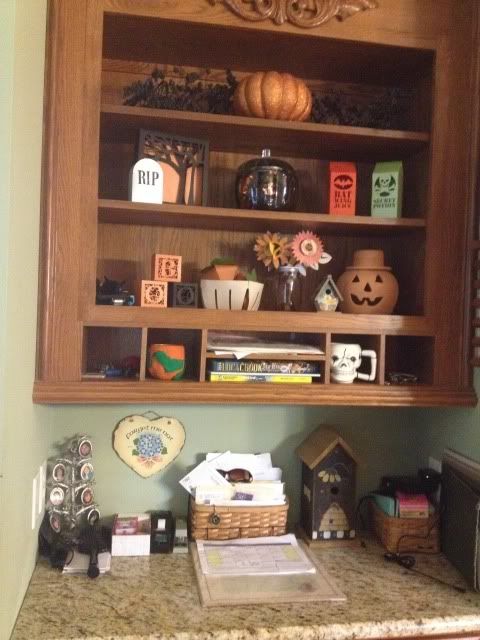
Happy Halloween!  Free time has been scarce around here.  I can't believe my little one is almost two months old already!  I love Halloween so did take the time to set up this little decorated desk area in the kitchen.

Most of this is DIY- one painted pumpkin and 8 files from the Silhouette online store!

Top shelf- garland from Michael's.  Pumpkin from Michael's, glittered by me.

Middle shelf- tombstone and spooky tree frame from Silhouette store.  Glass pumpkin from Walmart and filled with a cheap tinsel Halloween garland.  Bat Wing Juice and Poison cartons from Silhouette store.

Bottom shelf- BOO boxes, fruit basket, 3D pumpkins, and paper flowers from Silhouette store.  Birdhouse is from Tuesday Morning.  Terra Cotta pumpkin is from HomeGoods.

Special mention- the weird looking pumpkin thing with green vines in that little nook shelf was made by me in elementary school!  The skull mug in the nook is from the dollar store.


The 3D pumpkins in the fruit crate are probably my favorite, though the Bat Wing and Poison cartons have inspired me to make a whole apothecary shelf for next year- maybe the mantle?  Eyeballs in mason jars and lots of creepy files from the Silhouette store should make it easy!

8.04.2013

Print and Cut Magnets with the Silhouette Cameo

My son has a Mickey Mouse magnet board and randomly asked me (after we'd been to the mall and several other stores today) for Cars and Turbo magnets to go on it as well.  Luckily I found a pack of Avery magnet paper that I bought who knows when, and voila!

Well it wasn't quite "voila."  I had to find all the images (and nice clean ones without tons of background to mess up the trace), save them, open them one by one, trace them, and get them arranged before printing and cutting.  All the images were hunted down via Google Images.

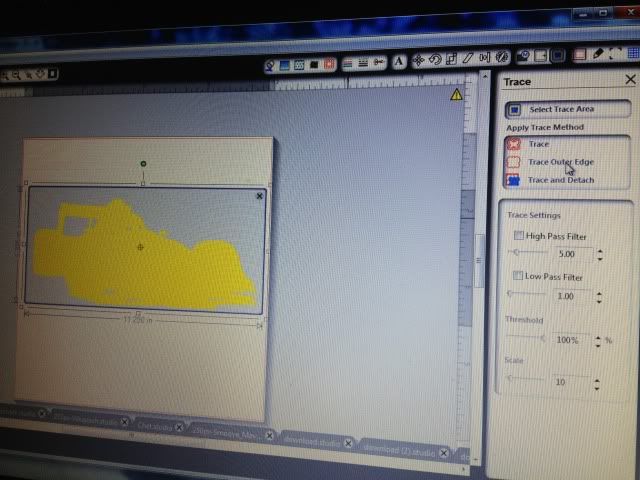
Once open, you have to trace them to get cut lines.  I normally make the image really large, erase anything I don't want (like a logo in the corner), and trace it by turning off High Pass Filter, bumping up the threshold into the 90s, and then hitting "Trace Outer Edge."  Below you can see my settings to trace Francesco.  By hitting Trace Outer Edge it only traces the outer edge as stated, so that white area inside his tail will NOT cut.  If you want to cut out the details like that, hit Trace, not Trace Outer Edge.  I figured that the tail probably wouldn't be that sturdy and this is for a 3 year old so I stuck with the edge.


Arrange everything on your paper- letter size as the magnet paper is, as registration marks on.  I then hit the cut line window just to double check that all the cut lines are turned on.


And print!  I set my Preferences to "Best."  The instructions for magnet paper say inkjet printers only.


Now on to cutting.  After scanning registration marks, I set it to the preset magnet paper settings, but I bump up the blade from 4 to 5.


After cutting...well, this is the best photo I could get!  My son was so excited that I made something just for him and he couldn't wait to take them off the mat- all by himself of course.


Now he's occupied playing again.  Score!

7.17.2013

Using Printable HTV (heat transfer vinyl) for dark colors with the Silhouette Cameo

I loooove to make shirts using HTV (heat transfer vinyl) and my favorite brand is Siser Easyweed.  My least favorite is the Silhouette brand...it's awful.  Anyway, as easy as it is to layer Siser Easyweed, sometimes you have projects that just don't work with the limited colors offered, or maybe you want a photo to be ironed on your shirt, or something.  That's where printable HTV comes in.  I have used and liked both Jolee's and Transfermations brands, and been less impressed with the Silhouette brand, though it's not terrible.  As a general rule I like to use the ones made for dark colors even on light colored clothing as it's way more vivid and just looks better in my opinion.

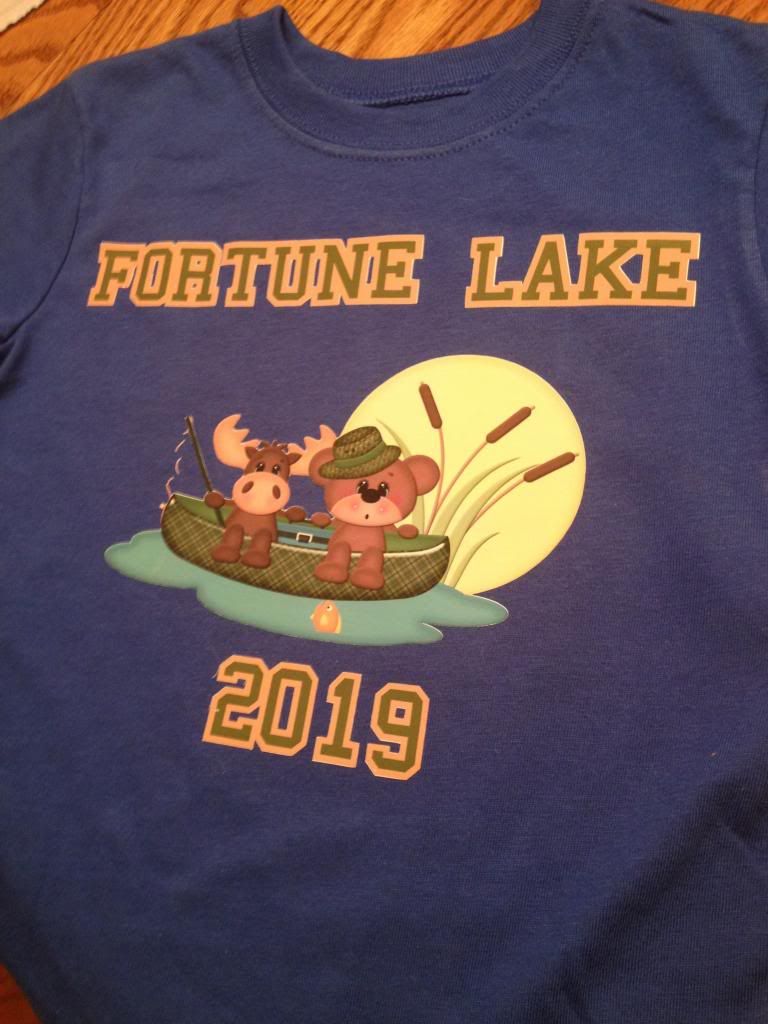
For this shirt I used Transfermations for dark colors.  I either got it at Michael's, Staples, or Walmat, not 100% positive on which.

Normally when you use HTV and even HTV for light colors, you need to mirror the image before you cut.  You do not need to mirror the image with HTV for dark colors.  I'd always read your instructions to be sure but I've used several brands and none require this.

First, get your image all ready in Silhouette Studio.  Get your cut lines situated- if you layered some elements you may need to highlight them and hit "Cut Edge" or whatever works for you.  Do not mirror it!  Turn on registration marks and print it.  I use "Best" settings for quality.  You have to use an Inkjet printer.  If you've found a brand that works with a laser printer, please share!  I've never seen one.

Once it's printed, stick it on your mat and load it into your Cameo.  Have your machine scan the registration marks and get your cut settings ready.

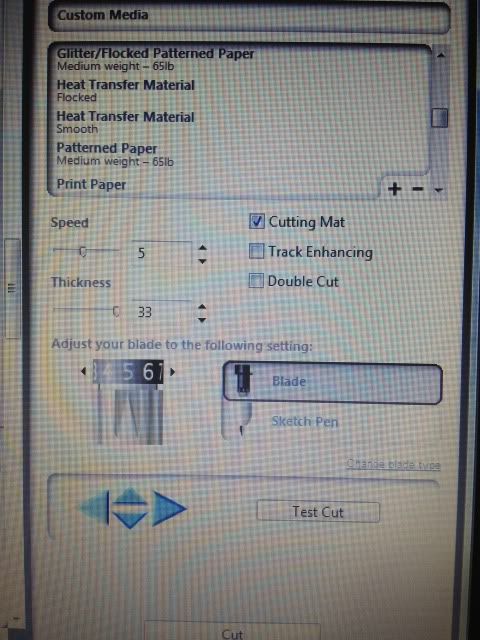
Here's a snap of what settings I use.  I set it to "Flocked HTV" and then change the blade to 5.  That's why it says Custom Media.  ***Note- I get a lot of use out of my blades, but when I switched to a new one, I only had to use HTV Smooth settings, blade on 1!  Big difference!****


Have your machine cut.  You're basically doing Print & Cut, easy, right?  I love Print & Cut and it's the biggest reason I bought my Cameo.

Once your design is cut, you then remove it from it's backing paper.  You'll see that this stuff feels more like Siser Easyweed and not regular printable HTV.

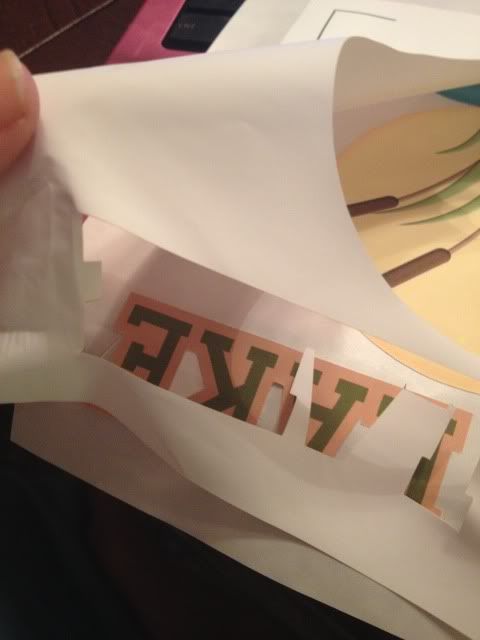
Here's me just peeling up the corner and removing all the excess white- the backing paper does not cut, see it?  I did rip it a little when grabbing that corner but it's almost like the carrier sheet of Siser Easyweed (except not used as such- just that you don't cut that paper, just your HTV.  A kiss cut.  Anyway..)


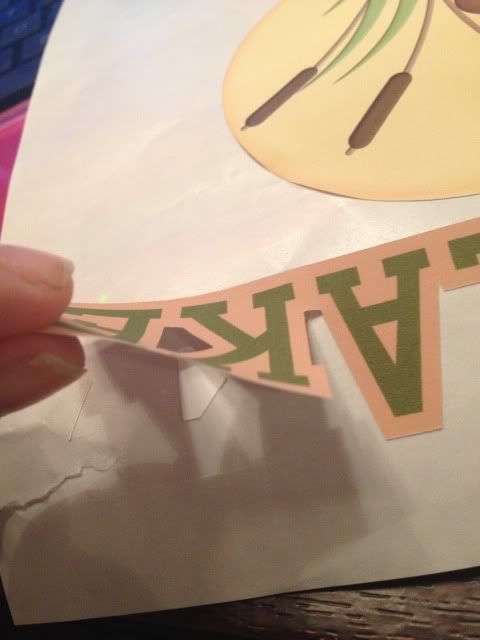
Aaand here's me peeling my design off the backing paper.  This is the one thing I don't like.  Unlike Siser Easyweed which is on a carrier sheet, I have to line up all these elements by hand separately on the t-shirt and yeah, they end up off center sometimes.  I'm working on that.  Practice makes perfect!

See how it weeds itself in between letters and stuff?  It's pretty nifty.

Your next step is to line everything up on your shirt (iron it first, but let it cool before you start re-arranging stuff on it) and when it's to your liking, grab a sheet of parchment paper.  I've always had 1-2 sheets included in whatever pack of dark color printable HTV I buy, and it lasts for several sheets.

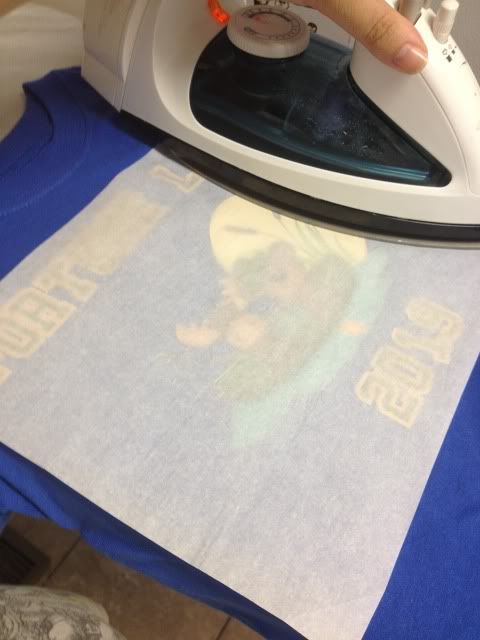
Place that over your design- careful, don't jostle anything- and iron.  My iron goes from 1-6 so I set it on 6, no steam, and press really hard for 20 seconds.  Then I pick it up, move it, press again, until I've done the whole design.  The instructions do say not to drag your iron but to pick up and move it.


When I'm done I just lift the parchment paper- unlike the Siser Easyweed carrier sheets, it's not going to be sticky to your shirt or anything- and voila, shirt!

This IS a classic example of me arranging things crooked and/or off center, but on a wiggly 3 year old, it's not very noticeable :) With Siser Easyweed and it's sticky sheets I normally line everything up on the floor and then step back and look at it, and then I can just pick up the shirt and move it to the ironing board, but you can't do that with this stuff- no carrier sheet.  My only pet peeve.

You'll also probably notice that the fishing line is missing some pieces- in removing the design from the backing that part was just too thin and I went too fast, but oh well.  It is what it is.  This is a tiny shirt for a tiny little toddler.


I always wash inside out, and never iron on the design itself, but other than that, I've found this stuff to be very durable!


1.05.2013

Vinyl Tumbler Decoration

Yesterday my Cameo went crazy.

It started randomly cutting dots and dashes and despite all my best troubleshooting efforts, it won't stop unless I disconnect it from the computer.  This makes crafting difficult but not impossible.

The Cameo has a "Cut from SD card" feature and I learned how to use it (though I hope I won't have to very often- it's a longer process).

First, you have to save every part of your design to the card separately unless you want more than one piece in the same color/material (in my case, anything orange was one file, turquoise another, & white was a third file).  Just put what you want on your virtual mat and hit "Save to SD card."  Name it something obvious so you can find it.

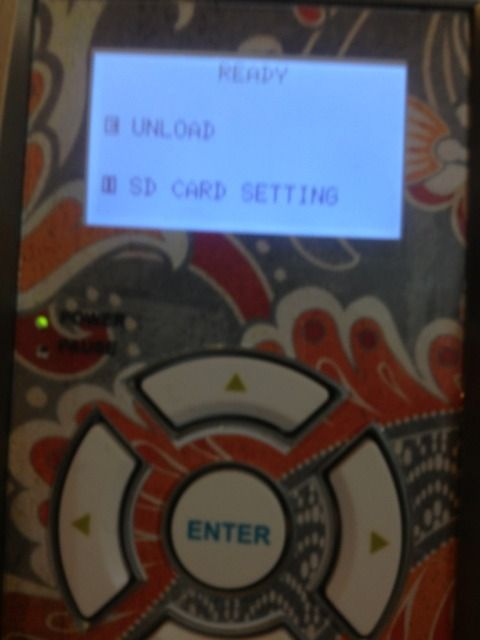
Now, go ahead and put your first material on your mat and load it.  Then pop in the SD card.  You'll see that you have to hit "Pause" for the SD card settings.


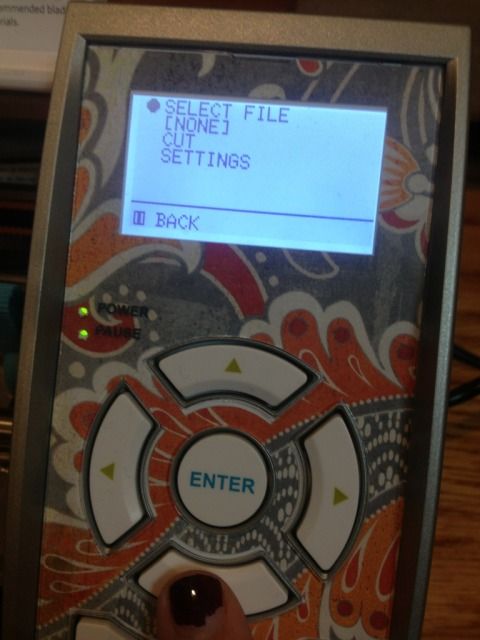
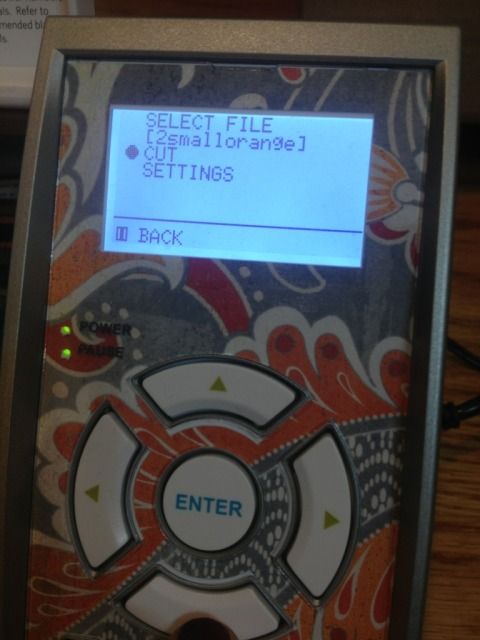
 Go to "Select File" and hit enter (eek, ignore my nail polish!!!)


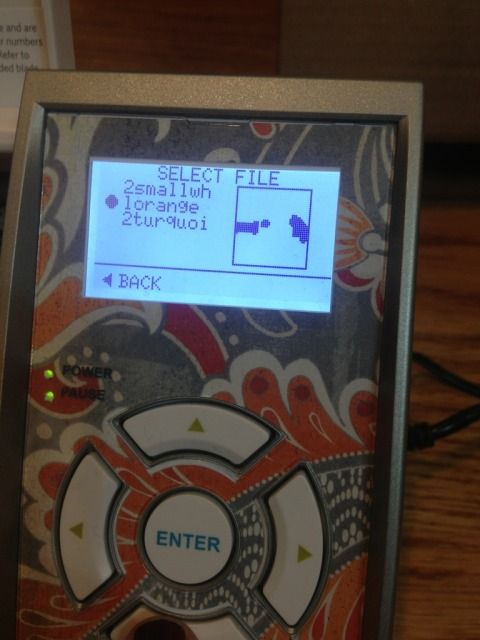
Scroll down until you see what you want to cut and hit "Enter" again.  The photo is NOT the image...at all.  This particular file was the small orange border piece in the middle of the turquoise part.


Now you'll see your file name where it previously said NONE.  Scroll down to Cut and hit "Enter."


And it will cut!  Then you will just find your other files one by one as you reload your mat.

Tedious, but it works in a pinch.

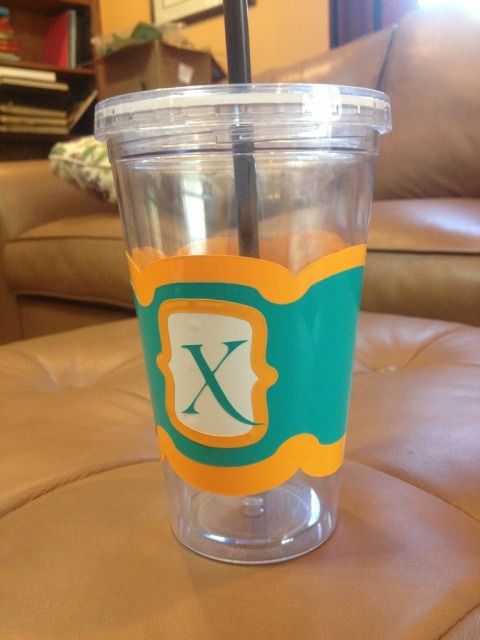
I'll be changing the X.  The flourish looked better on screen.

This file is actually a coffee cup wrap and can be found in the Silhouette online store


12.05.2012

Cardstock Christmas Village

First off I apologize for the silence lately.  In 2008 I received my Bachelors degree, got married a week later, and haven't really worked since.  I decided to go back to school for a different degree and started earlier this week.  I love school but I forgot how much homework is involved!  In fact, I have 2 more case briefs to read for this week, so I have to make this quick.


This took me 3 days since that pesky school work kept getting in the way.  I bet it would have taken me even longer had I not be introduced to the wonder that is glue dots.  I wish I had tried them sooner!


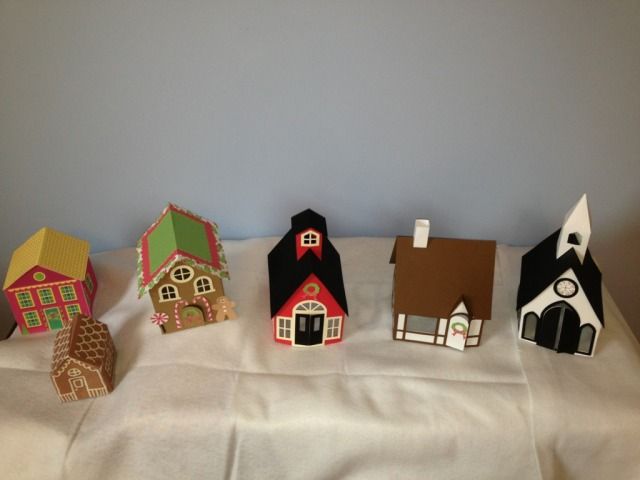
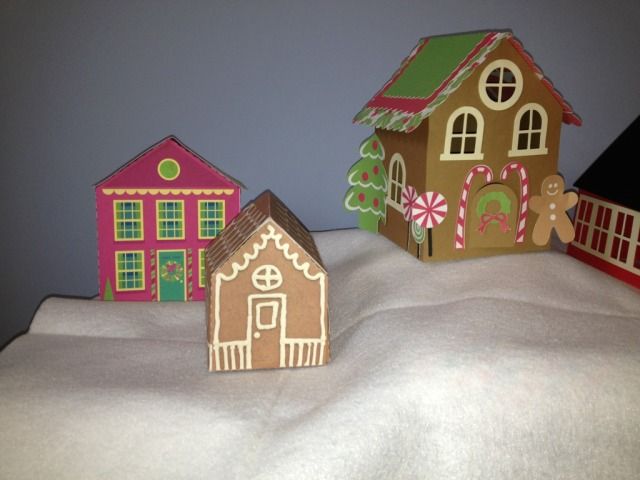
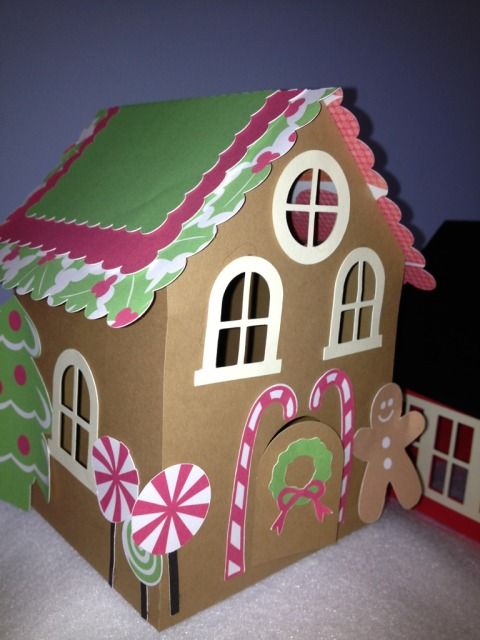
I believe these three are all different designers.  The pinkish house is a simple print and cut, as is the small gingerbread house (although the cut/fold lines of that house are a little off...).  The large gingerbread house was cut from card stock but the details were done with print & cut.


If you didn't print the holiday details and printed the roof out of something (anything) else this could easily work as just a simple little house, not a gingerbread house!


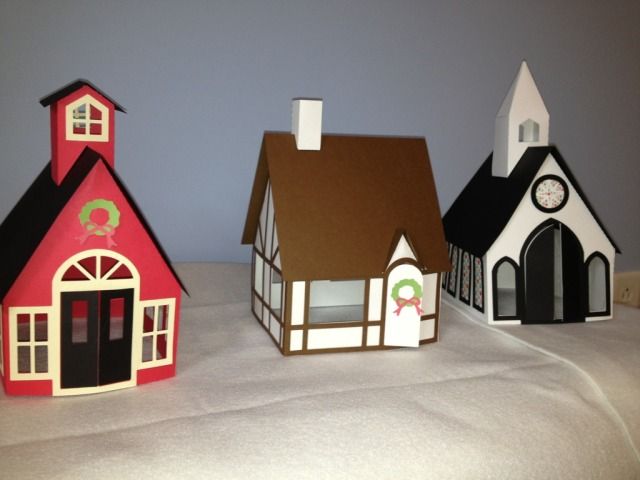
These three are all from the same designer and I wish they would release more!  I added the wreaths for a holiday touch.  The window frames, brown detailing on the cottage, etc, are all card stock are the walls & roofs.  

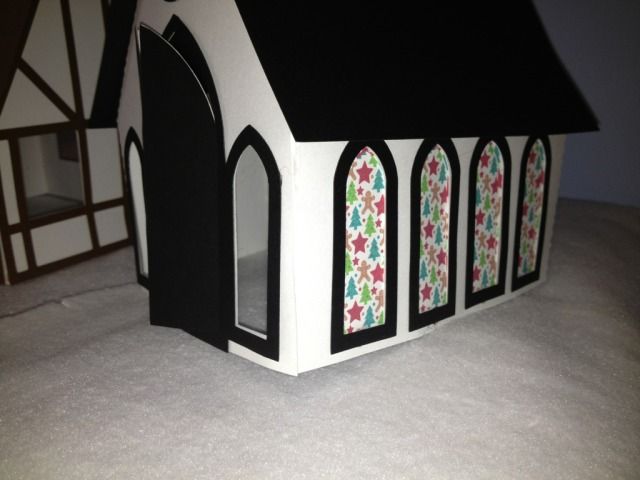
The church's white & black parts are card stock and then I used a holiday pattern and print & cut to give the illusion that it was a holiday stained glass within the window frames.


Normally 3D projects drive me nuts, but I really think the glue dots made a BIG difference.  Huge.  I'll never go back.  I can't wait for more 3D houses to be released in the Silhouette Store!

11.14.2012

DIY Harvest Banner with the Silhouette Cameo (Pic heavy!!!)

I have seen lots of fall decor around lately.  I've even seen files to buy all or parts of a banner both in the Silhouette Online Store & for sale around the net by various file makers.

The thing is, I like being creative.  I wish I could freehand draw in Silhouette Studio; that would make it perfect.  I *almost* bought a set of files on the Sil Store for a banner, but each letter in "Harvest" was a different 99c download, and I couldn't find the file for the H!  So, DIY it was!  I managed to make this ALL with shapes I already owned.

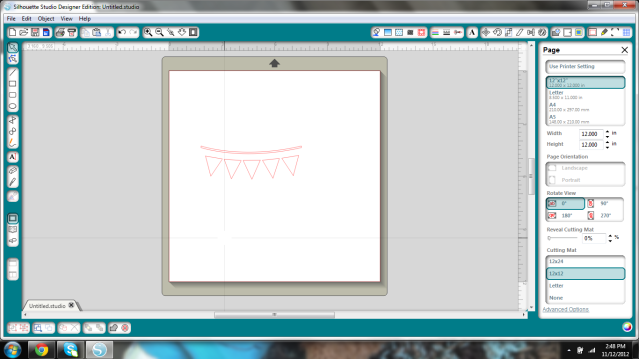
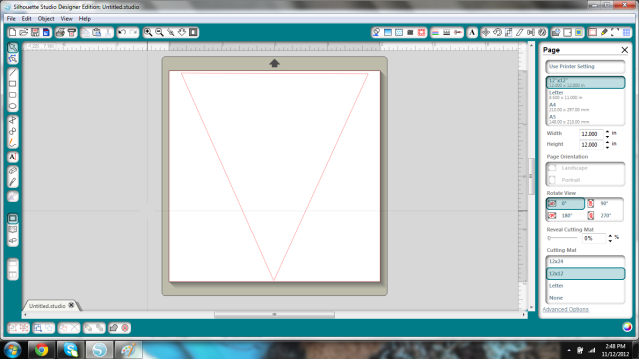
I started with this shape.  I used it to make a tiny print & cut banner that I made to go with a scarecrow in a plant.


I deleted the rope shape and all of the triangles except for the middle one.

I wanted it to be a large banner so I stretched this as large as would fit on the 12x12" mat.


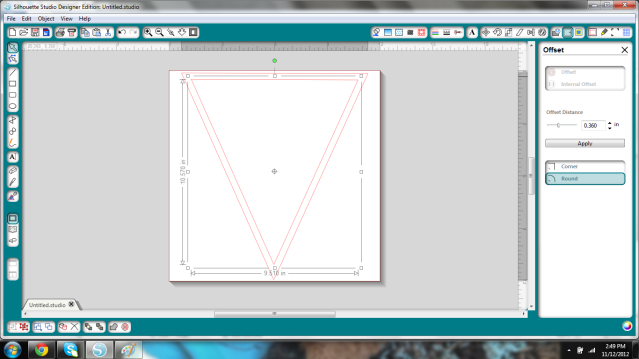
I then created an Internal Offset and increased the offset distance until I liked how it looked.


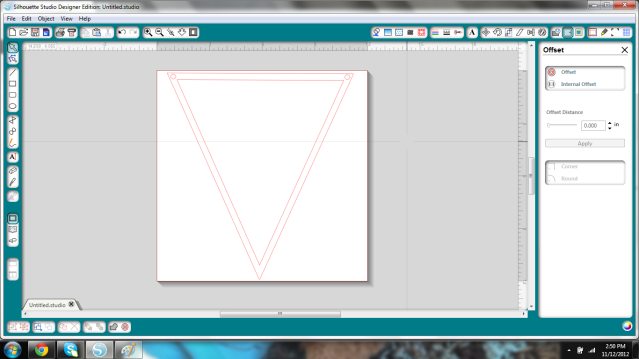
Next I added two small circles (I made one and duplicated it so they'd be the same, actually) to string my banner up.  Twine in mind at this point.


Now- remove your inner pieces, and group the holes & outer triangle.  Save it, as you'll need to cut it for each letter.  I'll need 7 for Harvest.  Set it aside; you don't need it any more.

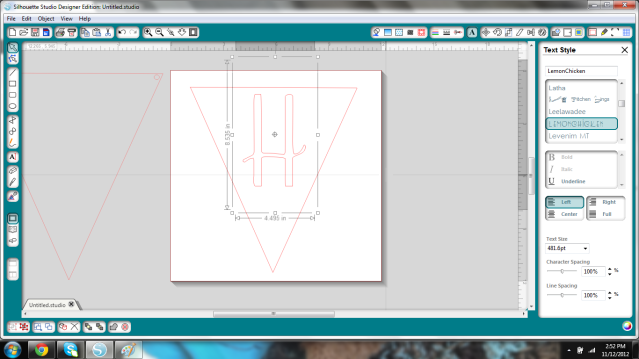
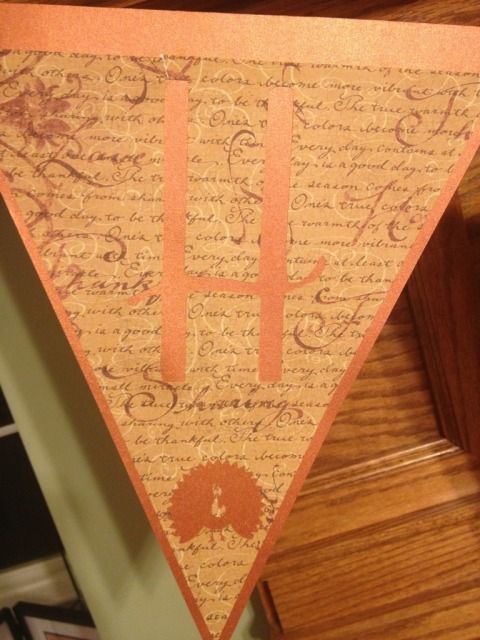
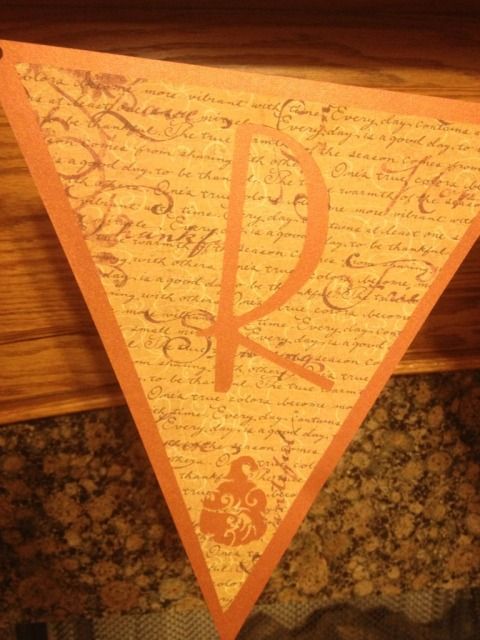
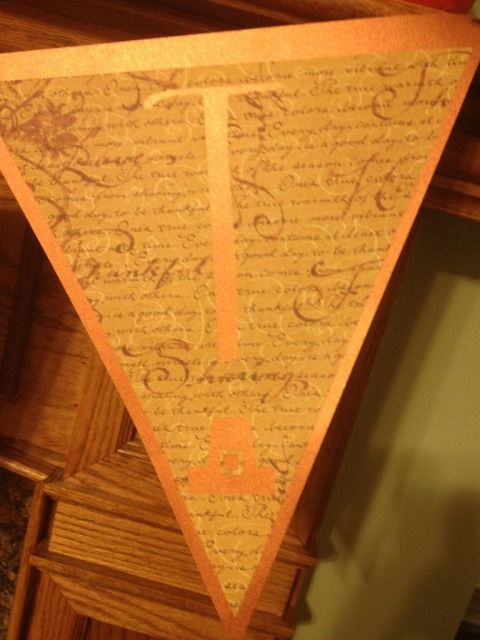
Take your inner (the Internal offset) piece, type your first letter, find your font, resize, and stick an image you like on the bottom (if you want).  I had a group of leaves, a pumpkin card, a gourd-type sketch, a turkey, and I took the hat from the Scarecrow shape which I stretched taller and added 2 squares for a buckle- instant pilgrim hat!


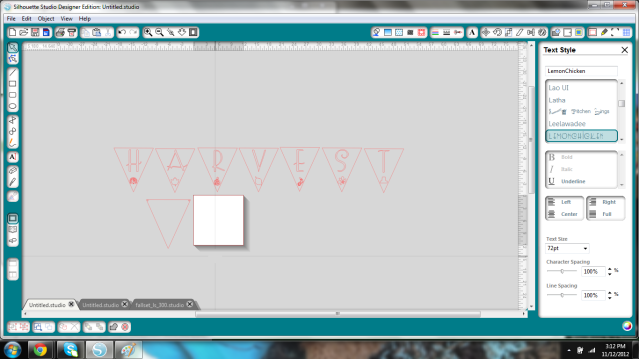
I just kept duplicating the Internal Offset triangle and resizing shapes that I thought would look good, and when done, I lined them all up and zoomed out so I could get a look at it.  I didn't duplicate the outer triangle 6x because I just used my imagination.


It's kind of hard to see from that pic but I was just getting a general idea of how it would look in case I needed to tweak it.

I then went to Michael's, since I have a library of vinyl but no cardstock, and just kind of visualized it with the current fall decor on the mantle.  This orange background flag is GORGEOUS.  I wish I could photograph it or describe it accurately.  It's a deep orange, but iridescent, almost like a good expensive fabric that shimmers and takes on a life of it's own when you move.  Anyway, total for 14 sheets of paper was $8.86.

Cut, glue, string, & reveal!

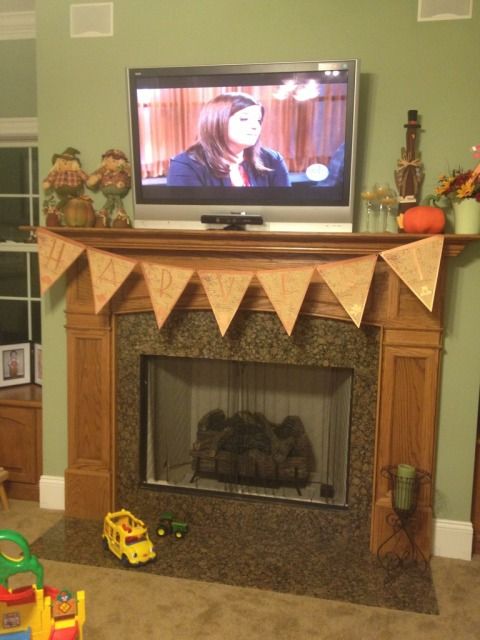
My house has toys on the floor.  I have a toddler.  Also, I love the food network. 

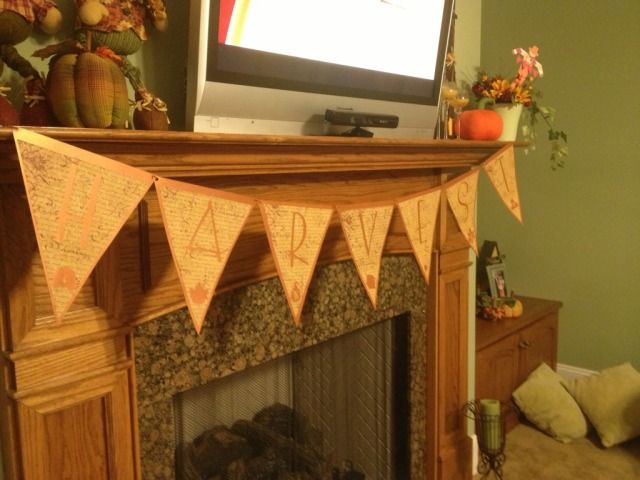
I used brown string that I got at Michael's in a 3-pack of brown shades for about $2.  I strung it so that the string was behind the triangles from hole to hole rather than in front.  Oh, and the length?  I taped it to one end of the mantle, strung the flags on, and hoped like heck that the flags weren't going to be too long.  I then pulled it up, taped the other end, and slid the letters back and forth until I liked the spacing.

I have to say, I really like how it came out!


I used 3M Spray Adhesive.  I actually really dislike working with glue.  I find spray adhesive the easiest to use, although I have to keep washing my hands, but it does give it a nice and fast even coat.  It's not completely tacky for the first minute or so, making it re-position-able (at first).  Little pieces, like the turkey face, hat buckle, or inner letter pieces I used a glue stick.


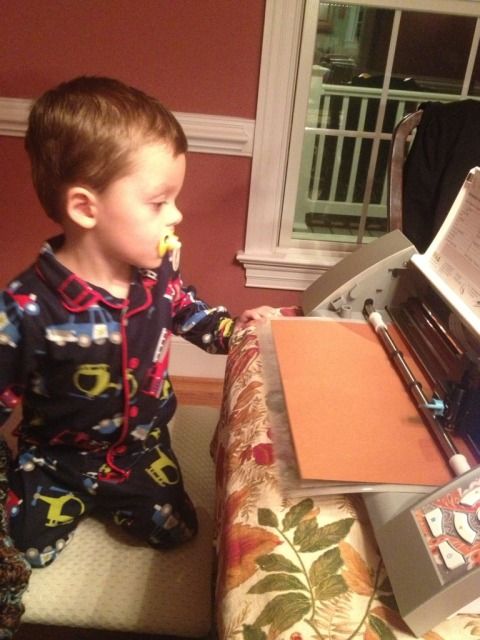
I had a "handy helper" (Oh, Mickey Mouse Clubhouse, how you've implanted into our brains after nearly 3 years) for most of this too!


11.12.2012

Making Vanilla Extract, Day 59

As you saw here, I am making a bunch of homemade vanilla extract as add-on holiday gifts (since I'm giving a lot of bakeware, particularly Pampered Chef stoneware- it's good to have a mother-in-law who is a rep!) and as you saw here, it starts to acquire the vanilla goodness very quickly!

Well, today is Day 59 (ish) of this project.  I started late on September 13th and today is November 12th, and 30 Days Has September and all that, anyway, I didn't want to count off days one by one on a calender soooooo here we are.

A few weeks ago I ordered bottles & shrink bands.  I thought 4oz was a nice size, not dinky like the teeeeny $11 supermarket bottle, but not a giant bottle of basically Vodka, either.  I bought amber bottles as sunlight + extracts = no no according to my research.  I also bought a set of shrink bands, which I had to order in packs of 250, so if any of you out there in blogland want some I'll throw a 45c stamp on an envelope and send them your way.  Just let me know!

http://www.specialtybottle.com/amberbostonroundglassbottle4ozwstdcap.aspx

The shrink wraps are made to fit certain bottles, not one size fits all, but you can find the info here on the ones that I bought.  You stick them around your lid and zap them with your hair dryer to seal your bottle up. Nifty.  And cheap.  Like I said, I have 250!


At this point, all I needed was labels.  Originally, I was looking for printable sticker paper, and I wanted an uncut sheet of it, not broken up into shipping labels or whatever.  This wasn't easy to find and when I did it was $34.99 for 10 sheets at Staples!  No thank you!

On an unrelated note, I've been ordering vinyl like a nutcase for crafting and have been playing with printable vinyl as well.  At $1.96/sheet, it's about 1/3 cheaper for 10 sheets than the sticker paper would have been, I have lots of other projects to use it for, and I don't have to buy 10 sheets if I don't want to.  Plus, when the ink dries, this vinyl is 100% waterproof.  Win.

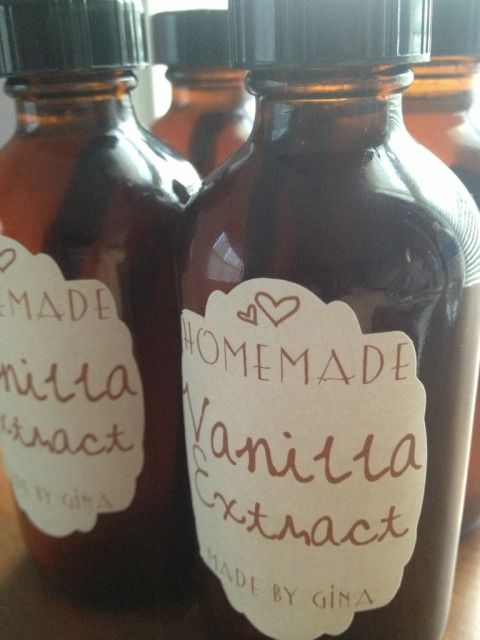
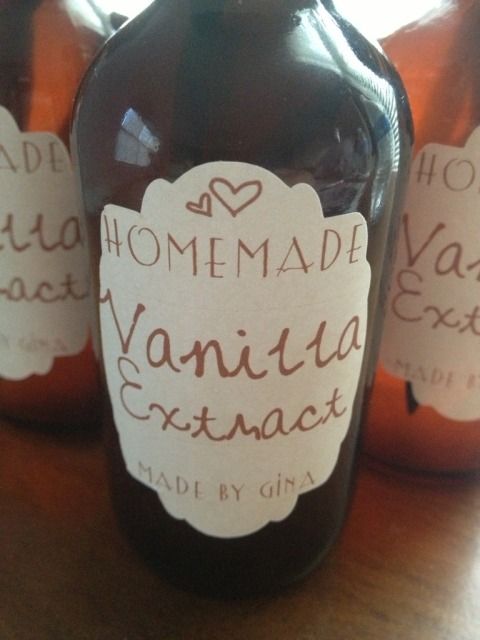
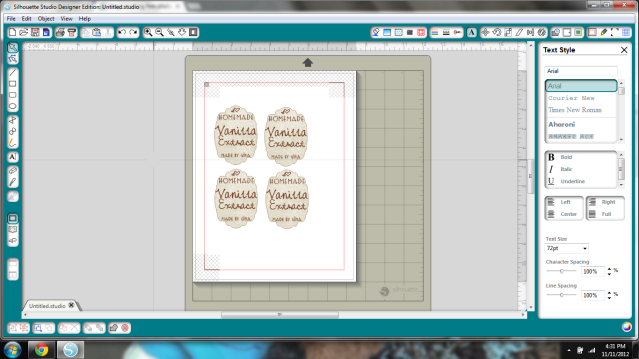
Using the Silhouette Studio Print & Cut feature, I brought up a shape that I thought would be pretty and stretched it so it was more oval shapes.  The background pattern is Autumn Paper Damask.  The text is just brown.  The heart shapes are WingDings from a MTF font called "Heart Doodle." "Vanilla Extract" is typed in MTF Mikayla.   "Homemade" and "Made by Gina" are typed in Lemon Chicken.


Once I liked the label, I kept duplicating it til I had all I needed.  I then resized it based on a quick glace at a wooden ruler on the bottles.  I swear, creativity is half inspiration, half perspiration, half keeping your fingers crossed that you aren't wasting $2 in paper because you can't be arsed to take calibrated measurements with curved tools and markings.  Print, Cameo Cut, & adhere vinyl to bottle...perfection!


The only thing missing now is shrink bands.  I'm not ready to seal it up just yet.  I've been keeping an eye on the color and I'm also considering putting fresh beans in the bottles with a note about topping off with vodka before I give them away.


I swear I can smell fresh-baked chocolate cookies when I look at these.


Notes- I decanted from the stainless steel thermos into these bottles a few weeks ago.  The thermos had 4 beans, one bean/4oz or 1/2 cup.  These are 4oz bottles and each have 1 bean inside now.  Industry standard is 0.8 beans/cup so you can reasonably assume that store vanilla has less than half of a bean in 4oz.  Sounds kinda bland.

Showing posts with label studio. Show all posts

10.31.2013

Happy Halloween! DIY Decor

Happy Halloween!  Free time has been scarce around here.  I can't believe my little one is almost two months old already!  I love Halloween so did take the time to set up this little decorated desk area in the kitchen.

Most of this is DIY- one painted pumpkin and 8 files from the Silhouette online store!

Top shelf- garland from Michael's.  Pumpkin from Michael's, glittered by me.

Middle shelf- tombstone and spooky tree frame from Silhouette store.  Glass pumpkin from Walmart and filled with a cheap tinsel Halloween garland.  Bat Wing Juice and Poison cartons from Silhouette store.

Bottom shelf- BOO boxes, fruit basket, 3D pumpkins, and paper flowers from Silhouette store.  Birdhouse is from Tuesday Morning.  Terra Cotta pumpkin is from HomeGoods.

Special mention- the weird looking pumpkin thing with green vines in that little nook shelf was made by me in elementary school!  The skull mug in the nook is from the dollar store.


The 3D pumpkins in the fruit crate are probably my favorite, though the Bat Wing and Poison cartons have inspired me to make a whole apothecary shelf for next year- maybe the mantle?  Eyeballs in mason jars and lots of creepy files from the Silhouette store should make it easy!

8.04.2013

Print and Cut Magnets with the Silhouette Cameo

My son has a Mickey Mouse magnet board and randomly asked me (after we'd been to the mall and several other stores today) for Cars and Turbo magnets to go on it as well.  Luckily I found a pack of Avery magnet paper that I bought who knows when, and voila!

Well it wasn't quite "voila."  I had to find all the images (and nice clean ones without tons of background to mess up the trace), save them, open them one by one, trace them, and get them arranged before printing and cutting.  All the images were hunted down via Google Images.

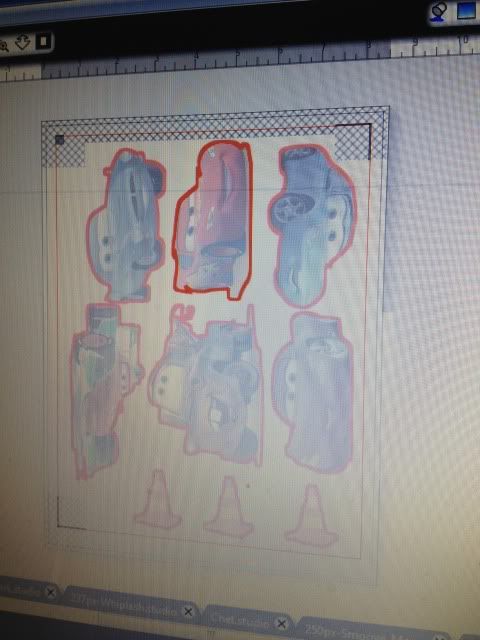
Once open, you have to trace them to get cut lines.  I normally make the image really large, erase anything I don't want (like a logo in the corner), and trace it by turning off High Pass Filter, bumping up the threshold into the 90s, and then hitting "Trace Outer Edge."  Below you can see my settings to trace Francesco.  By hitting Trace Outer Edge it only traces the outer edge as stated, so that white area inside his tail will NOT cut.  If you want to cut out the details like that, hit Trace, not Trace Outer Edge.  I figured that the tail probably wouldn't be that sturdy and this is for a 3 year old so I stuck with the edge.


Arrange everything on your paper- letter size as the magnet paper is, as registration marks on.  I then hit the cut line window just to double check that all the cut lines are turned on.


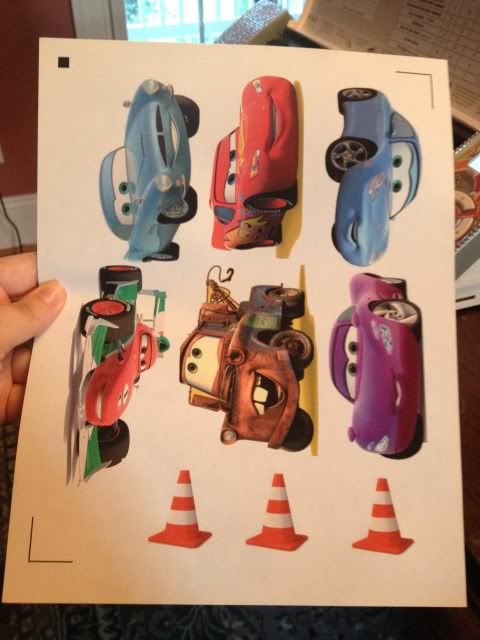
And print!  I set my Preferences to "Best."  The instructions for magnet paper say inkjet printers only.


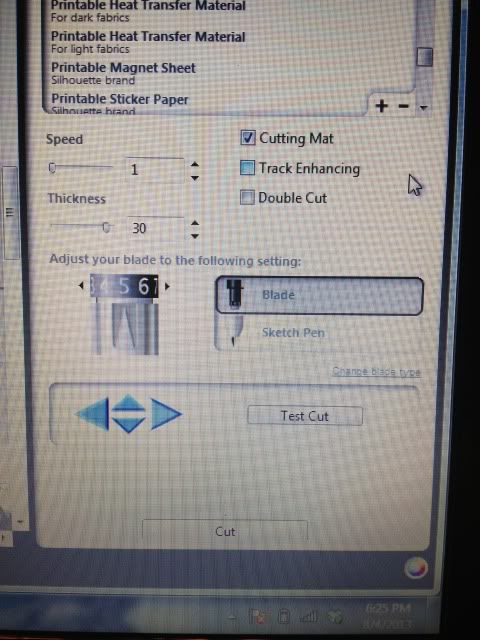
Now on to cutting.  After scanning registration marks, I set it to the preset magnet paper settings, but I bump up the blade from 4 to 5.


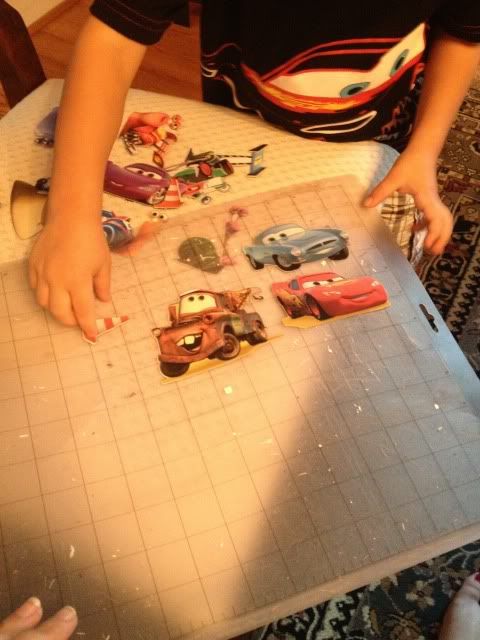
After cutting...well, this is the best photo I could get!  My son was so excited that I made something just for him and he couldn't wait to take them off the mat- all by himself of course.


Now he's occupied playing again.  Score!

7.17.2013

Using Printable HTV (heat transfer vinyl) for dark colors with the Silhouette Cameo

I loooove to make shirts using HTV (heat transfer vinyl) and my favorite brand is Siser Easyweed.  My least favorite is the Silhouette brand...it's awful.  Anyway, as easy as it is to layer Siser Easyweed, sometimes you have projects that just don't work with the limited colors offered, or maybe you want a photo to be ironed on your shirt, or something.  That's where printable HTV comes in.  I have used and liked both Jolee's and Transfermations brands, and been less impressed with the Silhouette brand, though it's not terrible.  As a general rule I like to use the ones made for dark colors even on light colored clothing as it's way more vivid and just looks better in my opinion.

For this shirt I used Transfermations for dark colors.  I either got it at Michael's, Staples, or Walmat, not 100% positive on which.

Normally when you use HTV and even HTV for light colors, you need to mirror the image before you cut.  You do not need to mirror the image with HTV for dark colors.  I'd always read your instructions to be sure but I've used several brands and none require this.

First, get your image all ready in Silhouette Studio.  Get your cut lines situated- if you layered some elements you may need to highlight them and hit "Cut Edge" or whatever works for you.  Do not mirror it!  Turn on registration marks and print it.  I use "Best" settings for quality.  You have to use an Inkjet printer.  If you've found a brand that works with a laser printer, please share!  I've never seen one.

Once it's printed, stick it on your mat and load it into your Cameo.  Have your machine scan the registration marks and get your cut settings ready.

Here's a snap of what settings I use.  I set it to "Flocked HTV" and then change the blade to 5.  That's why it says Custom Media.  ***Note- I get a lot of use out of my blades, but when I switched to a new one, I only had to use HTV Smooth settings, blade on 1!  Big difference!****


Have your machine cut.  You're basically doing Print & Cut, easy, right?  I love Print & Cut and it's the biggest reason I bought my Cameo.

Once your design is cut, you then remove it from it's backing paper.  You'll see that this stuff feels more like Siser Easyweed and not regular printable HTV.

Here's me just peeling up the corner and removing all the excess white- the backing paper does not cut, see it?  I did rip it a little when grabbing that corner but it's almost like the carrier sheet of Siser Easyweed (except not used as such- just that you don't cut that paper, just your HTV.  A kiss cut.  Anyway..)


Aaand here's me peeling my design off the backing paper.  This is the one thing I don't like.  Unlike Siser Easyweed which is on a carrier sheet, I have to line up all these elements by hand separately on the t-shirt and yeah, they end up off center sometimes.  I'm working on that.  Practice makes perfect!

See how it weeds itself in between letters and stuff?  It's pretty nifty.

Your next step is to line everything up on your shirt (iron it first, but let it cool before you start re-arranging stuff on it) and when it's to your liking, grab a sheet of parchment paper.  I've always had 1-2 sheets included in whatever pack of dark color printable HTV I buy, and it lasts for several sheets.

Place that over your design- careful, don't jostle anything- and iron.  My iron goes from 1-6 so I set it on 6, no steam, and press really hard for 20 seconds.  Then I pick it up, move it, press again, until I've done the whole design.  The instructions do say not to drag your iron but to pick up and move it.


When I'm done I just lift the parchment paper- unlike the Siser Easyweed carrier sheets, it's not going to be sticky to your shirt or anything- and voila, shirt!

This IS a classic example of me arranging things crooked and/or off center, but on a wiggly 3 year old, it's not very noticeable :) With Siser Easyweed and it's sticky sheets I normally line everything up on the floor and then step back and look at it, and then I can just pick up the shirt and move it to the ironing board, but you can't do that with this stuff- no carrier sheet.  My only pet peeve.

You'll also probably notice that the fishing line is missing some pieces- in removing the design from the backing that part was just too thin and I went too fast, but oh well.  It is what it is.  This is a tiny shirt for a tiny little toddler.


I always wash inside out, and never iron on the design itself, but other than that, I've found this stuff to be very durable!


1.05.2013

Vinyl Tumbler Decoration

Yesterday my Cameo went crazy.

It started randomly cutting dots and dashes and despite all my best troubleshooting efforts, it won't stop unless I disconnect it from the computer.  This makes crafting difficult but not impossible.

The Cameo has a "Cut from SD card" feature and I learned how to use it (though I hope I won't have to very often- it's a longer process).

First, you have to save every part of your design to the card separately unless you want more than one piece in the same color/material (in my case, anything orange was one file, turquoise another, & white was a third file).  Just put what you want on your virtual mat and hit "Save to SD card."  Name it something obvious so you can find it.

Now, go ahead and put your first material on your mat and load it.  Then pop in the SD card.  You'll see that you have to hit "Pause" for the SD card settings.


 Go to "Select File" and hit enter (eek, ignore my nail polish!!!)


Scroll down until you see what you want to cut and hit "Enter" again.  The photo is NOT the image...at all.  This particular file was the small orange border piece in the middle of the turquoise part.


Now you'll see your file name where it previously said NONE.  Scroll down to Cut and hit "Enter."


And it will cut!  Then you will just find your other files one by one as you reload your mat.

Tedious, but it works in a pinch.

I'll be changing the X.  The flourish looked better on screen.

This file is actually a coffee cup wrap and can be found in the Silhouette online store


12.05.2012

Cardstock Christmas Village

First off I apologize for the silence lately.  In 2008 I received my Bachelors degree, got married a week later, and haven't really worked since.  I decided to go back to school for a different degree and started earlier this week.  I love school but I forgot how much homework is involved!  In fact, I have 2 more case briefs to read for this week, so I have to make this quick.


This took me 3 days since that pesky school work kept getting in the way.  I bet it would have taken me even longer had I not be introduced to the wonder that is glue dots.  I wish I had tried them sooner!


I believe these three are all different designers.  The pinkish house is a simple print and cut, as is the small gingerbread house (although the cut/fold lines of that house are a little off...).  The large gingerbread house was cut from card stock but the details were done with print & cut.


If you didn't print the holiday details and printed the roof out of something (anything) else this could easily work as just a simple little house, not a gingerbread house!


These three are all from the same designer and I wish they would release more!  I added the wreaths for a holiday touch.  The window frames, brown detailing on the cottage, etc, are all card stock are the walls & roofs.  
The church's white & black parts are card stock and then I used a holiday pattern and print & cut to give the illusion that it was a holiday stained glass within the window frames.


Normally 3D projects drive me nuts, but I really think the glue dots made a BIG difference.  Huge.  I'll never go back.  I can't wait for more 3D houses to be released in the Silhouette Store!

11.14.2012

DIY Harvest Banner with the Silhouette Cameo (Pic heavy!!!)

I have seen lots of fall decor around lately.  I've even seen files to buy all or parts of a banner both in the Silhouette Online Store & for sale around the net by various file makers.

The thing is, I like being creative.  I wish I could freehand draw in Silhouette Studio; that would make it perfect.  I *almost* bought a set of files on the Sil Store for a banner, but each letter in "Harvest" was a different 99c download, and I couldn't find the file for the H!  So, DIY it was!  I managed to make this ALL with shapes I already owned.

I started with this shape.  I used it to make a tiny print & cut banner that I made to go with a scarecrow in a plant.


I deleted the rope shape and all of the triangles except for the middle one.

I wanted it to be a large banner so I stretched this as large as would fit on the 12x12" mat.


I then created an Internal Offset and increased the offset distance until I liked how it looked.


Next I added two small circles (I made one and duplicated it so they'd be the same, actually) to string my banner up.  Twine in mind at this point.


Now- remove your inner pieces, and group the holes & outer triangle.  Save it, as you'll need to cut it for each letter.  I'll need 7 for Harvest.  Set it aside; you don't need it any more.

Take your inner (the Internal offset) piece, type your first letter, find your font, resize, and stick an image you like on the bottom (if you want).  I had a group of leaves, a pumpkin card, a gourd-type sketch, a turkey, and I took the hat from the Scarecrow shape which I stretched taller and added 2 squares for a buckle- instant pilgrim hat!


I just kept duplicating the Internal Offset triangle and resizing shapes that I thought would look good, and when done, I lined them all up and zoomed out so I could get a look at it.  I didn't duplicate the outer triangle 6x because I just used my imagination.


It's kind of hard to see from that pic but I was just getting a general idea of how it would look in case I needed to tweak it.

I then went to Michael's, since I have a library of vinyl but no cardstock, and just kind of visualized it with the current fall decor on the mantle.  This orange background flag is GORGEOUS.  I wish I could photograph it or describe it accurately.  It's a deep orange, but iridescent, almost like a good expensive fabric that shimmers and takes on a life of it's own when you move.  Anyway, total for 14 sheets of paper was $8.86.

Cut, glue, string, & reveal!

My house has toys on the floor.  I have a toddler.  Also, I love the food network. 

I used brown string that I got at Michael's in a 3-pack of brown shades for about $2.  I strung it so that the string was behind the triangles from hole to hole rather than in front.  Oh, and the length?  I taped it to one end of the mantle, strung the flags on, and hoped like heck that the flags weren't going to be too long.  I then pulled it up, taped the other end, and slid the letters back and forth until I liked the spacing.

I have to say, I really like how it came out!


I used 3M Spray Adhesive.  I actually really dislike working with glue.  I find spray adhesive the easiest to use, although I have to keep washing my hands, but it does give it a nice and fast even coat.  It's not completely tacky for the first minute or so, making it re-position-able (at first).  Little pieces, like the turkey face, hat buckle, or inner letter pieces I used a glue stick.


I had a "handy helper" (Oh, Mickey Mouse Clubhouse, how you've implanted into our brains after nearly 3 years) for most of this too!


11.12.2012

Making Vanilla Extract, Day 59

As you saw here, I am making a bunch of homemade vanilla extract as add-on holiday gifts (since I'm giving a lot of bakeware, particularly Pampered Chef stoneware- it's good to have a mother-in-law who is a rep!) and as you saw here, it starts to acquire the vanilla goodness very quickly!

Well, today is Day 59 (ish) of this project.  I started late on September 13th and today is November 12th, and 30 Days Has September and all that, anyway, I didn't want to count off days one by one on a calender soooooo here we are.

A few weeks ago I ordered bottles & shrink bands.  I thought 4oz was a nice size, not dinky like the teeeeny $11 supermarket bottle, but not a giant bottle of basically Vodka, either.  I bought amber bottles as sunlight + extracts = no no according to my research.  I also bought a set of shrink bands, which I had to order in packs of 250, so if any of you out there in blogland want some I'll throw a 45c stamp on an envelope and send them your way.  Just let me know!

http://www.specialtybottle.com/amberbostonroundglassbottle4ozwstdcap.aspx

The shrink wraps are made to fit certain bottles, not one size fits all, but you can find the info here on the ones that I bought.  You stick them around your lid and zap them with your hair dryer to seal your bottle up. Nifty.  And cheap.  Like I said, I have 250!


At this point, all I needed was labels.  Originally, I was looking for printable sticker paper, and I wanted an uncut sheet of it, not broken up into shipping labels or whatever.  This wasn't easy to find and when I did it was $34.99 for 10 sheets at Staples!  No thank you!

On an unrelated note, I've been ordering vinyl like a nutcase for crafting and have been playing with printable vinyl as well.  At $1.96/sheet, it's about 1/3 cheaper for 10 sheets than the sticker paper would have been, I have lots of other projects to use it for, and I don't have to buy 10 sheets if I don't want to.  Plus, when the ink dries, this vinyl is 100% waterproof.  Win.

Using the Silhouette Studio Print & Cut feature, I brought up a shape that I thought would be pretty and stretched it so it was more oval shapes.  The background pattern is Autumn Paper Damask.  The text is just brown.  The heart shapes are WingDings from a MTF font called "Heart Doodle." "Vanilla Extract" is typed in MTF Mikayla.   "Homemade" and "Made by Gina" are typed in Lemon Chicken.


Once I liked the label, I kept duplicating it til I had all I needed.  I then resized it based on a quick glace at a wooden ruler on the bottles.  I swear, creativity is half inspiration, half perspiration, half keeping your fingers crossed that you aren't wasting $2 in paper because you can't be arsed to take calibrated measurements with curved tools and markings.  Print, Cameo Cut, & adhere vinyl to bottle...perfection!


The only thing missing now is shrink bands.  I'm not ready to seal it up just yet.  I've been keeping an eye on the color and I'm also considering putting fresh beans in the bottles with a note about topping off with vodka before I give them away.


I swear I can smell fresh-baked chocolate cookies when I look at these.


Notes- I decanted from the stainless steel thermos into these bottles a few weeks ago.  The thermos had 4 beans, one bean/4oz or 1/2 cup.  These are 4oz bottles and each have 1 bean inside now.  Industry standard is 0.8 beans/cup so you can reasonably assume that store vanilla has less than half of a bean in 4oz.  Sounds kinda bland.