Showing posts with label Card. Show all posts

4.24.2013

Happy spring & a tire swing

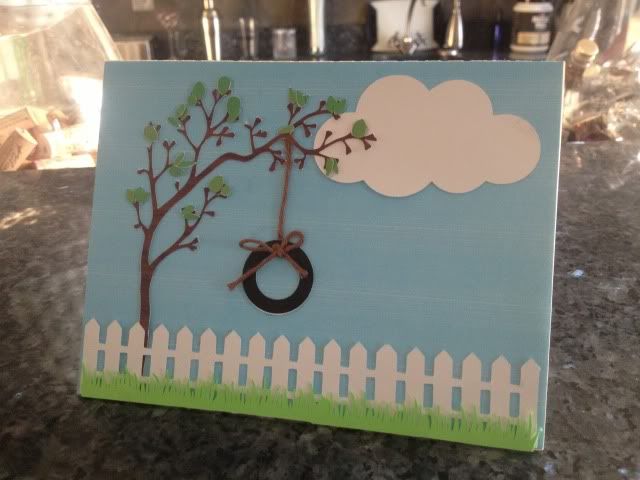
I have barely looked at my Cameo since I found out I was pregnant in January.  I've played with the software, dreamed of what I'm going to make for the holidays in our new house, thought about what I can make for the new baby to wear, etc...very little actual crafting however.  That will probably change for my baby shower next month, but for now, I just made this cute little card.

Every shape is in the Silhouette store and the only colored paper I used was the green grass; the rest is all print & cut, even the background.  I needed a birthday card for someone and liked the idea of a white picket fence, but not a house since it wasn't for a housewarming.  I had the string laying around and even though I cut cardstock "rope" I changed my mind and I like the string much better :)

This is my favorite part of owning a Cameo over a Cricut (which I still have..)- I can browse the online store, buy a single shape that I like, mix & match all of my shapes, resize, color, edit, and make a digital template, then print it, cut it, and put it together, without getting up or going to the store!


Shape links:

The card itself is this card's shape minus all embellishments, and then I just made a square the same size as the front half and print & cut it blue

I placed the leaves one by one by first putting small glue dots all over where I wanted the leaves, and then using the Pick Me Up tool, placed them one by one easily & quickly over the glue dots.

The birthday girl liked it so much that she wants me to make her 24 random cards, blank inside, and pay me of course :) Guess I'll be busy on the Cameo after all!

1.05.2013

Vinyl Tumbler Decoration

Yesterday my Cameo went crazy.

It started randomly cutting dots and dashes and despite all my best troubleshooting efforts, it won't stop unless I disconnect it from the computer.  This makes crafting difficult but not impossible.

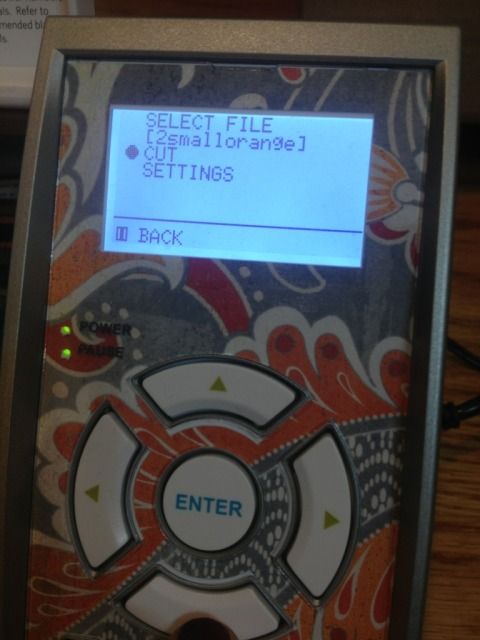
The Cameo has a "Cut from SD card" feature and I learned how to use it (though I hope I won't have to very often- it's a longer process).

First, you have to save every part of your design to the card separately unless you want more than one piece in the same color/material (in my case, anything orange was one file, turquoise another, & white was a third file).  Just put what you want on your virtual mat and hit "Save to SD card."  Name it something obvious so you can find it.

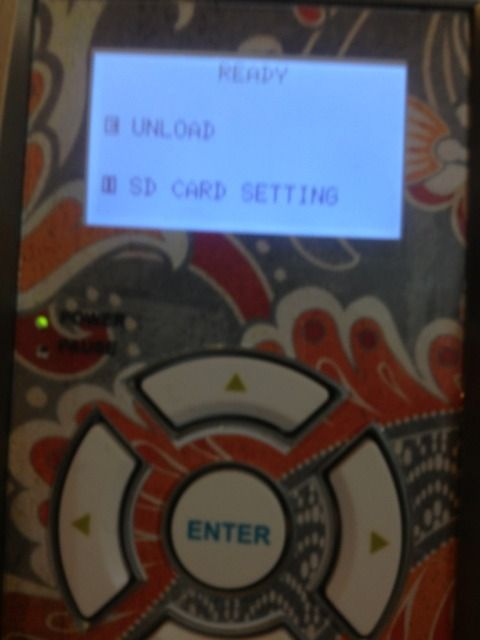
Now, go ahead and put your first material on your mat and load it.  Then pop in the SD card.  You'll see that you have to hit "Pause" for the SD card settings.


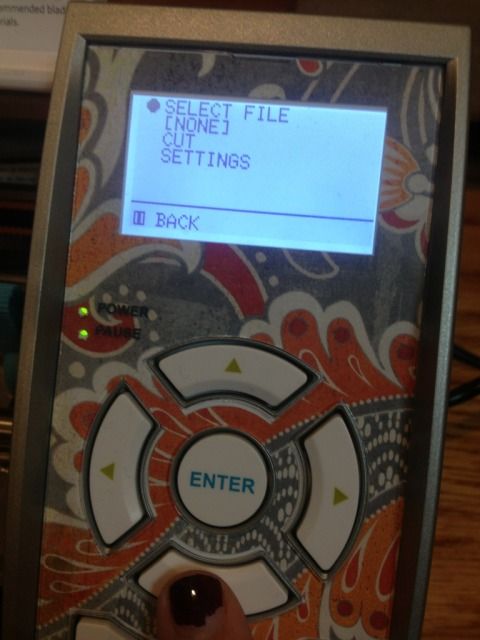
 Go to "Select File" and hit enter (eek, ignore my nail polish!!!)


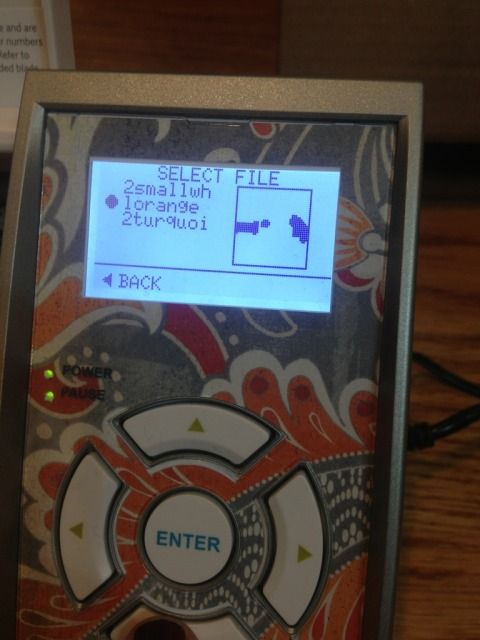
Scroll down until you see what you want to cut and hit "Enter" again.  The photo is NOT the image...at all.  This particular file was the small orange border piece in the middle of the turquoise part.


Now you'll see your file name where it previously said NONE.  Scroll down to Cut and hit "Enter."


And it will cut!  Then you will just find your other files one by one as you reload your mat.

Tedious, but it works in a pinch.

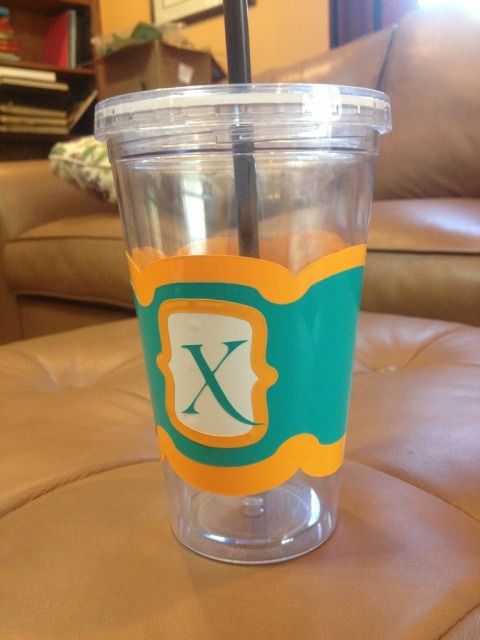
I'll be changing the X.  The flourish looked better on screen.

This file is actually a coffee cup wrap and can be found in the Silhouette online store


10.29.2012

Silhouette Sketch Card Challenge 10.25.2012

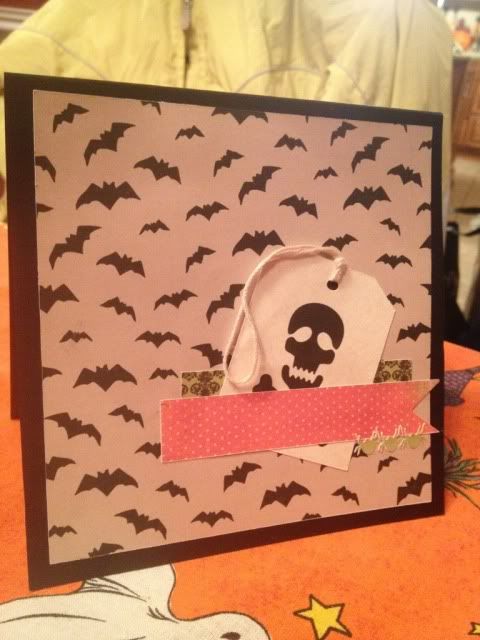
I am not sure I've ever entered a contest with my craft stuff (does Girl Scout Camp circa mid-1990s count?) but when I saw the Silhouette Sketch Card Challenge I decided to give it a try.  I wanted to make a card to send to someone doing me a very special favor for my son, so by the time you read this the card will be off to a good home :)
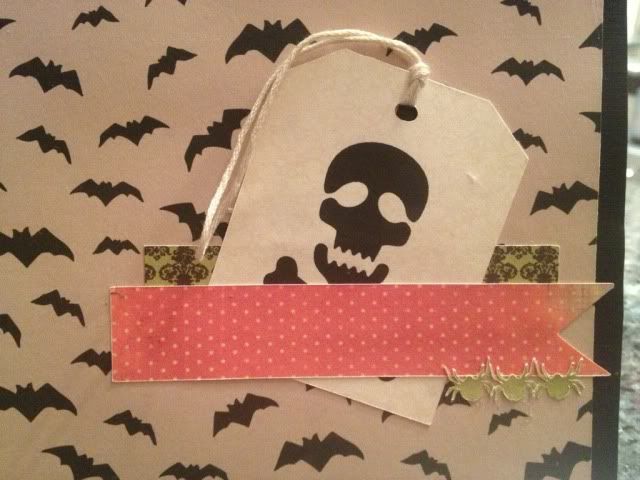
The colors are not photographing well, especially the orange.  See close up below for a better idea!

The bats are tan and black.  The damask is dark green and black.  The polka dotted strip is orange and white.  I'd take better pics in natural light, except Frankenstorm Sandy has pretty much guaranteed no sunlight for today.

One thing I love about the Cameo is the Print & Cut feature.  I have never been happy to be limited by cartridges, and while I branched out with 3rd party programs on my Cricut, I still needed things.  With Print & Cut, all I need is 8.5x11" card stock.  You can get a pack of 100 sheets at Michael's for under $4 when you coupon it.  I DID have black card stock and some tan thread laying around from previous crafts, but everything else is all Print and Cut.

Card- black card stock, Michael's
Bat background- Silhouette Store
Tag's Background- Silhouette Store
Green Background (back strip)- Silhouette Store
Orange Background (front strip)- Silhouette Store
Tiny Spiders (ungrouped & multiplied)- Silhouette Store
Skull Shape (ungrouped)- Silhouette Store
Tag Shape- Silhouette Store (I couldn't find this one; I think it was in the freebie start-up download pack)
Tan Thread- Michael's

See?  I only needed to have 3 items on hand (black card stock, white printable card stock, and thread) and I made this adorable embellished card!  I decided to go with a Halloween card because I love this holiday (a massive decorating post is coming up on Halloween itself, but you can look back for the month's posts and see for yourself!) and it seems like every other crafter on the planet has jumped ahead to Christmas, along with every store I go to, and even some Sirius radio stations!  Slow down people, we still have allll of November to decorate for!

On to the card itself!
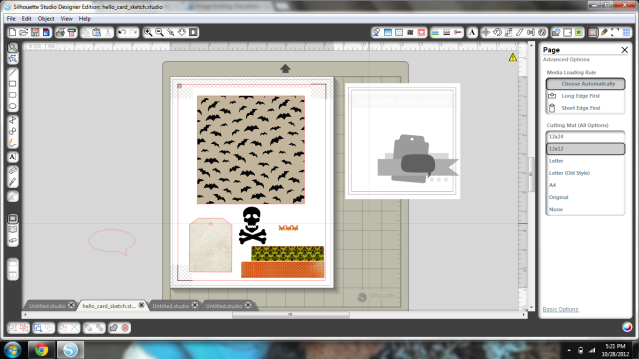
1 page!


I eliminated the word bubble because I just thought it made the card too busy.  I tried "Happy Halloween," "BOO!" and "SPooKy!" in a creepy Halloween-y font but in the end I think it was just over the top.

The 3 spiders scared me- I was afraid their legs would rip- they're not perfect, but you can't really tell.

I did cut the orange strip so it would have a banner-like edge as the sketch did.  For the Print & Cut I just drew 2 rectangles with the rectangle tool and filled them in.  What really helped also was using "Bring to Front" "Send to Back" etc. to help me line everything up digitally before I separated it again and printed it out.


I love Print & Cut because I did not have to do any special shopping to make this.  I just got inspired by the challenge, opened up Studio, and browsed the store til I had what I needed.  Most of what I used I happen to already have!

Thanks for looking!


Showing posts with label Card. Show all posts

4.24.2013

Happy spring & a tire swing

I have barely looked at my Cameo since I found out I was pregnant in January.  I've played with the software, dreamed of what I'm going to make for the holidays in our new house, thought about what I can make for the new baby to wear, etc...very little actual crafting however.  That will probably change for my baby shower next month, but for now, I just made this cute little card.

Every shape is in the Silhouette store and the only colored paper I used was the green grass; the rest is all print & cut, even the background.  I needed a birthday card for someone and liked the idea of a white picket fence, but not a house since it wasn't for a housewarming.  I had the string laying around and even though I cut cardstock "rope" I changed my mind and I like the string much better :)

This is my favorite part of owning a Cameo over a Cricut (which I still have..)- I can browse the online store, buy a single shape that I like, mix & match all of my shapes, resize, color, edit, and make a digital template, then print it, cut it, and put it together, without getting up or going to the store!


Shape links:

The card itself is this card's shape minus all embellishments, and then I just made a square the same size as the front half and print & cut it blue

I placed the leaves one by one by first putting small glue dots all over where I wanted the leaves, and then using the Pick Me Up tool, placed them one by one easily & quickly over the glue dots.

The birthday girl liked it so much that she wants me to make her 24 random cards, blank inside, and pay me of course :) Guess I'll be busy on the Cameo after all!

1.05.2013

Vinyl Tumbler Decoration

Yesterday my Cameo went crazy.

It started randomly cutting dots and dashes and despite all my best troubleshooting efforts, it won't stop unless I disconnect it from the computer.  This makes crafting difficult but not impossible.

The Cameo has a "Cut from SD card" feature and I learned how to use it (though I hope I won't have to very often- it's a longer process).

First, you have to save every part of your design to the card separately unless you want more than one piece in the same color/material (in my case, anything orange was one file, turquoise another, & white was a third file).  Just put what you want on your virtual mat and hit "Save to SD card."  Name it something obvious so you can find it.

Now, go ahead and put your first material on your mat and load it.  Then pop in the SD card.  You'll see that you have to hit "Pause" for the SD card settings.


 Go to "Select File" and hit enter (eek, ignore my nail polish!!!)


Scroll down until you see what you want to cut and hit "Enter" again.  The photo is NOT the image...at all.  This particular file was the small orange border piece in the middle of the turquoise part.


Now you'll see your file name where it previously said NONE.  Scroll down to Cut and hit "Enter."


And it will cut!  Then you will just find your other files one by one as you reload your mat.

Tedious, but it works in a pinch.

I'll be changing the X.  The flourish looked better on screen.

This file is actually a coffee cup wrap and can be found in the Silhouette online store


10.29.2012

Silhouette Sketch Card Challenge 10.25.2012

I am not sure I've ever entered a contest with my craft stuff (does Girl Scout Camp circa mid-1990s count?) but when I saw the Silhouette Sketch Card Challenge I decided to give it a try.  I wanted to make a card to send to someone doing me a very special favor for my son, so by the time you read this the card will be off to a good home :)

The colors are not photographing well, especially the orange.  See close up below for a better idea!

The bats are tan and black.  The damask is dark green and black.  The polka dotted strip is orange and white.  I'd take better pics in natural light, except Frankenstorm Sandy has pretty much guaranteed no sunlight for today.

One thing I love about the Cameo is the Print & Cut feature.  I have never been happy to be limited by cartridges, and while I branched out with 3rd party programs on my Cricut, I still needed things.  With Print & Cut, all I need is 8.5x11" card stock.  You can get a pack of 100 sheets at Michael's for under $4 when you coupon it.  I DID have black card stock and some tan thread laying around from previous crafts, but everything else is all Print and Cut.

Card- black card stock, Michael's
Bat background- Silhouette Store
Tag's Background- Silhouette Store
Green Background (back strip)- Silhouette Store
Orange Background (front strip)- Silhouette Store
Tiny Spiders (ungrouped & multiplied)- Silhouette Store
Skull Shape (ungrouped)- Silhouette Store
Tag Shape- Silhouette Store (I couldn't find this one; I think it was in the freebie start-up download pack)
Tan Thread- Michael's

See?  I only needed to have 3 items on hand (black card stock, white printable card stock, and thread) and I made this adorable embellished card!  I decided to go with a Halloween card because I love this holiday (a massive decorating post is coming up on Halloween itself, but you can look back for the month's posts and see for yourself!) and it seems like every other crafter on the planet has jumped ahead to Christmas, along with every store I go to, and even some Sirius radio stations!  Slow down people, we still have allll of November to decorate for!

On to the card itself!

1 page!


I eliminated the word bubble because I just thought it made the card too busy.  I tried "Happy Halloween," "BOO!" and "SPooKy!" in a creepy Halloween-y font but in the end I think it was just over the top.

The 3 spiders scared me- I was afraid their legs would rip- they're not perfect, but you can't really tell.

I did cut the orange strip so it would have a banner-like edge as the sketch did.  For the Print & Cut I just drew 2 rectangles with the rectangle tool and filled them in.  What really helped also was using "Bring to Front" "Send to Back" etc. to help me line everything up digitally before I separated it again and printed it out.


I love Print & Cut because I did not have to do any special shopping to make this.  I just got inspired by the challenge, opened up Studio, and browsed the store til I had what I needed.  Most of what I used I happen to already have!

Thanks for looking!