Showing posts with label cameo. Show all posts

8.10.2015

League of Legends / World of Warcraft Christmas Stocking Custom

It's been forever since I posted and quite awhile since Christmas, obviously.  Regardless, I wanted to share this adorable stocking I made for my boyfriend.  He came to my place for Christmas and I didn't want him to feel left out of the stocking part of things, so I made this for him and filled it up.

I used to love Warcraft and he humored me by playing it a bit with me.  He loves League of Legends so I learned how to play for him.  I decided to combine both and make something cute and personal.

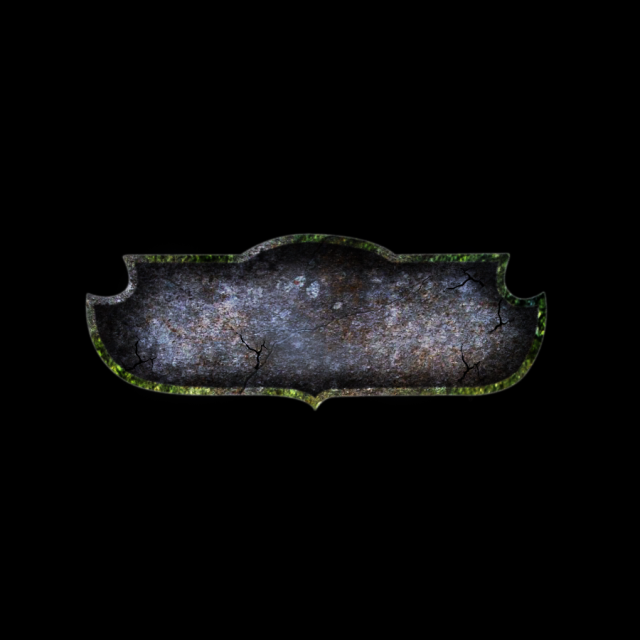
First, I took the World of Warcraft logo, and removed the words, so I was left with the overall shape and texture:


Next, I traced that with my Silhouette Cameo so it'd be a separate cut file.

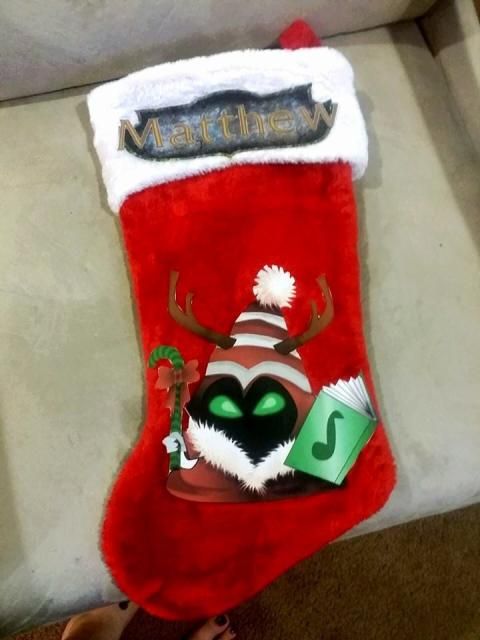
I wrote his name with the Warcraft-style font found here: http://www.dafont.com/lifecraft.font and added some contrasting border to the letters.

The next thing I did was start looking around for holiday-themed League of Legends images.  This wasn't hard, as they even put earmuffs on one of the miniboss style mobs during the game that time of year.

One adorable Christmas-fied minion later, I had everything in my Silhouette Studio program and traced for cutting.  First was obviously printing- I used Avery Inkject Paper for Dark Colors as this type of paper is basically fabric that you print on, cut, and iron on.  If you use paper for light colors, you're basically just transferring ink, so it doesn't work on dark colors and not very well on textures either.  This stocking is red & fuzzy, so dark it is.  Everything cut without a hitch in the Cameo- settings were for HTV but I ramped the blade up a notch.

I don't have a heat press, so I used an iron on the highest settings with a piece of teflon in between the transfer and the iron.  It took a bit of time and pressure due to the texture of the iron, but I think ti was completely worth the effort:


My boyfriend told me that he shared it with some online gaming groups and it was pretty well received, so that made me happy :)  It was his idea to post it here too, so hopefully I'll be around and more active again!  Can't wait to see the new machines Silhouette has coming out next month!


10.31.2013

Happy Halloween! DIY Decor

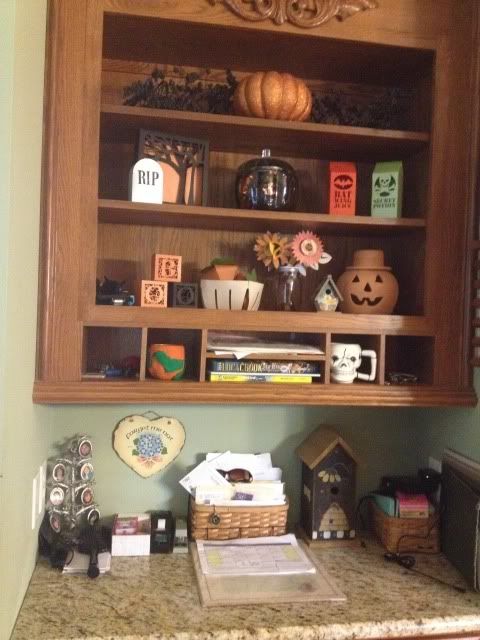
Happy Halloween!  Free time has been scarce around here.  I can't believe my little one is almost two months old already!  I love Halloween so did take the time to set up this little decorated desk area in the kitchen.

Most of this is DIY- one painted pumpkin and 8 files from the Silhouette online store!

Top shelf- garland from Michael's.  Pumpkin from Michael's, glittered by me.

Middle shelf- tombstone and spooky tree frame from Silhouette store.  Glass pumpkin from Walmart and filled with a cheap tinsel Halloween garland.  Bat Wing Juice and Poison cartons from Silhouette store.

Bottom shelf- BOO boxes, fruit basket, 3D pumpkins, and paper flowers from Silhouette store.  Birdhouse is from Tuesday Morning.  Terra Cotta pumpkin is from HomeGoods.

Special mention- the weird looking pumpkin thing with green vines in that little nook shelf was made by me in elementary school!  The skull mug in the nook is from the dollar store.


The 3D pumpkins in the fruit crate are probably my favorite, though the Bat Wing and Poison cartons have inspired me to make a whole apothecary shelf for next year- maybe the mantle?  Eyeballs in mason jars and lots of creepy files from the Silhouette store should make it easy!

9.19.2013

Roses and babies!

Life has been crazy busy!  Wanna know why?  :)

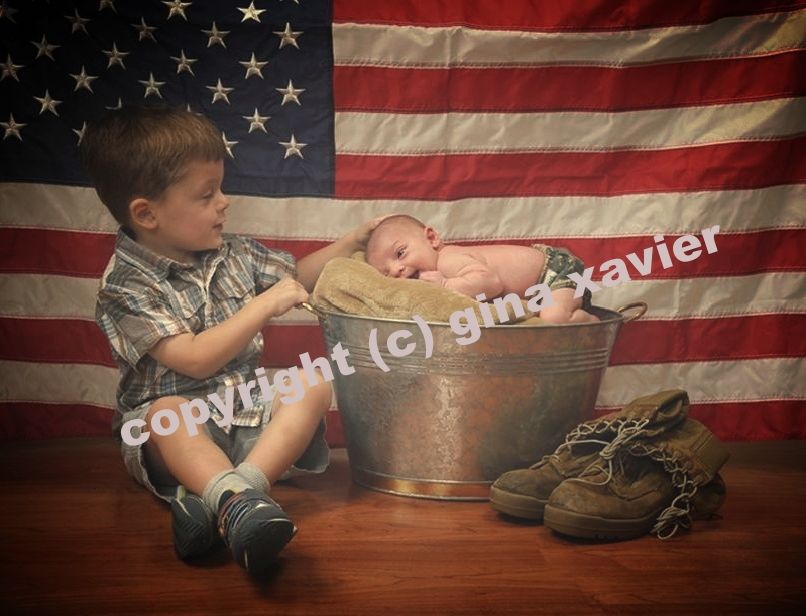
Baby #2 was born on September 8th :) It's been so much fun having a little guy around again, though the lack of sleep and the whole "breast feeding means you're kind of tethered to the baby" feeding thing takes some getting used to again.

Sorry for the giant watermark- sharing pics of my children online makes me nervous, to be honest.

He actually came a smidge early, so this project isn't 100% finished but I don't see it getting finished any time soon.  All I really want to do is add more of the same thing, so simple enough.

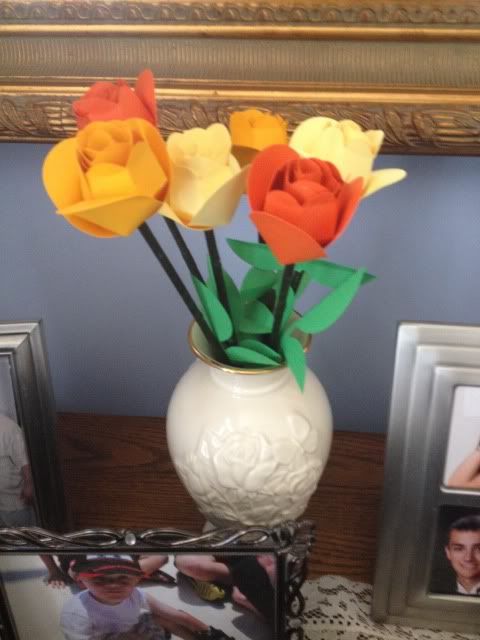
The roses are from the Mom's Garden Gifts kit from svgcuts.com.  Their files are very intimidating when downloaded and I had to watch the video several times, but it's fairly easy to do.  I bought 3/16" dowel rods at Michael's for like 30 cents each and had my dad cut them into thirds, and then wrapped them in floral tape.  Pretty easy.

I used normal school glue for the roses.  My beloved glue dots ARE easier but they add a bit of dimension where placed which wasn't a good fit for this project.

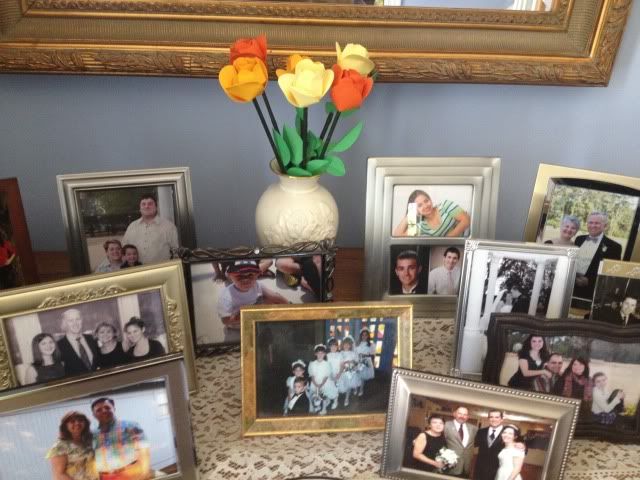
Anyway, it used to be a vase of old musty silk flowers, and I decided to do a fall themed bouquet instead. 


It makes me smile when I walk past the table- they are very realistic looking for paper flowers, and super cute!

Back to my new baby now :)


8.22.2013

Cards with print and cut, mod podge, embossing, and more!

I've been having a little fun doing something I don't normally do, which is make cards.  Normally I feel like cards are kind of a waste of paper.  People rarely save them and paper = trees, ya know?

Regardless, I did want to make a few cards recently, and here are the results.

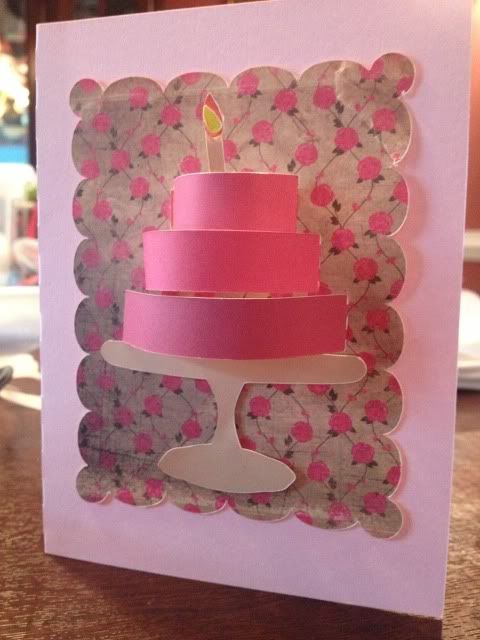
The first one was for my mother in law's birthday.  This card was made with print and cut, my favorite feature of the Silhouette Cameo.  The card itself is pale pink cardstock but everything else is print and cut.  I filled the background shape with the pretty rose pattern, use the color matching dropper tool to pick out pinks from the roses and make a gradient of colors for the cake, and filled in the cake stand and candle parts with solid colors.  Print, cut, glue, voila!


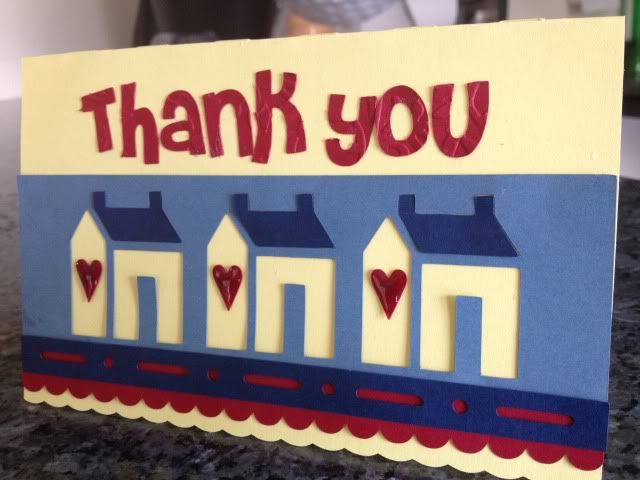
The second card I made is for our awesome, patient, and hard working Realtor.  This card is actually a "Welcome to the Neighborhood" card in the Silhouette store but I just deleted the text and added "Thank you" instead (Font name- Cheri).


Before cutting the letters I ran the paper through my Sizzix Big Shot using a Cuttlebug embossing folder.  I had to bump my blade up from 3 to 5 to cut through the cardstock after that, but I like the delicate detail it gives.

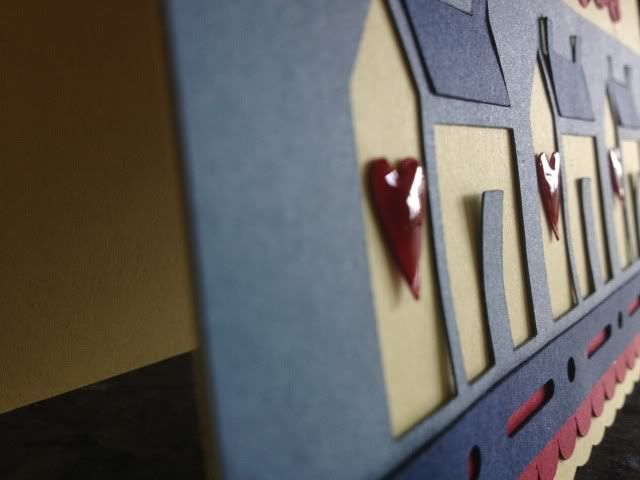
Everything on this card is colored card stock, no print and cut this time!  The hearts have Mod Podge Dimensional Magic  on them which is really fun as it dries clear but hard, smooth, shiny, and raised up.


I'm considering making our holiday cards this year instead of ordering the ever-present Shutterfly photo card, but we'll see if I have the patience for that (especially with a newborn coming soon!).

8.09.2013

Our worst kept secret ever

Pregnancy related things are really hard for the hubby and I to keep secret.  Despite 5 miscarriages and a year of fertility treatments to conceive our first child, we still told everyone the second our home test showed up positive, even though almost everyone thought we were crazy not to wait a little bit (that almost kind of hurts- "hey, remember you might fail at this?").  We never regretted it though!

This time around, family & friends knew right away (in fact, I walked straight out of the bathroom, where I called my just-deployed husband, and over to my dad, and started spreading the news!) but we didn't post on Facebook until the ultrasound showed heartbeat.  Why?  I don't know.  Last time my sister actually spilled the Facebook-beans so maybe I would have waited last time too.  Facebook is weird like that.

One thing we tried really, really hard to keep secret is the new baby's name.  With our first, we knew from before we got pregnant what he would be if he was a boy or girl.  With this one, we still had the girl name, but no boy name.  Agreeing on one took months, but we did!  Then hubby decided we should keep it secret.

Secrets can be fun, although my mother in law now knows, since he can never resist her asking :) I thought of a really cool idea though.  What if the "baby announcement" hospital photo of screaming 10 minute old baby was also a name announcement for everyone else?  At least for the Facebook crew, who don't get up to the minute, super close family secret updates.

I set out to re-created a prop for a photo I saw.  And I am IN. LOVE.

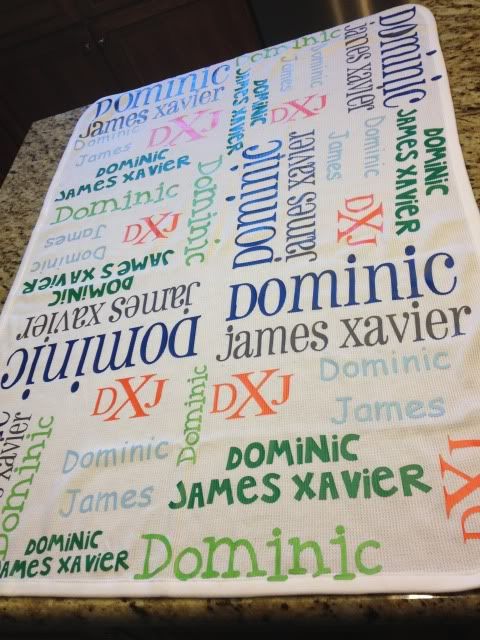
I used my Silhouette Cameo to design the whole thing.  Simply resize the mat to whatever your blanket size is (this is 30 x 40 ") and design away.  I then copied the whole thing into a new file, split it up by color, and lined each color up on the mat one by one.  I cut them out of Siser Easyweed HTV (my favorite brand!), weeded & cut the words apart, and then re-created the whole thing on the blanket.  I pressed with my iron and parchment paper (no fancy heat press or teflon sheet here- I think I'm proof that you don't need tons of $$$ equipment to make something awesome!) and total pressing time was about 20 minutes.  I spent extra time going back and forth since the blanket is a waffle weave and I wanted to make sure the HTV really got in there.

So, blog-land friends, please be honored that you now know the name of our soon-to-be-born son!  I can't wait to swaddle him in this blanket and post a photo.


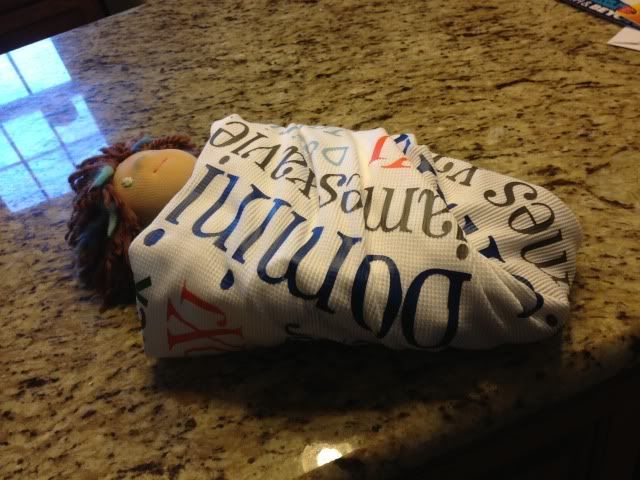
I did try to take a photo of how this would look as a swaddle, but a 14" doll (even my preemie first-born was 17.5"....) whos arms naturally stick out to the sides did not make the best model.  I don't have anything else to use though!  Oh well :)  It'll be on my son one month from today!


I got some questions about the design process so let me show you some screenshots.

Here we have the design mat resized to the blanket size, which is 30" wide and 40" long.  Ignore the red box- that is showing you where the 12x24 cutting mat is.  These are all free fonts from around the web.  


Once that was done (using lots of duplication, resizing, and moving things around) I copied it into a new file and started to split it up by color.  My HTV sheets are 12" x 15" so I resized my mat for those.  You can see here that some colors took 2 sheets- some took 1/4 of one.  It varies.  Anyway, I didn't show it with this screenshot, but don't forgot- MIRROR BEFORE YOU CUT HTV!  Mirror your image!  Select it and hit "flip horizontally."  Also, remember HTV goes on your cutting mat shiny side DOWN!  :)

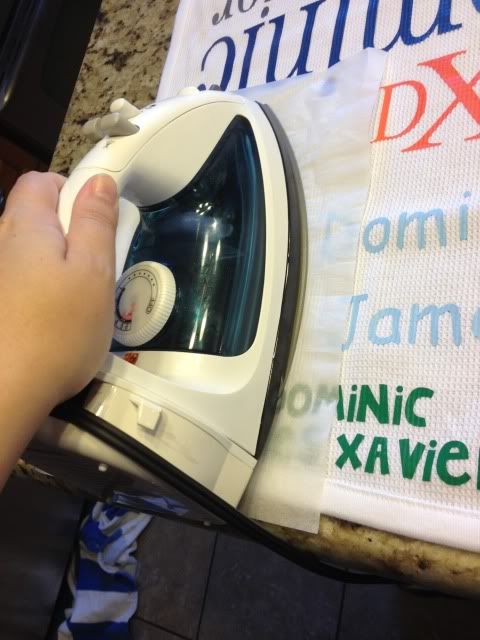
When I make something with HTV I get asked a LOT about the pressing process.  I don't own a heat press or a teflon sheet.  My iron is from walmart.  It goes from 1-6, temperature-wise, so I set it on 6.  

I press in two stages.  First, I use parchment paper over the HTV with it's little carrier sheet (the shiny sheet) attached.


Next, I remove the carrier sheet, put the parchment paper back down (VERY IMPORTANT!  DO NOT IRON OVER HTV DIRECTLY!) and press it again.  I do about 15-45 seconds of pressing over each area each time.

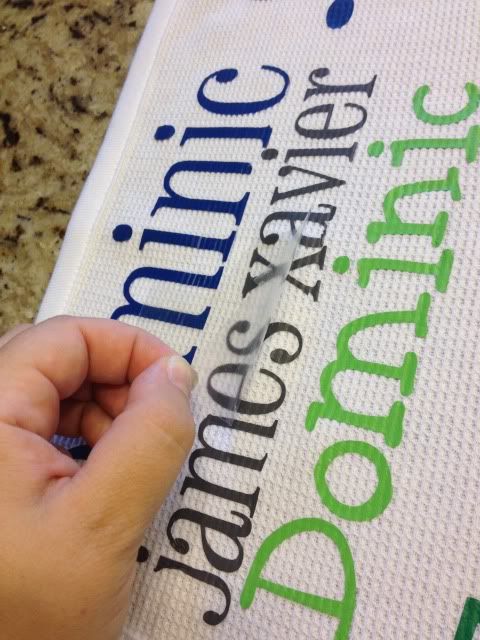
Here's me removing the carrier sheet after the first press.  The HTV is adhered, but I think the 2nd parchment-paper-only step really helps it adhere well (especially on textured fabrics like this.


I hope that helps some of you who like me don't want to drop $200+ on a heat press, or even $10 on a telfon sheet- I've never felt the need! :)

8.04.2013

Print and Cut Magnets with the Silhouette Cameo

My son has a Mickey Mouse magnet board and randomly asked me (after we'd been to the mall and several other stores today) for Cars and Turbo magnets to go on it as well.  Luckily I found a pack of Avery magnet paper that I bought who knows when, and voila!

Well it wasn't quite "voila."  I had to find all the images (and nice clean ones without tons of background to mess up the trace), save them, open them one by one, trace them, and get them arranged before printing and cutting.  All the images were hunted down via Google Images.

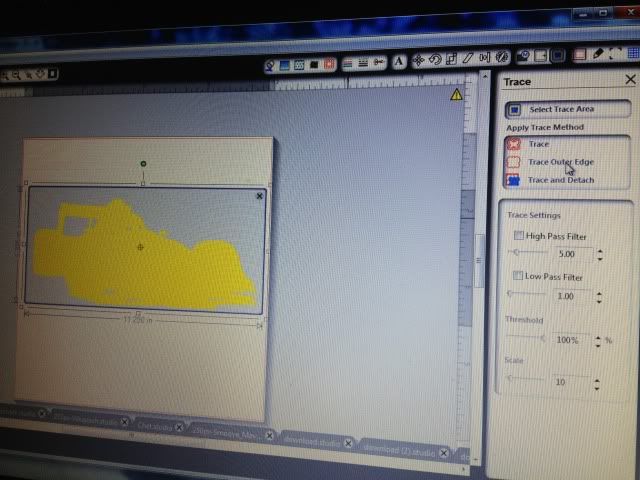
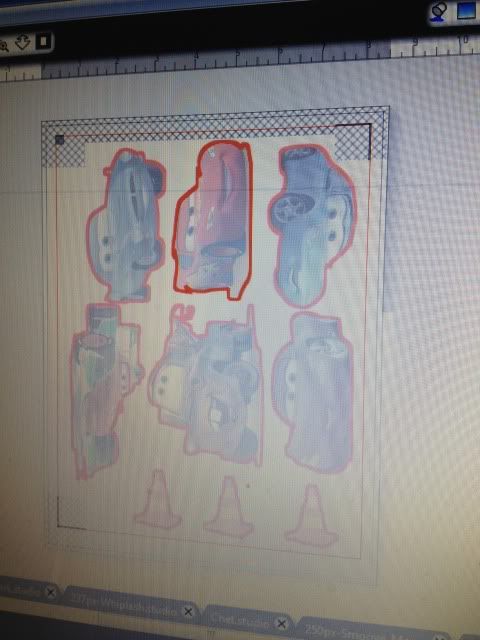
Once open, you have to trace them to get cut lines.  I normally make the image really large, erase anything I don't want (like a logo in the corner), and trace it by turning off High Pass Filter, bumping up the threshold into the 90s, and then hitting "Trace Outer Edge."  Below you can see my settings to trace Francesco.  By hitting Trace Outer Edge it only traces the outer edge as stated, so that white area inside his tail will NOT cut.  If you want to cut out the details like that, hit Trace, not Trace Outer Edge.  I figured that the tail probably wouldn't be that sturdy and this is for a 3 year old so I stuck with the edge.


Arrange everything on your paper- letter size as the magnet paper is, as registration marks on.  I then hit the cut line window just to double check that all the cut lines are turned on.


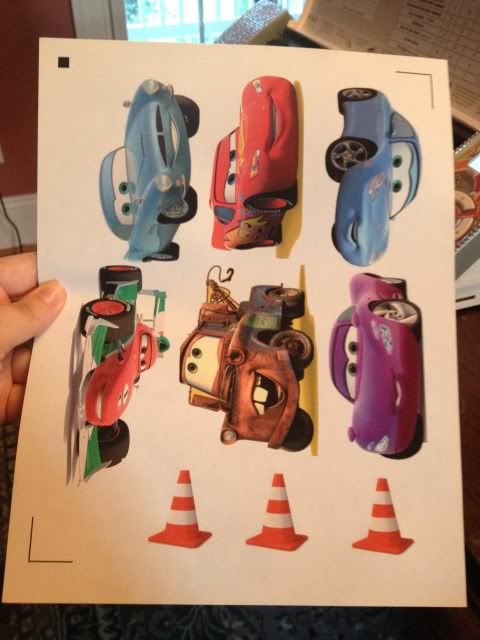
And print!  I set my Preferences to "Best."  The instructions for magnet paper say inkjet printers only.


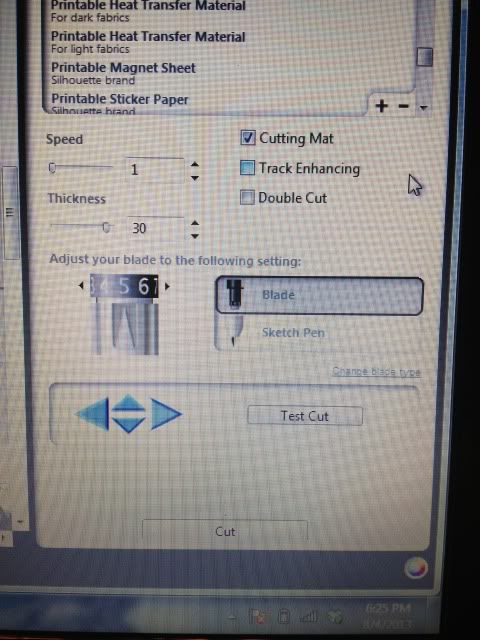
Now on to cutting.  After scanning registration marks, I set it to the preset magnet paper settings, but I bump up the blade from 4 to 5.


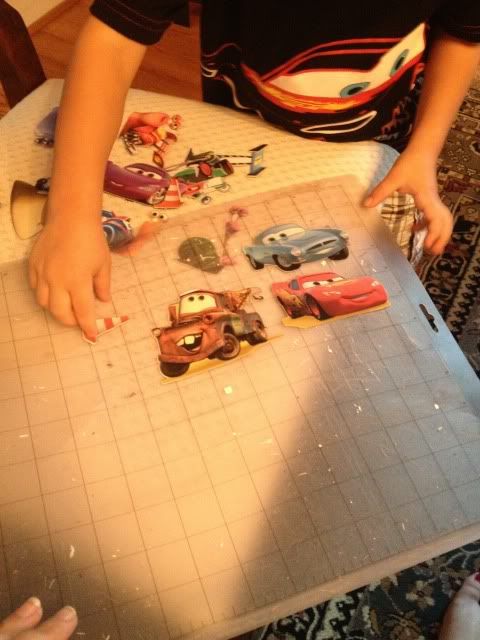
After cutting...well, this is the best photo I could get!  My son was so excited that I made something just for him and he couldn't wait to take them off the mat- all by himself of course.


Now he's occupied playing again.  Score!

7.17.2013

Using Printable HTV (heat transfer vinyl) for dark colors with the Silhouette Cameo

I loooove to make shirts using HTV (heat transfer vinyl) and my favorite brand is Siser Easyweed.  My least favorite is the Silhouette brand...it's awful.  Anyway, as easy as it is to layer Siser Easyweed, sometimes you have projects that just don't work with the limited colors offered, or maybe you want a photo to be ironed on your shirt, or something.  That's where printable HTV comes in.  I have used and liked both Jolee's and Transfermations brands, and been less impressed with the Silhouette brand, though it's not terrible.  As a general rule I like to use the ones made for dark colors even on light colored clothing as it's way more vivid and just looks better in my opinion.

For this shirt I used Transfermations for dark colors.  I either got it at Michael's, Staples, or Walmat, not 100% positive on which.

Normally when you use HTV and even HTV for light colors, you need to mirror the image before you cut.  You do not need to mirror the image with HTV for dark colors.  I'd always read your instructions to be sure but I've used several brands and none require this.

First, get your image all ready in Silhouette Studio.  Get your cut lines situated- if you layered some elements you may need to highlight them and hit "Cut Edge" or whatever works for you.  Do not mirror it!  Turn on registration marks and print it.  I use "Best" settings for quality.  You have to use an Inkjet printer.  If you've found a brand that works with a laser printer, please share!  I've never seen one.

Once it's printed, stick it on your mat and load it into your Cameo.  Have your machine scan the registration marks and get your cut settings ready.

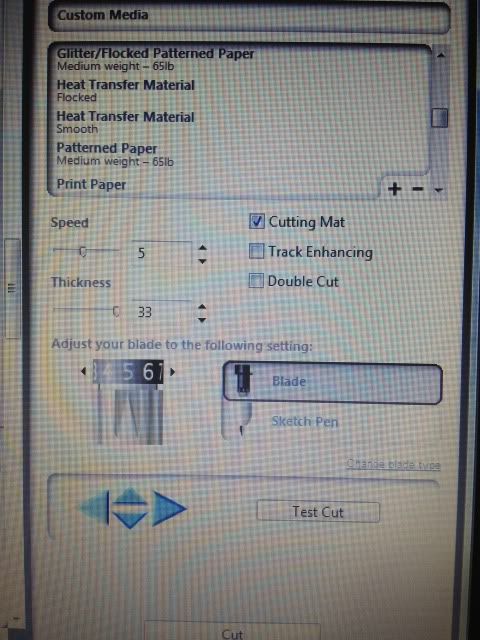
Here's a snap of what settings I use.  I set it to "Flocked HTV" and then change the blade to 5.  That's why it says Custom Media.  ***Note- I get a lot of use out of my blades, but when I switched to a new one, I only had to use HTV Smooth settings, blade on 1!  Big difference!****


Have your machine cut.  You're basically doing Print & Cut, easy, right?  I love Print & Cut and it's the biggest reason I bought my Cameo.

Once your design is cut, you then remove it from it's backing paper.  You'll see that this stuff feels more like Siser Easyweed and not regular printable HTV.

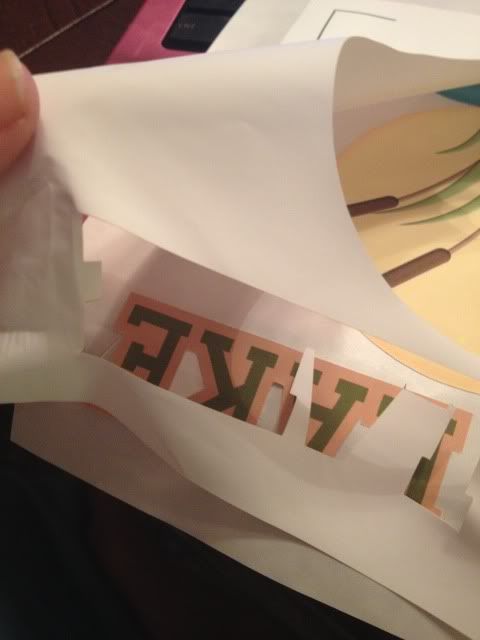
Here's me just peeling up the corner and removing all the excess white- the backing paper does not cut, see it?  I did rip it a little when grabbing that corner but it's almost like the carrier sheet of Siser Easyweed (except not used as such- just that you don't cut that paper, just your HTV.  A kiss cut.  Anyway..)


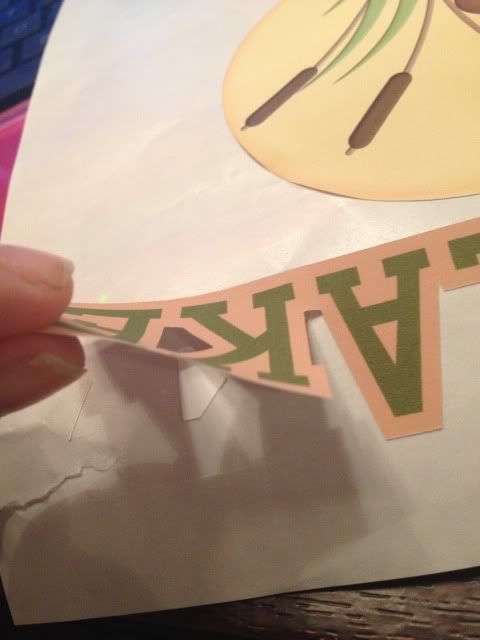
Aaand here's me peeling my design off the backing paper.  This is the one thing I don't like.  Unlike Siser Easyweed which is on a carrier sheet, I have to line up all these elements by hand separately on the t-shirt and yeah, they end up off center sometimes.  I'm working on that.  Practice makes perfect!

See how it weeds itself in between letters and stuff?  It's pretty nifty.

Your next step is to line everything up on your shirt (iron it first, but let it cool before you start re-arranging stuff on it) and when it's to your liking, grab a sheet of parchment paper.  I've always had 1-2 sheets included in whatever pack of dark color printable HTV I buy, and it lasts for several sheets.

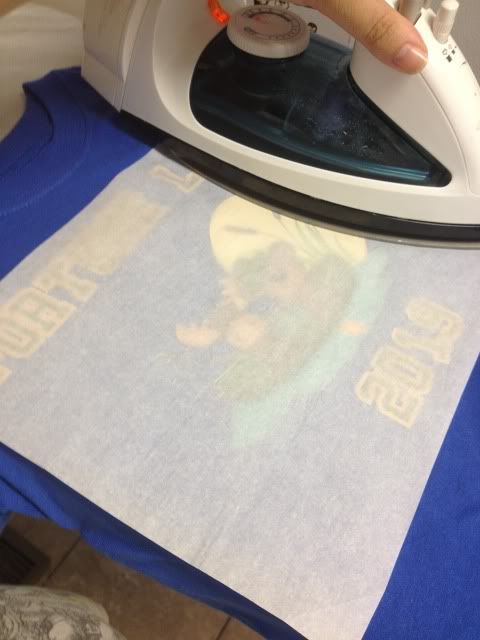
Place that over your design- careful, don't jostle anything- and iron.  My iron goes from 1-6 so I set it on 6, no steam, and press really hard for 20 seconds.  Then I pick it up, move it, press again, until I've done the whole design.  The instructions do say not to drag your iron but to pick up and move it.


When I'm done I just lift the parchment paper- unlike the Siser Easyweed carrier sheets, it's not going to be sticky to your shirt or anything- and voila, shirt!

This IS a classic example of me arranging things crooked and/or off center, but on a wiggly 3 year old, it's not very noticeable :) With Siser Easyweed and it's sticky sheets I normally line everything up on the floor and then step back and look at it, and then I can just pick up the shirt and move it to the ironing board, but you can't do that with this stuff- no carrier sheet.  My only pet peeve.

You'll also probably notice that the fishing line is missing some pieces- in removing the design from the backing that part was just too thin and I went too fast, but oh well.  It is what it is.  This is a tiny shirt for a tiny little toddler.


I always wash inside out, and never iron on the design itself, but other than that, I've found this stuff to be very durable!


7.06.2013

Nail Art with Vinyl Stencils

Hi again!  Guess what's back- the nausea!  Fun fun.  In the interest of going back to bed I'm just quickly sharing some photos from almost a month ago.  I wanted to do some fun nail art for our vacation and decided to give my Cameo a 2nd try.  My disastrous first attempt with nail art stencils from the Silhouette store can be found here.

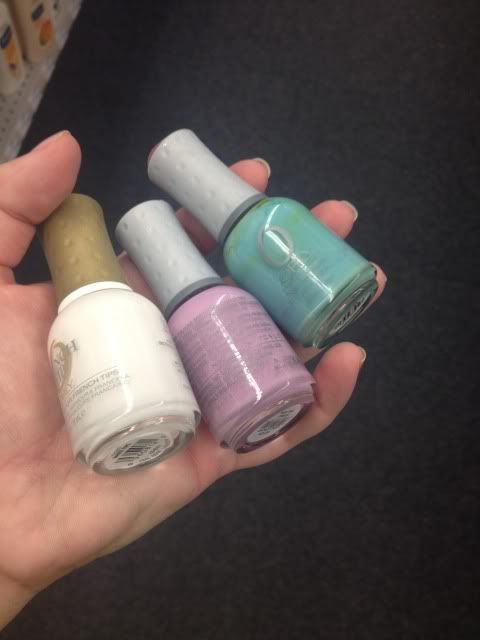
CVS was having a massive sale on Orly when I went in to pick up a prescription so I grabbed these three colors.


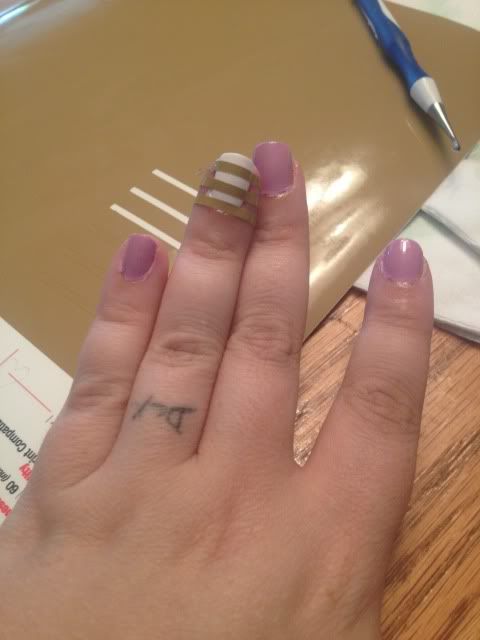
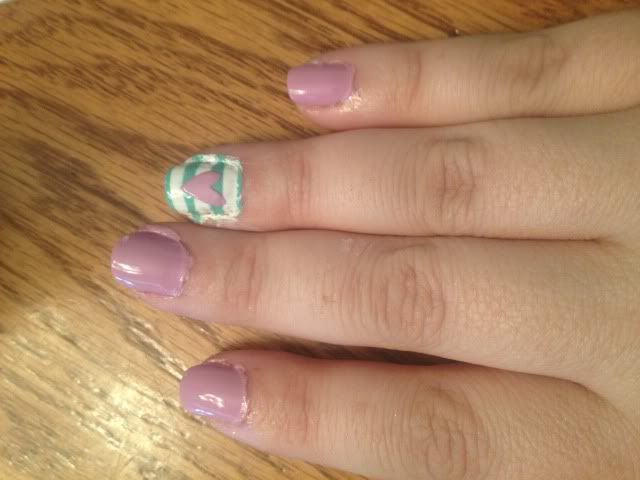
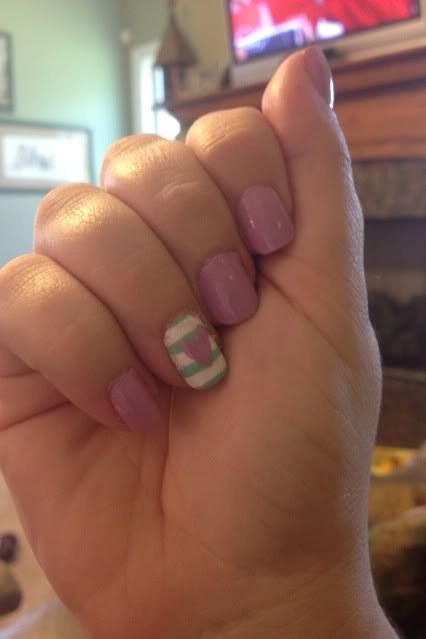
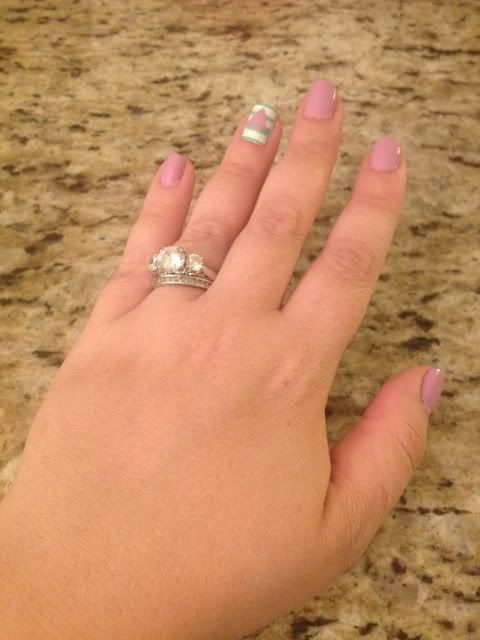
I painted 4 of my nails in the pinky purple and my ring finger in the white on both hands.  I then took some scrap Oracal 631 and cut it into strips.  I tried using scissors and ended up using my cameo to keep the lines straight.  After the white nail was dry (this is great polish for that by the way- I barely needed two coats) I pressed it onto the white nails, keeping it really smooth.


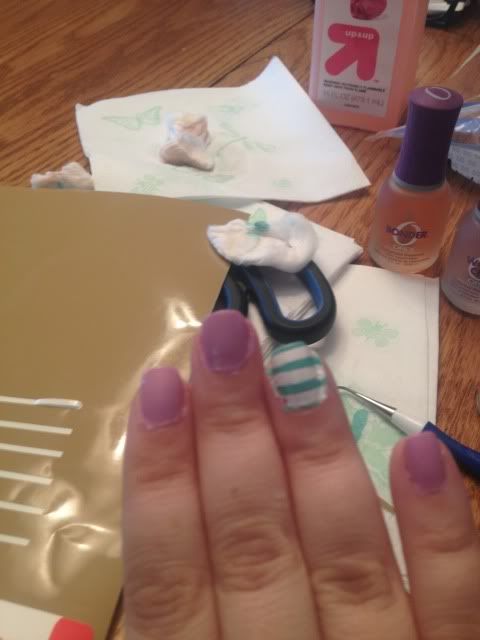
I took the turquoise and brushed it over the vinyl.  I did two light coats quickly, waited about a minute, and peeled off the vinyl.  I think that waiting for the polish to dry will just cause the whole thing to tear off.  I've always heard you should wet peel.  I then put top coat over it (Orly Won't Chip) to smooth it out.


I then took a heart shape I had in my library, shrunk it wayyy down, and cut two out of the same vinyl with my Cameo.  I actually cut this heart in about 4 different tiny sizes since I wasn't really sure what size would fit.  It's kind of hard to measure your own nail!

I did the same as before- apply the vinyl to a completely dry nail, adhere smoothly, 2 quick coats of purple pink polish, wait a minute, and wet peel gently.  Again, top coat goes on top to help smooth it out.


That's pretty much it!  All that's left is clean up.  I do go around the edges with a toothpick or q-tip and polish remover, but most of the mess comes off my skin in the shower so I usually don't sweat it too much.


This polish design lasted soooo long!  All through vacation!  About a week after I first did this I did have to go over all the purple pinky nails with another coat & topcoat but the ring finger nail art stayed for nearly two weeks until I finally removed it all!  It lasted through a Disney vacation which was a plus!

7.03.2013

Cutting Fabric with the Silhouette Cameo

Well hello!  It's been awhile!  I am almost 30 weeks pregnant at this point and seem to be finished with the nausea.  In addition, I finished up my 2nd degree!  I have a lot more free time right now.  I'm working on another sewing project and decided to use the scraps to test out something that I haven't tried yet, cutting fabric with the Silhouette Cameo.

Silhouette sells their own version of Heat n Bond and it's expensive.  I read that a lot of people use Heat n Bond Lite and then are able to iron whatever they cut onto something else.  I did not need to iron this on to something else and I also didn't have Heat n Bond, but I did have fusible interfacing that I use when I embroider.

So, my materials here are:

-100% cotton fabric (woven, not a knit)
-Fusible interfacing (generic brand, I don't even have the bag anymore, but it's used with embroidery machines and I'm sure other things that I don't know of)

I decided to cut out an iPhone case insert, since I love this fabric and I also love the textured look of the fabric inside an iPhone case.  I cut a lot of custom cases but they have always been cardstock.  My case is actually from Paparte and I love it- it's a rubber enclosure with a clear acrylic overlay, so I can layer something in between and make it pretty.

Anyway.

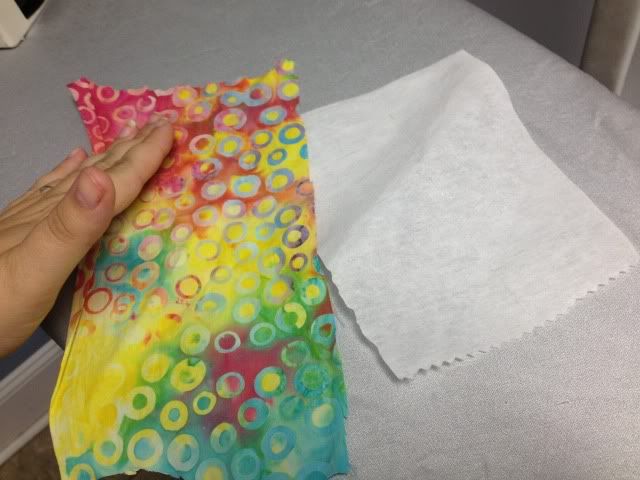
I started by ironing out my fabric so it was flat, and then ironing the fusible interfacing to the wrong side of the fabric.  Fabric side up, and make sure you don't have excessive interfacing sticking out or it will gum up your iron.

Once ironed, it's nice and stiff.


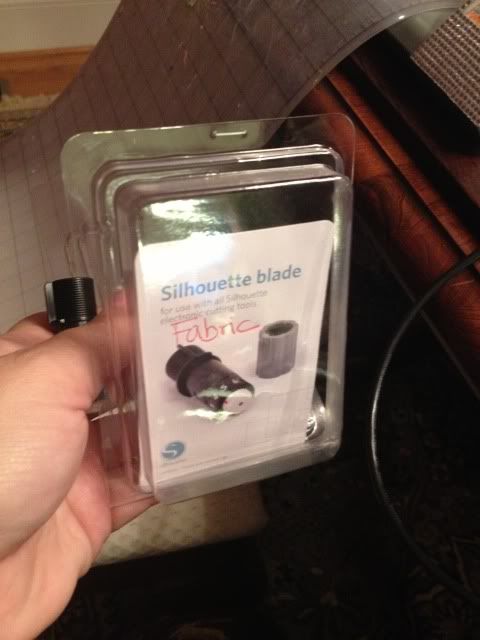
I then got out my fabric blade.  Silhouette sells one, but it's just a regular blade in a blue housing.  Go for it if it makes you happy.  I personally have 4 blades and have them labeled for separate use (Cardstock, Vinyl, Fabric, and a spare).


Stuck the fabric on my mat, set blade to 4, speed 3, thickness 30 as I read somewhere (don't rush to copy these settings- finish reading, you'll see why).  I also set it to double cut, figuring better safe than sorry.


So, this didn't work.  It cut though the fabric ok but not the interfacing.  I could tear the interfacing, but it wasn't neat.  Had I needed to iron this to something it really would not have worked.

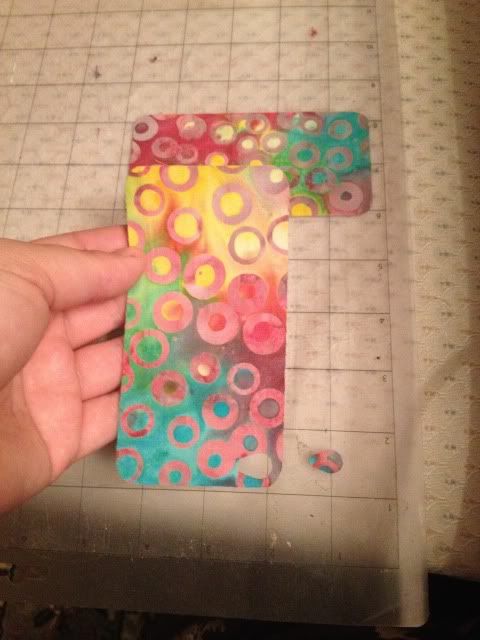
See, fabric is cut:


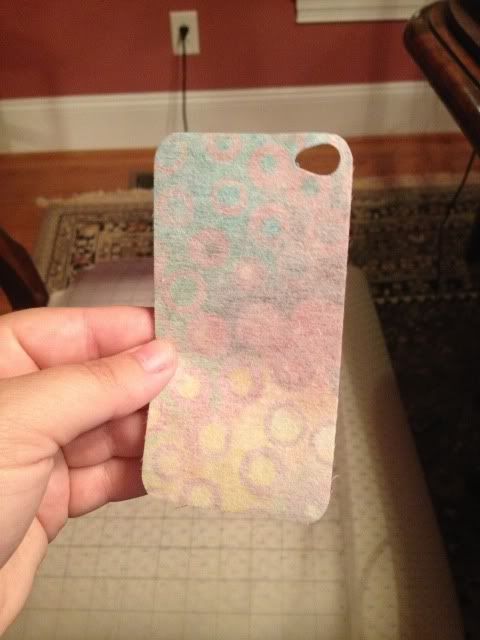
Interfacing is not.  I already tore the top line but do you see any cut lines?  Nope.

Round two.  Ironed more interfacing on to more fabric.

These are the settings you want copy :)

I then changed the blade to 6 and kept speed at 3, thickness 30, double cut on, and cut the shape again.

I then changed the blade to 8, kept everything else the same, and cut a 2nd shape below the first one.

You'll see that both worked fine, so 8 may be overkill.

In addition to these blade settings, I cleaned my mat with a scraper and then sprayed with 3M Re-positional Spray.  I use this to re-sticky my mat with a light hand so that paper doesn't tear, but I sprayed it a bit heaver than normal to help hold the fabric steady.

I also burnished the fabric to really help it adhere.


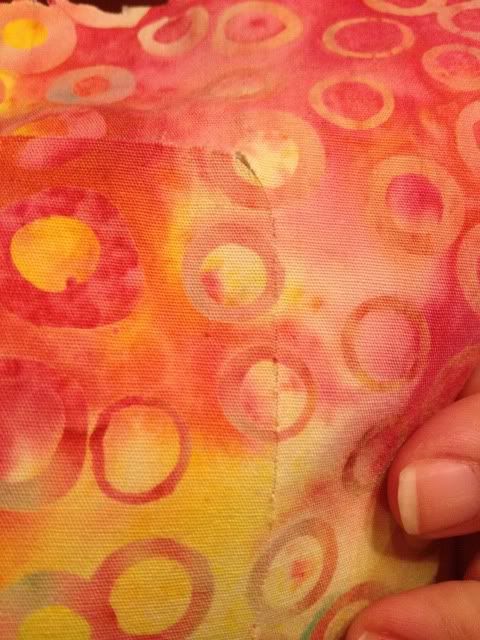
This time it worked great!  When I lifted the corner of the fabric, it removed cleanly & easily around the cut lines.
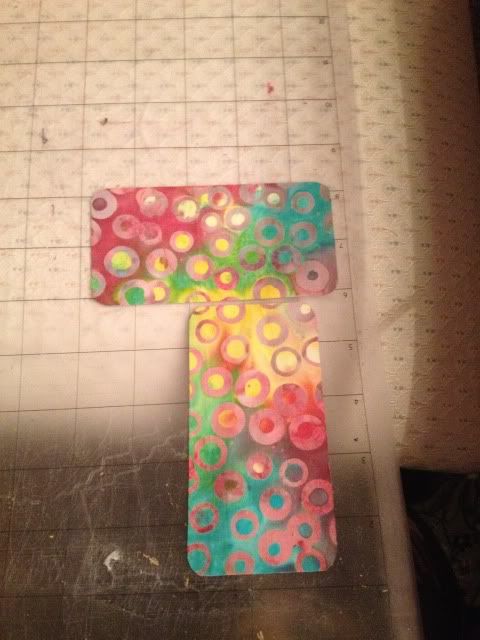
top sideways- blade 8, bottom vertical- blade 6

Even better, when I lifted my cut shapes, the camera hole cut out also peeled away cleanly!


One thing I want to point out- interfacing is a must!  This cut out was totally within the interfacing edges and it's clean and perfect. This was the "blade at 6" cut.


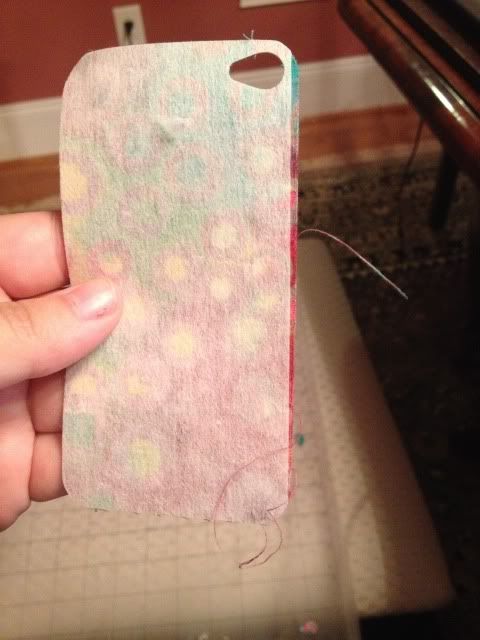
Meanwhile, the "blade at 8" cut had just a smidge of fabric without interfacing, and it's already frayed on that side.


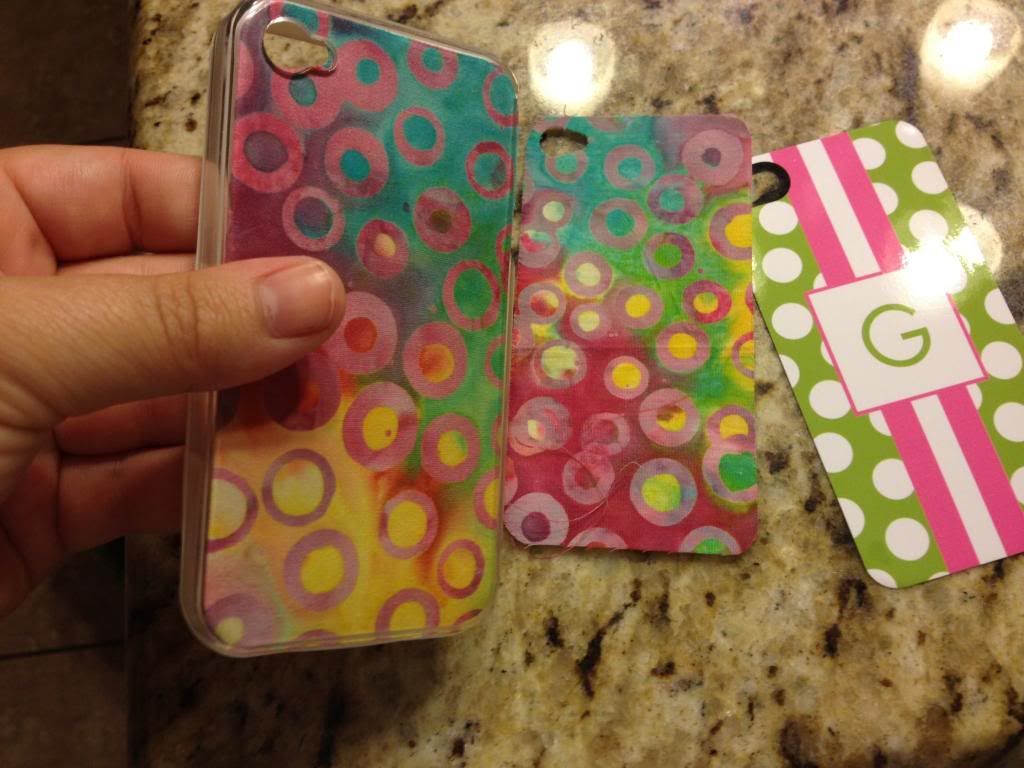
Lastly for this project, I removed the current decorative insert from my cell phone case (you can see it in the photo!) and inserted this fabric cut out.  I love how it looks!


Next up (after I finish my sewing project, anyway!) will be to get some Heat n Bond Lite and work on making custom shirts for my son & soon-to-be-born baby using iron-on fabric cutouts with the Cameo :)

5.24.2013

Monogram nail art with the Silhouette Cameo

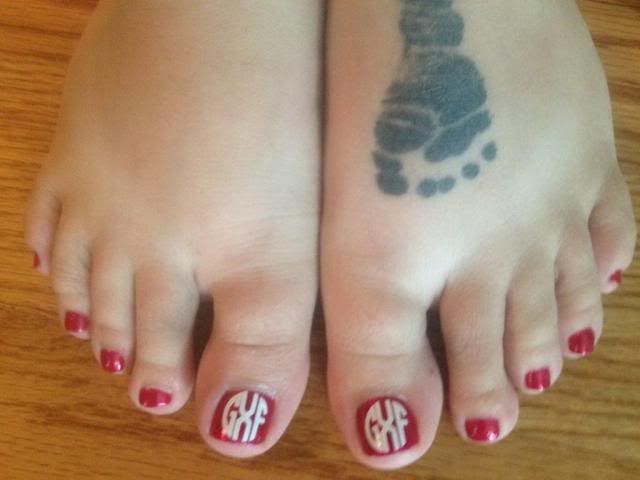
I saw this in a few places online recently, and yesterday I hit a pretty big wall of procrastination.  I'm taking 4 classes to be done with my degree in June, in the middle of buying a house, a PCS move to another state, and of course pregnant and taking care of my 3 year old.  Rather than do ANYTHING on my massive to-do list, I took some vinyl and monogrammed my pedicured toes.

The font is the Circle Monogram from Font Bros. and I used white Oracal 341 for the vinyl.  I wish I could get an accurate idea of the size.  The thing is, when I select an image in Silhouette Studio, the box it puts around it and measure with tends to be a little bigger than the actual design especially when using font.  I believe the total window was 1.42" wide, but the actual design is maybe .80" wide.  It'll depend on your own toes, of course!


While we're on a girly topic, my workstation has gotten pretty girly lately, huh?


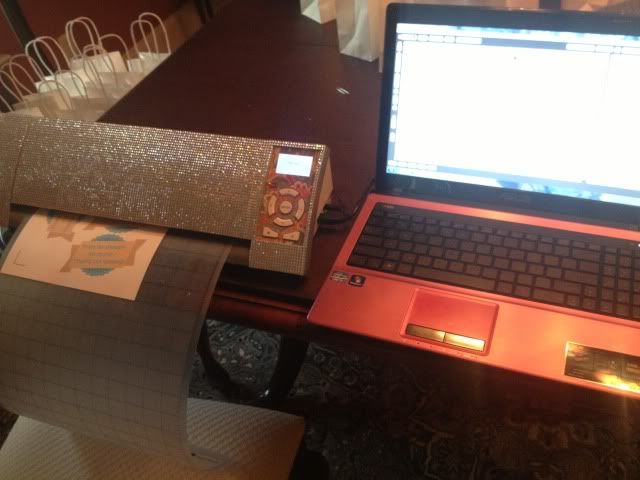
I bought two large sheets of self-adhesive rhinestones from Allstarco.com, cut them to size, and adhered to the Cameo.  Took maybe 10 minutes and I didn't use all of the first sheet so I have lots left over to play with :) As for the computer...pink was on sale.  Nobody wanted it.  I got a great deal.  It's growing on me.

5.03.2013

Baby banner, and shape cropping with the Silhouette Cameo

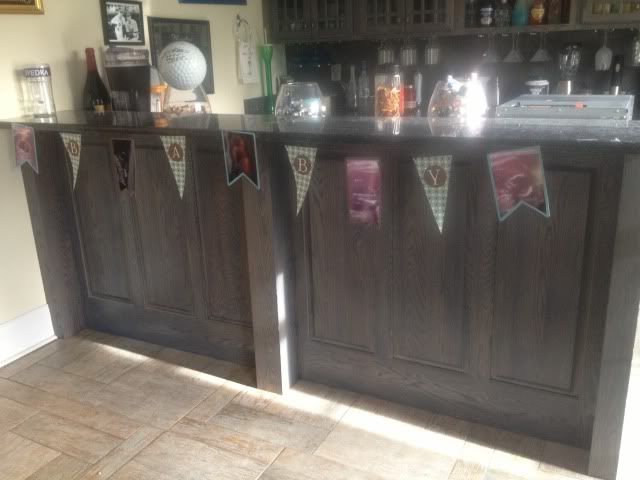
I was reading the Silhouette blog for the first time in awhile and noticed that today's posting involved a shape challenge.  You can see it here, along with a link to the shape's download page.  Since I have been trying to make some baby shower decor (so far my tissue balls are more like tissue wheels...) I decided to use this as an opportunity to make a banner to string across the 8' long dessert table at the baby shower.

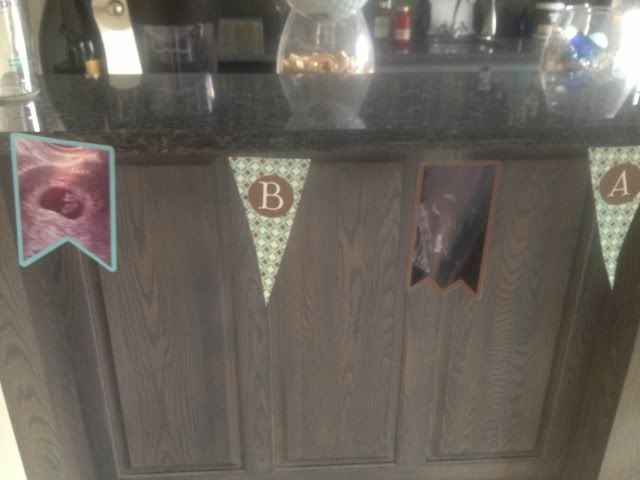
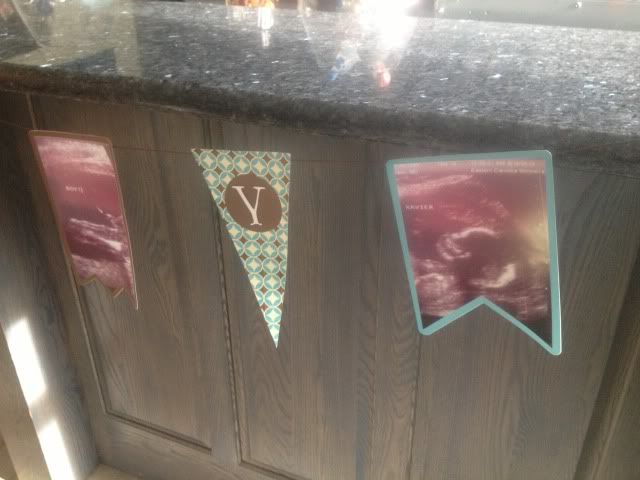
I think it's pretty obvious that my favorite feature of the Silhouette software is print & cut, since I don't need to have anything on hand but plain white card stock.  I bought the blue & brown pattern in the Silhouette store and filled up the shape's triangle banners.  I then created a circle inside the triangle, turned off the cut lines, and color matched it.  I then used print & cut to make 4 of those.  The letters BABY were cut out of white card stock and adhered with rolled glue dots to give them a little dimension.

Next came my ultrasound photos.  I used the other two shapes from the banner and shape cropped my ultrasound photos.  This is really easy to do.


First lay your photo and then choose the shape you want it.  Drag that shape over to the photo and align it where you want the crop.  It might be hard to see, but that banner shape is over the baby in the ultrasound in the screenshot below.


Next, drag your mouse and highlight/select both the photo and the shape at the same time.

Last, click Modify (top right, looks like a rectangle with a circled M in the upper right corner- see pic below) and then click crop.  Voila!  Easy peasy!  You may have to manually turn the cut lines on the shape when you crop it this way so just go to your cut line window (scissors with red, to the left of the font's A symbol) and click "Cut Edge."


I then created offsets for all 5 of my ultrasound photos and fill color matched them blue and brown to the triangle's pattern (you can see the blue offset for this particular ultrasound in the screenshots above).

Lots of printing & cutting comes next- I love print and cut, have I said that?  All I needed to have on hand for this was 12 sheets of plain white card stock and some string.

I used glue dots on the corners of the ultrasound photos and stuck them to the offsets.  I then used my bar, which is 8' 5" long, marked off 8' exactly, and measured out the string, taping the ends to the bar.  Starting with the center ultrasound photo and working out, I taped the string about 1/2 inch down the back of each banner piece.  For the party, this will be strung across the dessert table, with a white tablecloth behind it and white and blue tissue balls at each end (if I can get that particular craft mastered!).


So cute!  I love personalized decor and thought this was much more fun than a cluster of framed ultrasound photos. 

If you don't like to print, cut, and glue x1000, just make every single banner piece one layer- IE, shape crop your ultrasound, turn off the cut lines, offset it, color it, turn those cut lines on, and print & cut it.  That should print you a photo with a border, basically (the offset) and then cut it.  Ditto on the letters- just turn off the cut lines and group them in the circle of the pennant and print & cut it into one piece.

Thanks for looking!


Showing posts with label cameo. Show all posts

8.10.2015

League of Legends / World of Warcraft Christmas Stocking Custom

It's been forever since I posted and quite awhile since Christmas, obviously.  Regardless, I wanted to share this adorable stocking I made for my boyfriend.  He came to my place for Christmas and I didn't want him to feel left out of the stocking part of things, so I made this for him and filled it up.

I used to love Warcraft and he humored me by playing it a bit with me.  He loves League of Legends so I learned how to play for him.  I decided to combine both and make something cute and personal.

First, I took the World of Warcraft logo, and removed the words, so I was left with the overall shape and texture:


Next, I traced that with my Silhouette Cameo so it'd be a separate cut file.

I wrote his name with the Warcraft-style font found here: http://www.dafont.com/lifecraft.font and added some contrasting border to the letters.

The next thing I did was start looking around for holiday-themed League of Legends images.  This wasn't hard, as they even put earmuffs on one of the miniboss style mobs during the game that time of year.

One adorable Christmas-fied minion later, I had everything in my Silhouette Studio program and traced for cutting.  First was obviously printing- I used Avery Inkject Paper for Dark Colors as this type of paper is basically fabric that you print on, cut, and iron on.  If you use paper for light colors, you're basically just transferring ink, so it doesn't work on dark colors and not very well on textures either.  This stocking is red & fuzzy, so dark it is.  Everything cut without a hitch in the Cameo- settings were for HTV but I ramped the blade up a notch.

I don't have a heat press, so I used an iron on the highest settings with a piece of teflon in between the transfer and the iron.  It took a bit of time and pressure due to the texture of the iron, but I think ti was completely worth the effort:


My boyfriend told me that he shared it with some online gaming groups and it was pretty well received, so that made me happy :)  It was his idea to post it here too, so hopefully I'll be around and more active again!  Can't wait to see the new machines Silhouette has coming out next month!


10.31.2013

Happy Halloween! DIY Decor

Happy Halloween!  Free time has been scarce around here.  I can't believe my little one is almost two months old already!  I love Halloween so did take the time to set up this little decorated desk area in the kitchen.

Most of this is DIY- one painted pumpkin and 8 files from the Silhouette online store!

Top shelf- garland from Michael's.  Pumpkin from Michael's, glittered by me.

Middle shelf- tombstone and spooky tree frame from Silhouette store.  Glass pumpkin from Walmart and filled with a cheap tinsel Halloween garland.  Bat Wing Juice and Poison cartons from Silhouette store.

Bottom shelf- BOO boxes, fruit basket, 3D pumpkins, and paper flowers from Silhouette store.  Birdhouse is from Tuesday Morning.  Terra Cotta pumpkin is from HomeGoods.

Special mention- the weird looking pumpkin thing with green vines in that little nook shelf was made by me in elementary school!  The skull mug in the nook is from the dollar store.


The 3D pumpkins in the fruit crate are probably my favorite, though the Bat Wing and Poison cartons have inspired me to make a whole apothecary shelf for next year- maybe the mantle?  Eyeballs in mason jars and lots of creepy files from the Silhouette store should make it easy!

9.19.2013

Roses and babies!

Life has been crazy busy!  Wanna know why?  :)

Baby #2 was born on September 8th :) It's been so much fun having a little guy around again, though the lack of sleep and the whole "breast feeding means you're kind of tethered to the baby" feeding thing takes some getting used to again.

Sorry for the giant watermark- sharing pics of my children online makes me nervous, to be honest.

He actually came a smidge early, so this project isn't 100% finished but I don't see it getting finished any time soon.  All I really want to do is add more of the same thing, so simple enough.

The roses are from the Mom's Garden Gifts kit from svgcuts.com.  Their files are very intimidating when downloaded and I had to watch the video several times, but it's fairly easy to do.  I bought 3/16" dowel rods at Michael's for like 30 cents each and had my dad cut them into thirds, and then wrapped them in floral tape.  Pretty easy.

I used normal school glue for the roses.  My beloved glue dots ARE easier but they add a bit of dimension where placed which wasn't a good fit for this project.

Anyway, it used to be a vase of old musty silk flowers, and I decided to do a fall themed bouquet instead. 


It makes me smile when I walk past the table- they are very realistic looking for paper flowers, and super cute!

Back to my new baby now :)


8.22.2013

Cards with print and cut, mod podge, embossing, and more!

I've been having a little fun doing something I don't normally do, which is make cards.  Normally I feel like cards are kind of a waste of paper.  People rarely save them and paper = trees, ya know?

Regardless, I did want to make a few cards recently, and here are the results.

The first one was for my mother in law's birthday.  This card was made with print and cut, my favorite feature of the Silhouette Cameo.  The card itself is pale pink cardstock but everything else is print and cut.  I filled the background shape with the pretty rose pattern, use the color matching dropper tool to pick out pinks from the roses and make a gradient of colors for the cake, and filled in the cake stand and candle parts with solid colors.  Print, cut, glue, voila!


The second card I made is for our awesome, patient, and hard working Realtor.  This card is actually a "Welcome to the Neighborhood" card in the Silhouette store but I just deleted the text and added "Thank you" instead (Font name- Cheri).


Before cutting the letters I ran the paper through my Sizzix Big Shot using a Cuttlebug embossing folder.  I had to bump my blade up from 3 to 5 to cut through the cardstock after that, but I like the delicate detail it gives.

Everything on this card is colored card stock, no print and cut this time!  The hearts have Mod Podge Dimensional Magic  on them which is really fun as it dries clear but hard, smooth, shiny, and raised up.


I'm considering making our holiday cards this year instead of ordering the ever-present Shutterfly photo card, but we'll see if I have the patience for that (especially with a newborn coming soon!).

8.09.2013

Our worst kept secret ever

Pregnancy related things are really hard for the hubby and I to keep secret.  Despite 5 miscarriages and a year of fertility treatments to conceive our first child, we still told everyone the second our home test showed up positive, even though almost everyone thought we were crazy not to wait a little bit (that almost kind of hurts- "hey, remember you might fail at this?").  We never regretted it though!

This time around, family & friends knew right away (in fact, I walked straight out of the bathroom, where I called my just-deployed husband, and over to my dad, and started spreading the news!) but we didn't post on Facebook until the ultrasound showed heartbeat.  Why?  I don't know.  Last time my sister actually spilled the Facebook-beans so maybe I would have waited last time too.  Facebook is weird like that.

One thing we tried really, really hard to keep secret is the new baby's name.  With our first, we knew from before we got pregnant what he would be if he was a boy or girl.  With this one, we still had the girl name, but no boy name.  Agreeing on one took months, but we did!  Then hubby decided we should keep it secret.

Secrets can be fun, although my mother in law now knows, since he can never resist her asking :) I thought of a really cool idea though.  What if the "baby announcement" hospital photo of screaming 10 minute old baby was also a name announcement for everyone else?  At least for the Facebook crew, who don't get up to the minute, super close family secret updates.

I set out to re-created a prop for a photo I saw.  And I am IN. LOVE.

I used my Silhouette Cameo to design the whole thing.  Simply resize the mat to whatever your blanket size is (this is 30 x 40 ") and design away.  I then copied the whole thing into a new file, split it up by color, and lined each color up on the mat one by one.  I cut them out of Siser Easyweed HTV (my favorite brand!), weeded & cut the words apart, and then re-created the whole thing on the blanket.  I pressed with my iron and parchment paper (no fancy heat press or teflon sheet here- I think I'm proof that you don't need tons of $$$ equipment to make something awesome!) and total pressing time was about 20 minutes.  I spent extra time going back and forth since the blanket is a waffle weave and I wanted to make sure the HTV really got in there.

So, blog-land friends, please be honored that you now know the name of our soon-to-be-born son!  I can't wait to swaddle him in this blanket and post a photo.


I did try to take a photo of how this would look as a swaddle, but a 14" doll (even my preemie first-born was 17.5"....) whos arms naturally stick out to the sides did not make the best model.  I don't have anything else to use though!  Oh well :)  It'll be on my son one month from today!


I got some questions about the design process so let me show you some screenshots.

Here we have the design mat resized to the blanket size, which is 30" wide and 40" long.  Ignore the red box- that is showing you where the 12x24 cutting mat is.  These are all free fonts from around the web.  


Once that was done (using lots of duplication, resizing, and moving things around) I copied it into a new file and started to split it up by color.  My HTV sheets are 12" x 15" so I resized my mat for those.  You can see here that some colors took 2 sheets- some took 1/4 of one.  It varies.  Anyway, I didn't show it with this screenshot, but don't forgot- MIRROR BEFORE YOU CUT HTV!  Mirror your image!  Select it and hit "flip horizontally."  Also, remember HTV goes on your cutting mat shiny side DOWN!  :)

When I make something with HTV I get asked a LOT about the pressing process.  I don't own a heat press or a teflon sheet.  My iron is from walmart.  It goes from 1-6, temperature-wise, so I set it on 6.  

I press in two stages.  First, I use parchment paper over the HTV with it's little carrier sheet (the shiny sheet) attached.


Next, I remove the carrier sheet, put the parchment paper back down (VERY IMPORTANT!  DO NOT IRON OVER HTV DIRECTLY!) and press it again.  I do about 15-45 seconds of pressing over each area each time.

Here's me removing the carrier sheet after the first press.  The HTV is adhered, but I think the 2nd parchment-paper-only step really helps it adhere well (especially on textured fabrics like this.


I hope that helps some of you who like me don't want to drop $200+ on a heat press, or even $10 on a telfon sheet- I've never felt the need! :)

8.04.2013

Print and Cut Magnets with the Silhouette Cameo

My son has a Mickey Mouse magnet board and randomly asked me (after we'd been to the mall and several other stores today) for Cars and Turbo magnets to go on it as well.  Luckily I found a pack of Avery magnet paper that I bought who knows when, and voila!

Well it wasn't quite "voila."  I had to find all the images (and nice clean ones without tons of background to mess up the trace), save them, open them one by one, trace them, and get them arranged before printing and cutting.  All the images were hunted down via Google Images.

Once open, you have to trace them to get cut lines.  I normally make the image really large, erase anything I don't want (like a logo in the corner), and trace it by turning off High Pass Filter, bumping up the threshold into the 90s, and then hitting "Trace Outer Edge."  Below you can see my settings to trace Francesco.  By hitting Trace Outer Edge it only traces the outer edge as stated, so that white area inside his tail will NOT cut.  If you want to cut out the details like that, hit Trace, not Trace Outer Edge.  I figured that the tail probably wouldn't be that sturdy and this is for a 3 year old so I stuck with the edge.


Arrange everything on your paper- letter size as the magnet paper is, as registration marks on.  I then hit the cut line window just to double check that all the cut lines are turned on.


And print!  I set my Preferences to "Best."  The instructions for magnet paper say inkjet printers only.


Now on to cutting.  After scanning registration marks, I set it to the preset magnet paper settings, but I bump up the blade from 4 to 5.


After cutting...well, this is the best photo I could get!  My son was so excited that I made something just for him and he couldn't wait to take them off the mat- all by himself of course.


Now he's occupied playing again.  Score!

7.17.2013

Using Printable HTV (heat transfer vinyl) for dark colors with the Silhouette Cameo

I loooove to make shirts using HTV (heat transfer vinyl) and my favorite brand is Siser Easyweed.  My least favorite is the Silhouette brand...it's awful.  Anyway, as easy as it is to layer Siser Easyweed, sometimes you have projects that just don't work with the limited colors offered, or maybe you want a photo to be ironed on your shirt, or something.  That's where printable HTV comes in.  I have used and liked both Jolee's and Transfermations brands, and been less impressed with the Silhouette brand, though it's not terrible.  As a general rule I like to use the ones made for dark colors even on light colored clothing as it's way more vivid and just looks better in my opinion.

For this shirt I used Transfermations for dark colors.  I either got it at Michael's, Staples, or Walmat, not 100% positive on which.

Normally when you use HTV and even HTV for light colors, you need to mirror the image before you cut.  You do not need to mirror the image with HTV for dark colors.  I'd always read your instructions to be sure but I've used several brands and none require this.

First, get your image all ready in Silhouette Studio.  Get your cut lines situated- if you layered some elements you may need to highlight them and hit "Cut Edge" or whatever works for you.  Do not mirror it!  Turn on registration marks and print it.  I use "Best" settings for quality.  You have to use an Inkjet printer.  If you've found a brand that works with a laser printer, please share!  I've never seen one.

Once it's printed, stick it on your mat and load it into your Cameo.  Have your machine scan the registration marks and get your cut settings ready.

Here's a snap of what settings I use.  I set it to "Flocked HTV" and then change the blade to 5.  That's why it says Custom Media.  ***Note- I get a lot of use out of my blades, but when I switched to a new one, I only had to use HTV Smooth settings, blade on 1!  Big difference!****


Have your machine cut.  You're basically doing Print & Cut, easy, right?  I love Print & Cut and it's the biggest reason I bought my Cameo.

Once your design is cut, you then remove it from it's backing paper.  You'll see that this stuff feels more like Siser Easyweed and not regular printable HTV.

Here's me just peeling up the corner and removing all the excess white- the backing paper does not cut, see it?  I did rip it a little when grabbing that corner but it's almost like the carrier sheet of Siser Easyweed (except not used as such- just that you don't cut that paper, just your HTV.  A kiss cut.  Anyway..)


Aaand here's me peeling my design off the backing paper.  This is the one thing I don't like.  Unlike Siser Easyweed which is on a carrier sheet, I have to line up all these elements by hand separately on the t-shirt and yeah, they end up off center sometimes.  I'm working on that.  Practice makes perfect!

See how it weeds itself in between letters and stuff?  It's pretty nifty.

Your next step is to line everything up on your shirt (iron it first, but let it cool before you start re-arranging stuff on it) and when it's to your liking, grab a sheet of parchment paper.  I've always had 1-2 sheets included in whatever pack of dark color printable HTV I buy, and it lasts for several sheets.

Place that over your design- careful, don't jostle anything- and iron.  My iron goes from 1-6 so I set it on 6, no steam, and press really hard for 20 seconds.  Then I pick it up, move it, press again, until I've done the whole design.  The instructions do say not to drag your iron but to pick up and move it.


When I'm done I just lift the parchment paper- unlike the Siser Easyweed carrier sheets, it's not going to be sticky to your shirt or anything- and voila, shirt!

This IS a classic example of me arranging things crooked and/or off center, but on a wiggly 3 year old, it's not very noticeable :) With Siser Easyweed and it's sticky sheets I normally line everything up on the floor and then step back and look at it, and then I can just pick up the shirt and move it to the ironing board, but you can't do that with this stuff- no carrier sheet.  My only pet peeve.

You'll also probably notice that the fishing line is missing some pieces- in removing the design from the backing that part was just too thin and I went too fast, but oh well.  It is what it is.  This is a tiny shirt for a tiny little toddler.


I always wash inside out, and never iron on the design itself, but other than that, I've found this stuff to be very durable!


7.06.2013

Nail Art with Vinyl Stencils

Hi again!  Guess what's back- the nausea!  Fun fun.  In the interest of going back to bed I'm just quickly sharing some photos from almost a month ago.  I wanted to do some fun nail art for our vacation and decided to give my Cameo a 2nd try.  My disastrous first attempt with nail art stencils from the Silhouette store can be found here.

CVS was having a massive sale on Orly when I went in to pick up a prescription so I grabbed these three colors.


I painted 4 of my nails in the pinky purple and my ring finger in the white on both hands.  I then took some scrap Oracal 631 and cut it into strips.  I tried using scissors and ended up using my cameo to keep the lines straight.  After the white nail was dry (this is great polish for that by the way- I barely needed two coats) I pressed it onto the white nails, keeping it really smooth.


I took the turquoise and brushed it over the vinyl.  I did two light coats quickly, waited about a minute, and peeled off the vinyl.  I think that waiting for the polish to dry will just cause the whole thing to tear off.  I've always heard you should wet peel.  I then put top coat over it (Orly Won't Chip) to smooth it out.


I then took a heart shape I had in my library, shrunk it wayyy down, and cut two out of the same vinyl with my Cameo.  I actually cut this heart in about 4 different tiny sizes since I wasn't really sure what size would fit.  It's kind of hard to measure your own nail!

I did the same as before- apply the vinyl to a completely dry nail, adhere smoothly, 2 quick coats of purple pink polish, wait a minute, and wet peel gently.  Again, top coat goes on top to help smooth it out.


That's pretty much it!  All that's left is clean up.  I do go around the edges with a toothpick or q-tip and polish remover, but most of the mess comes off my skin in the shower so I usually don't sweat it too much.


This polish design lasted soooo long!  All through vacation!  About a week after I first did this I did have to go over all the purple pinky nails with another coat & topcoat but the ring finger nail art stayed for nearly two weeks until I finally removed it all!  It lasted through a Disney vacation which was a plus!

7.03.2013

Cutting Fabric with the Silhouette Cameo

Well hello!  It's been awhile!  I am almost 30 weeks pregnant at this point and seem to be finished with the nausea.  In addition, I finished up my 2nd degree!  I have a lot more free time right now.  I'm working on another sewing project and decided to use the scraps to test out something that I haven't tried yet, cutting fabric with the Silhouette Cameo.

Silhouette sells their own version of Heat n Bond and it's expensive.  I read that a lot of people use Heat n Bond Lite and then are able to iron whatever they cut onto something else.  I did not need to iron this on to something else and I also didn't have Heat n Bond, but I did have fusible interfacing that I use when I embroider.

So, my materials here are:

-100% cotton fabric (woven, not a knit)
-Fusible interfacing (generic brand, I don't even have the bag anymore, but it's used with embroidery machines and I'm sure other things that I don't know of)

I decided to cut out an iPhone case insert, since I love this fabric and I also love the textured look of the fabric inside an iPhone case.  I cut a lot of custom cases but they have always been cardstock.  My case is actually from Paparte and I love it- it's a rubber enclosure with a clear acrylic overlay, so I can layer something in between and make it pretty.

Anyway.

I started by ironing out my fabric so it was flat, and then ironing the fusible interfacing to the wrong side of the fabric.  Fabric side up, and make sure you don't have excessive interfacing sticking out or it will gum up your iron.

Once ironed, it's nice and stiff.


I then got out my fabric blade.  Silhouette sells one, but it's just a regular blade in a blue housing.  Go for it if it makes you happy.  I personally have 4 blades and have them labeled for separate use (Cardstock, Vinyl, Fabric, and a spare).


Stuck the fabric on my mat, set blade to 4, speed 3, thickness 30 as I read somewhere (don't rush to copy these settings- finish reading, you'll see why).  I also set it to double cut, figuring better safe than sorry.


So, this didn't work.  It cut though the fabric ok but not the interfacing.  I could tear the interfacing, but it wasn't neat.  Had I needed to iron this to something it really would not have worked.

See, fabric is cut:


Interfacing is not.  I already tore the top line but do you see any cut lines?  Nope.

Round two.  Ironed more interfacing on to more fabric.

These are the settings you want copy :)

I then changed the blade to 6 and kept speed at 3, thickness 30, double cut on, and cut the shape again.

I then changed the blade to 8, kept everything else the same, and cut a 2nd shape below the first one.

You'll see that both worked fine, so 8 may be overkill.

In addition to these blade settings, I cleaned my mat with a scraper and then sprayed with 3M Re-positional Spray.  I use this to re-sticky my mat with a light hand so that paper doesn't tear, but I sprayed it a bit heaver than normal to help hold the fabric steady.

I also burnished the fabric to really help it adhere.


This time it worked great!  When I lifted the corner of the fabric, it removed cleanly & easily around the cut lines.

top sideways- blade 8, bottom vertical- blade 6

Even better, when I lifted my cut shapes, the camera hole cut out also peeled away cleanly!


One thing I want to point out- interfacing is a must!  This cut out was totally within the interfacing edges and it's clean and perfect. This was the "blade at 6" cut.


Meanwhile, the "blade at 8" cut had just a smidge of fabric without interfacing, and it's already frayed on that side.


Lastly for this project, I removed the current decorative insert from my cell phone case (you can see it in the photo!) and inserted this fabric cut out.  I love how it looks!


Next up (after I finish my sewing project, anyway!) will be to get some Heat n Bond Lite and work on making custom shirts for my son & soon-to-be-born baby using iron-on fabric cutouts with the Cameo :)
5.24.2013

Monogram nail art with the Silhouette Cameo

I saw this in a few places online recently, and yesterday I hit a pretty big wall of procrastination.  I'm taking 4 classes to be done with my degree in June, in the middle of buying a house, a PCS move to another state, and of course pregnant and taking care of my 3 year old.  Rather than do ANYTHING on my massive to-do list, I took some vinyl and monogrammed my pedicured toes.

The font is the Circle Monogram from Font Bros. and I used white Oracal 341 for the vinyl.  I wish I could get an accurate idea of the size.  The thing is, when I select an image in Silhouette Studio, the box it puts around it and measure with tends to be a little bigger than the actual design especially when using font.  I believe the total window was 1.42" wide, but the actual design is maybe .80" wide.  It'll depend on your own toes, of course!


While we're on a girly topic, my workstation has gotten pretty girly lately, huh?


I bought two large sheets of self-adhesive rhinestones from Allstarco.com, cut them to size, and adhered to the Cameo.  Took maybe 10 minutes and I didn't use all of the first sheet so I have lots left over to play with :) As for the computer...pink was on sale.  Nobody wanted it.  I got a great deal.  It's growing on me.
5.03.2013

Baby banner, and shape cropping with the Silhouette Cameo

I was reading the Silhouette blog for the first time in awhile and noticed that today's posting involved a shape challenge.  You can see it here, along with a link to the shape's download page.  Since I have been trying to make some baby shower decor (so far my tissue balls are more like tissue wheels...) I decided to use this as an opportunity to make a banner to string across the 8' long dessert table at the baby shower.
I think it's pretty obvious that my favorite feature of the Silhouette software is print & cut, since I don't need to have anything on hand but plain white card stock.  I bought the blue & brown pattern in the Silhouette store and filled up the shape's triangle banners.  I then created a circle inside the triangle, turned off the cut lines, and color matched it.  I then used print & cut to make 4 of those.  The letters BABY were cut out of white card stock and adhered with rolled glue dots to give them a little dimension.

Next came my ultrasound photos.  I used the other two shapes from the banner and shape cropped my ultrasound photos.  This is really easy to do.


First lay your photo and then choose the shape you want it.  Drag that shape over to the photo and align it where you want the crop.  It might be hard to see, but that banner shape is over the baby in the ultrasound in the screenshot below.


Next, drag your mouse and highlight/select both the photo and the shape at the same time.

Last, click Modify (top right, looks like a rectangle with a circled M in the upper right corner- see pic below) and then click crop.  Voila!  Easy peasy!  You may have to manually turn the cut lines on the shape when you crop it this way so just go to your cut line window (scissors with red, to the left of the font's A symbol) and click "Cut Edge."


I then created offsets for all 5 of my ultrasound photos and fill color matched them blue and brown to the triangle's pattern (you can see the blue offset for this particular ultrasound in the screenshots above).

Lots of printing & cutting comes next- I love print and cut, have I said that?  All I needed to have on hand for this was 12 sheets of plain white card stock and some string.

I used glue dots on the corners of the ultrasound photos and stuck them to the offsets.  I then used my bar, which is 8' 5" long, marked off 8' exactly, and measured out the string, taping the ends to the bar.  Starting with the center ultrasound photo and working out, I taped the string about 1/2 inch down the back of each banner piece.  For the party, this will be strung across the dessert table, with a white tablecloth behind it and white and blue tissue balls at each end (if I can get that particular craft mastered!).


So cute!  I love personalized decor and thought this was much more fun than a cluster of framed ultrasound photos. 

If you don't like to print, cut, and glue x1000, just make every single banner piece one layer- IE, shape crop your ultrasound, turn off the cut lines, offset it, color it, turn those cut lines on, and print & cut it.  That should print you a photo with a border, basically (the offset) and then cut it.  Ditto on the letters- just turn off the cut lines and group them in the circle of the pennant and print & cut it into one piece.

Thanks for looking!