Showing posts with label baby. Show all posts

8.09.2013

Our worst kept secret ever

Pregnancy related things are really hard for the hubby and I to keep secret.  Despite 5 miscarriages and a year of fertility treatments to conceive our first child, we still told everyone the second our home test showed up positive, even though almost everyone thought we were crazy not to wait a little bit (that almost kind of hurts- "hey, remember you might fail at this?").  We never regretted it though!

This time around, family & friends knew right away (in fact, I walked straight out of the bathroom, where I called my just-deployed husband, and over to my dad, and started spreading the news!) but we didn't post on Facebook until the ultrasound showed heartbeat.  Why?  I don't know.  Last time my sister actually spilled the Facebook-beans so maybe I would have waited last time too.  Facebook is weird like that.

One thing we tried really, really hard to keep secret is the new baby's name.  With our first, we knew from before we got pregnant what he would be if he was a boy or girl.  With this one, we still had the girl name, but no boy name.  Agreeing on one took months, but we did!  Then hubby decided we should keep it secret.

Secrets can be fun, although my mother in law now knows, since he can never resist her asking :) I thought of a really cool idea though.  What if the "baby announcement" hospital photo of screaming 10 minute old baby was also a name announcement for everyone else?  At least for the Facebook crew, who don't get up to the minute, super close family secret updates.

I set out to re-created a prop for a photo I saw.  And I am IN. LOVE.

I used my Silhouette Cameo to design the whole thing.  Simply resize the mat to whatever your blanket size is (this is 30 x 40 ") and design away.  I then copied the whole thing into a new file, split it up by color, and lined each color up on the mat one by one.  I cut them out of Siser Easyweed HTV (my favorite brand!), weeded & cut the words apart, and then re-created the whole thing on the blanket.  I pressed with my iron and parchment paper (no fancy heat press or teflon sheet here- I think I'm proof that you don't need tons of $$$ equipment to make something awesome!) and total pressing time was about 20 minutes.  I spent extra time going back and forth since the blanket is a waffle weave and I wanted to make sure the HTV really got in there.

So, blog-land friends, please be honored that you now know the name of our soon-to-be-born son!  I can't wait to swaddle him in this blanket and post a photo.
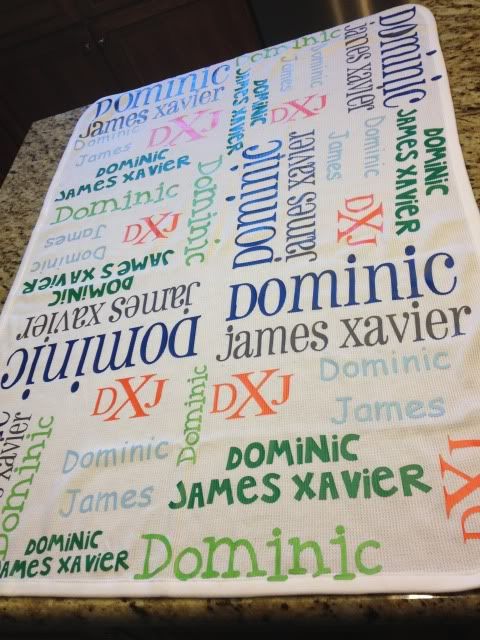

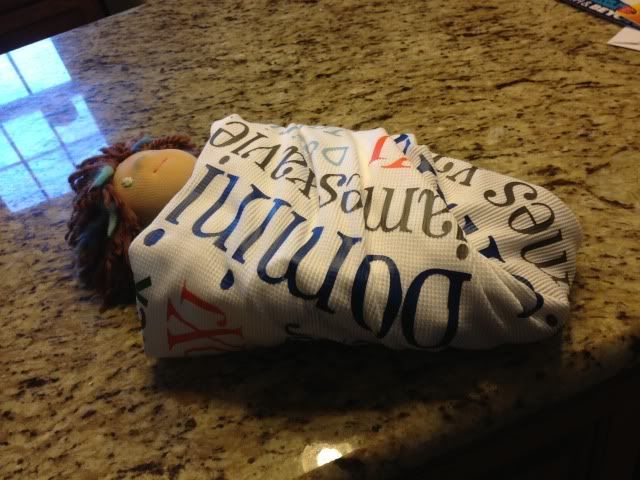
I did try to take a photo of how this would look as a swaddle, but a 14" doll (even my preemie first-born was 17.5"....) whos arms naturally stick out to the sides did not make the best model.  I don't have anything else to use though!  Oh well :)  It'll be on my son one month from today!

I got some questions about the design process so let me show you some screenshots.

Here we have the design mat resized to the blanket size, which is 30" wide and 40" long.  Ignore the red box- that is showing you where the 12x24 cutting mat is.  These are all free fonts from around the web.  


Once that was done (using lots of duplication, resizing, and moving things around) I copied it into a new file and started to split it up by color.  My HTV sheets are 12" x 15" so I resized my mat for those.  You can see here that some colors took 2 sheets- some took 1/4 of one.  It varies.  Anyway, I didn't show it with this screenshot, but don't forgot- MIRROR BEFORE YOU CUT HTV!  Mirror your image!  Select it and hit "flip horizontally."  Also, remember HTV goes on your cutting mat shiny side DOWN!  :)

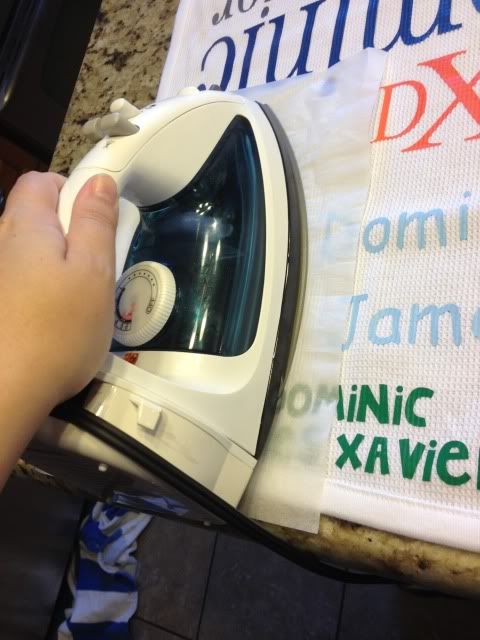
When I make something with HTV I get asked a LOT about the pressing process.  I don't own a heat press or a teflon sheet.  My iron is from walmart.  It goes from 1-6, temperature-wise, so I set it on 6.  

I press in two stages.  First, I use parchment paper over the HTV with it's little carrier sheet (the shiny sheet) attached.


Next, I remove the carrier sheet, put the parchment paper back down (VERY IMPORTANT!  DO NOT IRON OVER HTV DIRECTLY!) and press it again.  I do about 15-45 seconds of pressing over each area each time.

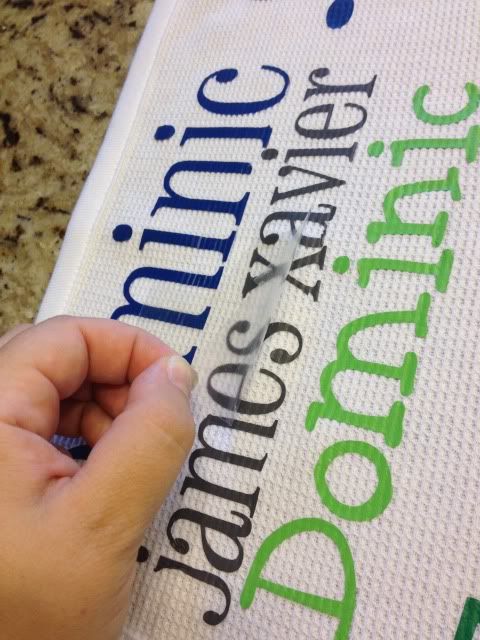
Here's me removing the carrier sheet after the first press.  The HTV is adhered, but I think the 2nd parchment-paper-only step really helps it adhere well (especially on textured fabrics like this.


I hope that helps some of you who like me don't want to drop $200+ on a heat press, or even $10 on a telfon sheet- I've never felt the need! :)

5.03.2013

Baby banner, and shape cropping with the Silhouette Cameo

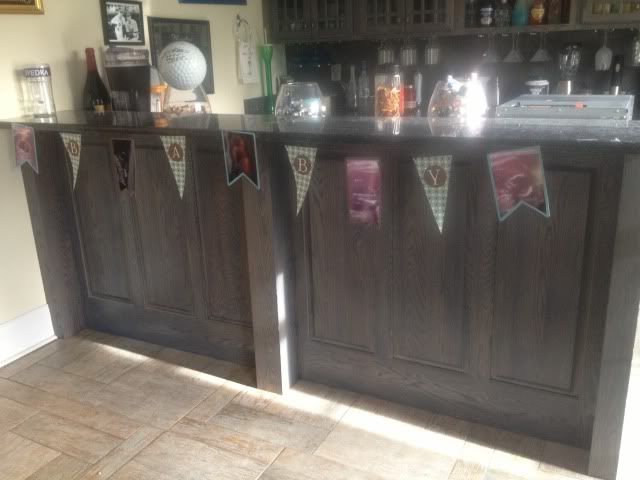
I was reading the Silhouette blog for the first time in awhile and noticed that today's posting involved a shape challenge.  You can see it here, along with a link to the shape's download page.  Since I have been trying to make some baby shower decor (so far my tissue balls are more like tissue wheels...) I decided to use this as an opportunity to make a banner to string across the 8' long dessert table at the baby shower.

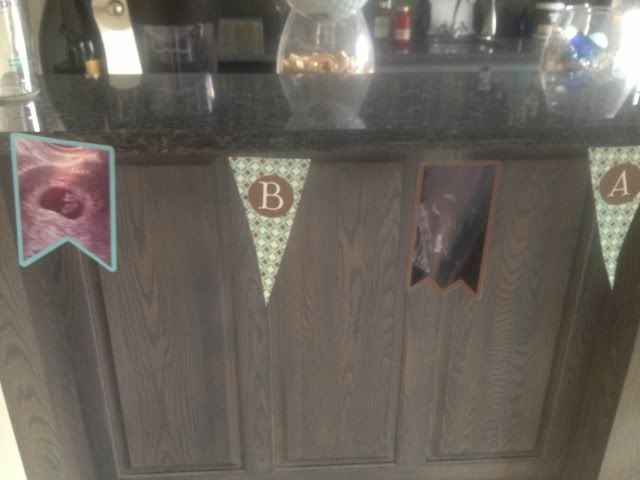
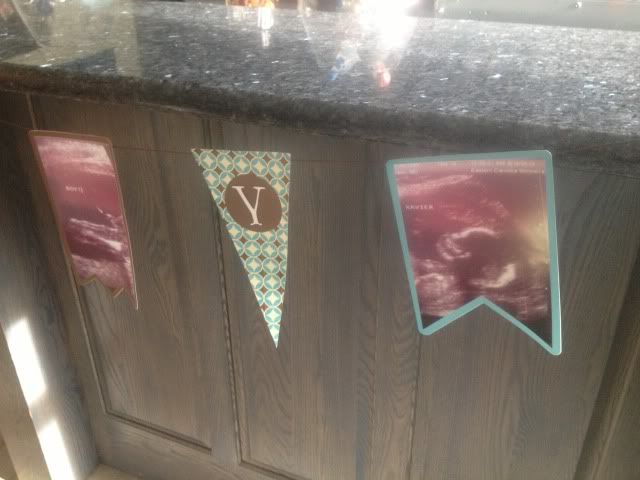
I think it's pretty obvious that my favorite feature of the Silhouette software is print & cut, since I don't need to have anything on hand but plain white card stock.  I bought the blue & brown pattern in the Silhouette store and filled up the shape's triangle banners.  I then created a circle inside the triangle, turned off the cut lines, and color matched it.  I then used print & cut to make 4 of those.  The letters BABY were cut out of white card stock and adhered with rolled glue dots to give them a little dimension.

Next came my ultrasound photos.  I used the other two shapes from the banner and shape cropped my ultrasound photos.  This is really easy to do.


First lay your photo and then choose the shape you want it.  Drag that shape over to the photo and align it where you want the crop.  It might be hard to see, but that banner shape is over the baby in the ultrasound in the screenshot below.


Next, drag your mouse and highlight/select both the photo and the shape at the same time.

Last, click Modify (top right, looks like a rectangle with a circled M in the upper right corner- see pic below) and then click crop.  Voila!  Easy peasy!  You may have to manually turn the cut lines on the shape when you crop it this way so just go to your cut line window (scissors with red, to the left of the font's A symbol) and click "Cut Edge."


I then created offsets for all 5 of my ultrasound photos and fill color matched them blue and brown to the triangle's pattern (you can see the blue offset for this particular ultrasound in the screenshots above).

Lots of printing & cutting comes next- I love print and cut, have I said that?  All I needed to have on hand for this was 12 sheets of plain white card stock and some string.

I used glue dots on the corners of the ultrasound photos and stuck them to the offsets.  I then used my bar, which is 8' 5" long, marked off 8' exactly, and measured out the string, taping the ends to the bar.  Starting with the center ultrasound photo and working out, I taped the string about 1/2 inch down the back of each banner piece.  For the party, this will be strung across the dessert table, with a white tablecloth behind it and white and blue tissue balls at each end (if I can get that particular craft mastered!).


So cute!  I love personalized decor and thought this was much more fun than a cluster of framed ultrasound photos. 

If you don't like to print, cut, and glue x1000, just make every single banner piece one layer- IE, shape crop your ultrasound, turn off the cut lines, offset it, color it, turn those cut lines on, and print & cut it.  That should print you a photo with a border, basically (the offset) and then cut it.  Ditto on the letters- just turn off the cut lines and group them in the circle of the pennant and print & cut it into one piece.

Thanks for looking!


Showing posts with label baby. Show all posts

8.09.2013

Our worst kept secret ever

Pregnancy related things are really hard for the hubby and I to keep secret.  Despite 5 miscarriages and a year of fertility treatments to conceive our first child, we still told everyone the second our home test showed up positive, even though almost everyone thought we were crazy not to wait a little bit (that almost kind of hurts- "hey, remember you might fail at this?").  We never regretted it though!

This time around, family & friends knew right away (in fact, I walked straight out of the bathroom, where I called my just-deployed husband, and over to my dad, and started spreading the news!) but we didn't post on Facebook until the ultrasound showed heartbeat.  Why?  I don't know.  Last time my sister actually spilled the Facebook-beans so maybe I would have waited last time too.  Facebook is weird like that.

One thing we tried really, really hard to keep secret is the new baby's name.  With our first, we knew from before we got pregnant what he would be if he was a boy or girl.  With this one, we still had the girl name, but no boy name.  Agreeing on one took months, but we did!  Then hubby decided we should keep it secret.

Secrets can be fun, although my mother in law now knows, since he can never resist her asking :) I thought of a really cool idea though.  What if the "baby announcement" hospital photo of screaming 10 minute old baby was also a name announcement for everyone else?  At least for the Facebook crew, who don't get up to the minute, super close family secret updates.

I set out to re-created a prop for a photo I saw.  And I am IN. LOVE.

I used my Silhouette Cameo to design the whole thing.  Simply resize the mat to whatever your blanket size is (this is 30 x 40 ") and design away.  I then copied the whole thing into a new file, split it up by color, and lined each color up on the mat one by one.  I cut them out of Siser Easyweed HTV (my favorite brand!), weeded & cut the words apart, and then re-created the whole thing on the blanket.  I pressed with my iron and parchment paper (no fancy heat press or teflon sheet here- I think I'm proof that you don't need tons of $$$ equipment to make something awesome!) and total pressing time was about 20 minutes.  I spent extra time going back and forth since the blanket is a waffle weave and I wanted to make sure the HTV really got in there.

So, blog-land friends, please be honored that you now know the name of our soon-to-be-born son!  I can't wait to swaddle him in this blanket and post a photo.


I did try to take a photo of how this would look as a swaddle, but a 14" doll (even my preemie first-born was 17.5"....) whos arms naturally stick out to the sides did not make the best model.  I don't have anything else to use though!  Oh well :)  It'll be on my son one month from today!


I got some questions about the design process so let me show you some screenshots.

Here we have the design mat resized to the blanket size, which is 30" wide and 40" long.  Ignore the red box- that is showing you where the 12x24 cutting mat is.  These are all free fonts from around the web.  


Once that was done (using lots of duplication, resizing, and moving things around) I copied it into a new file and started to split it up by color.  My HTV sheets are 12" x 15" so I resized my mat for those.  You can see here that some colors took 2 sheets- some took 1/4 of one.  It varies.  Anyway, I didn't show it with this screenshot, but don't forgot- MIRROR BEFORE YOU CUT HTV!  Mirror your image!  Select it and hit "flip horizontally."  Also, remember HTV goes on your cutting mat shiny side DOWN!  :)

When I make something with HTV I get asked a LOT about the pressing process.  I don't own a heat press or a teflon sheet.  My iron is from walmart.  It goes from 1-6, temperature-wise, so I set it on 6.  

I press in two stages.  First, I use parchment paper over the HTV with it's little carrier sheet (the shiny sheet) attached.

Next, I remove the carrier sheet, put the parchment paper back down (VERY IMPORTANT!  DO NOT IRON OVER HTV DIRECTLY!) and press it again.  I do about 15-45 seconds of pressing over each area each time.

Here's me removing the carrier sheet after the first press.  The HTV is adhered, but I think the 2nd parchment-paper-only step really helps it adhere well (especially on textured fabrics like this.


I hope that helps some of you who like me don't want to drop $200+ on a heat press, or even $10 on a telfon sheet- I've never felt the need! :)

5.03.2013

Baby banner, and shape cropping with the Silhouette Cameo

I was reading the Silhouette blog for the first time in awhile and noticed that today's posting involved a shape challenge.  You can see it here, along with a link to the shape's download page.  Since I have been trying to make some baby shower decor (so far my tissue balls are more like tissue wheels...) I decided to use this as an opportunity to make a banner to string across the 8' long dessert table at the baby shower.

I think it's pretty obvious that my favorite feature of the Silhouette software is print & cut, since I don't need to have anything on hand but plain white card stock.  I bought the blue & brown pattern in the Silhouette store and filled up the shape's triangle banners.  I then created a circle inside the triangle, turned off the cut lines, and color matched it.  I then used print & cut to make 4 of those.  The letters BABY were cut out of white card stock and adhered with rolled glue dots to give them a little dimension.

Next came my ultrasound photos.  I used the other two shapes from the banner and shape cropped my ultrasound photos.  This is really easy to do.


First lay your photo and then choose the shape you want it.  Drag that shape over to the photo and align it where you want the crop.  It might be hard to see, but that banner shape is over the baby in the ultrasound in the screenshot below.


Next, drag your mouse and highlight/select both the photo and the shape at the same time.

Last, click Modify (top right, looks like a rectangle with a circled M in the upper right corner- see pic below) and then click crop.  Voila!  Easy peasy!  You may have to manually turn the cut lines on the shape when you crop it this way so just go to your cut line window (scissors with red, to the left of the font's A symbol) and click "Cut Edge."


I then created offsets for all 5 of my ultrasound photos and fill color matched them blue and brown to the triangle's pattern (you can see the blue offset for this particular ultrasound in the screenshots above).

Lots of printing & cutting comes next- I love print and cut, have I said that?  All I needed to have on hand for this was 12 sheets of plain white card stock and some string.

I used glue dots on the corners of the ultrasound photos and stuck them to the offsets.  I then used my bar, which is 8' 5" long, marked off 8' exactly, and measured out the string, taping the ends to the bar.  Starting with the center ultrasound photo and working out, I taped the string about 1/2 inch down the back of each banner piece.  For the party, this will be strung across the dessert table, with a white tablecloth behind it and white and blue tissue balls at each end (if I can get that particular craft mastered!).


So cute!  I love personalized decor and thought this was much more fun than a cluster of framed ultrasound photos. 

If you don't like to print, cut, and glue x1000, just make every single banner piece one layer- IE, shape crop your ultrasound, turn off the cut lines, offset it, color it, turn those cut lines on, and print & cut it.  That should print you a photo with a border, basically (the offset) and then cut it.  Ditto on the letters- just turn off the cut lines and group them in the circle of the pennant and print & cut it into one piece.

Thanks for looking!