Showing posts with label monogram. Show all posts

8.09.2013

Our worst kept secret ever

Pregnancy related things are really hard for the hubby and I to keep secret.  Despite 5 miscarriages and a year of fertility treatments to conceive our first child, we still told everyone the second our home test showed up positive, even though almost everyone thought we were crazy not to wait a little bit (that almost kind of hurts- "hey, remember you might fail at this?").  We never regretted it though!

This time around, family & friends knew right away (in fact, I walked straight out of the bathroom, where I called my just-deployed husband, and over to my dad, and started spreading the news!) but we didn't post on Facebook until the ultrasound showed heartbeat.  Why?  I don't know.  Last time my sister actually spilled the Facebook-beans so maybe I would have waited last time too.  Facebook is weird like that.

One thing we tried really, really hard to keep secret is the new baby's name.  With our first, we knew from before we got pregnant what he would be if he was a boy or girl.  With this one, we still had the girl name, but no boy name.  Agreeing on one took months, but we did!  Then hubby decided we should keep it secret.

Secrets can be fun, although my mother in law now knows, since he can never resist her asking :) I thought of a really cool idea though.  What if the "baby announcement" hospital photo of screaming 10 minute old baby was also a name announcement for everyone else?  At least for the Facebook crew, who don't get up to the minute, super close family secret updates.

I set out to re-created a prop for a photo I saw.  And I am IN. LOVE.

I used my Silhouette Cameo to design the whole thing.  Simply resize the mat to whatever your blanket size is (this is 30 x 40 ") and design away.  I then copied the whole thing into a new file, split it up by color, and lined each color up on the mat one by one.  I cut them out of Siser Easyweed HTV (my favorite brand!), weeded & cut the words apart, and then re-created the whole thing on the blanket.  I pressed with my iron and parchment paper (no fancy heat press or teflon sheet here- I think I'm proof that you don't need tons of $$$ equipment to make something awesome!) and total pressing time was about 20 minutes.  I spent extra time going back and forth since the blanket is a waffle weave and I wanted to make sure the HTV really got in there.

So, blog-land friends, please be honored that you now know the name of our soon-to-be-born son!  I can't wait to swaddle him in this blanket and post a photo.
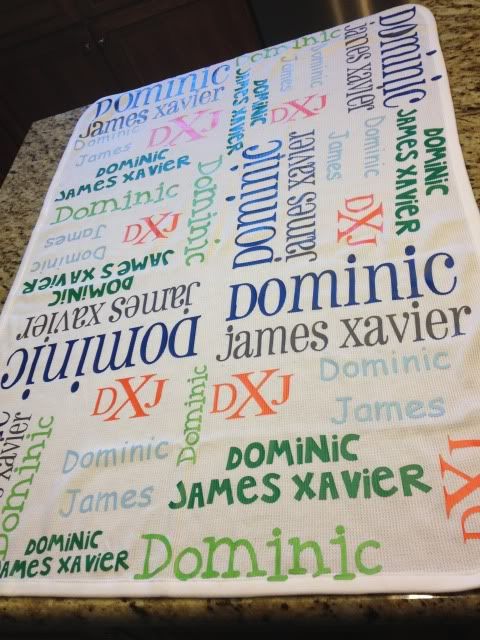

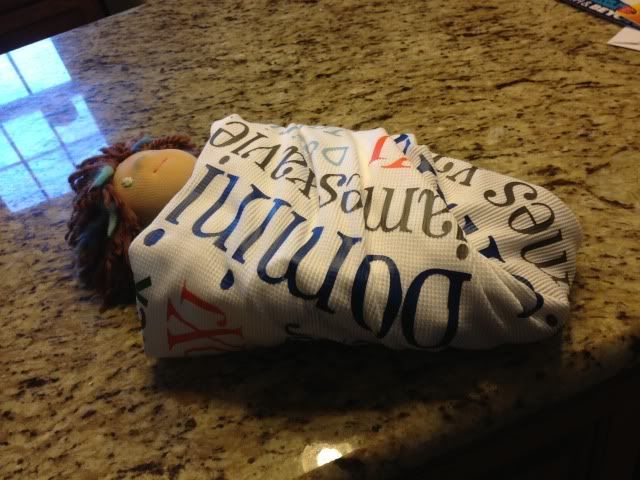
I did try to take a photo of how this would look as a swaddle, but a 14" doll (even my preemie first-born was 17.5"....) whos arms naturally stick out to the sides did not make the best model.  I don't have anything else to use though!  Oh well :)  It'll be on my son one month from today!

I got some questions about the design process so let me show you some screenshots.

Here we have the design mat resized to the blanket size, which is 30" wide and 40" long.  Ignore the red box- that is showing you where the 12x24 cutting mat is.  These are all free fonts from around the web.  


Once that was done (using lots of duplication, resizing, and moving things around) I copied it into a new file and started to split it up by color.  My HTV sheets are 12" x 15" so I resized my mat for those.  You can see here that some colors took 2 sheets- some took 1/4 of one.  It varies.  Anyway, I didn't show it with this screenshot, but don't forgot- MIRROR BEFORE YOU CUT HTV!  Mirror your image!  Select it and hit "flip horizontally."  Also, remember HTV goes on your cutting mat shiny side DOWN!  :)

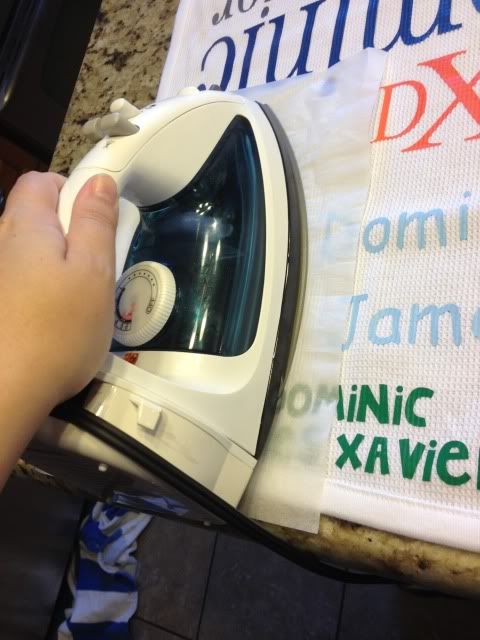
When I make something with HTV I get asked a LOT about the pressing process.  I don't own a heat press or a teflon sheet.  My iron is from walmart.  It goes from 1-6, temperature-wise, so I set it on 6.  

I press in two stages.  First, I use parchment paper over the HTV with it's little carrier sheet (the shiny sheet) attached.


Next, I remove the carrier sheet, put the parchment paper back down (VERY IMPORTANT!  DO NOT IRON OVER HTV DIRECTLY!) and press it again.  I do about 15-45 seconds of pressing over each area each time.

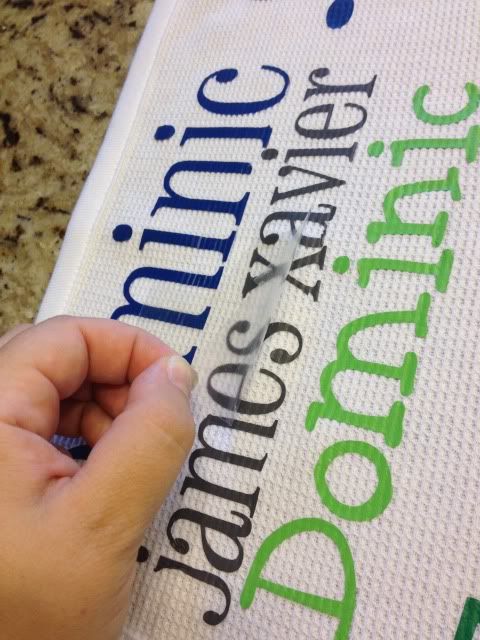
Here's me removing the carrier sheet after the first press.  The HTV is adhered, but I think the 2nd parchment-paper-only step really helps it adhere well (especially on textured fabrics like this.


I hope that helps some of you who like me don't want to drop $200+ on a heat press, or even $10 on a telfon sheet- I've never felt the need! :)

5.24.2013

Monogram nail art with the Silhouette Cameo

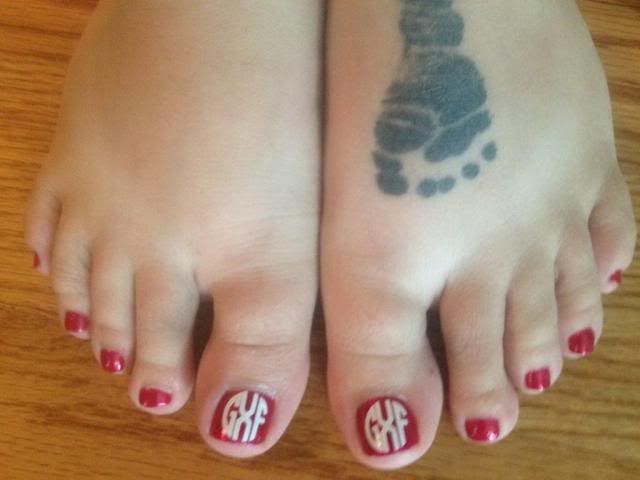
I saw this in a few places online recently, and yesterday I hit a pretty big wall of procrastination.  I'm taking 4 classes to be done with my degree in June, in the middle of buying a house, a PCS move to another state, and of course pregnant and taking care of my 3 year old.  Rather than do ANYTHING on my massive to-do list, I took some vinyl and monogrammed my pedicured toes.

The font is the Circle Monogram from Font Bros. and I used white Oracal 341 for the vinyl.  I wish I could get an accurate idea of the size.  The thing is, when I select an image in Silhouette Studio, the box it puts around it and measure with tends to be a little bigger than the actual design especially when using font.  I believe the total window was 1.42" wide, but the actual design is maybe .80" wide.  It'll depend on your own toes, of course!


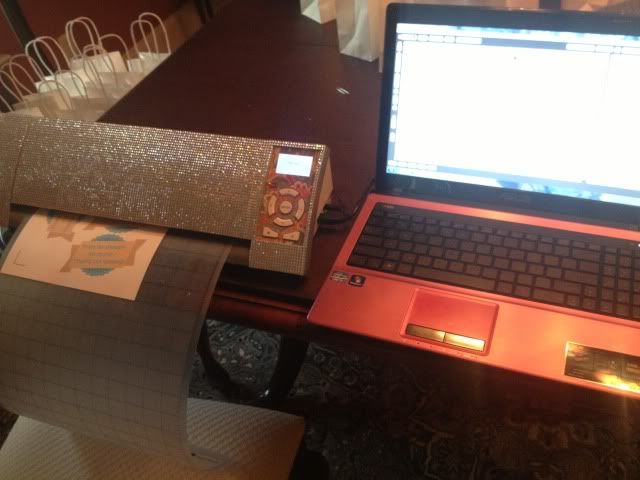
While we're on a girly topic, my workstation has gotten pretty girly lately, huh?


I bought two large sheets of self-adhesive rhinestones from Allstarco.com, cut them to size, and adhered to the Cameo.  Took maybe 10 minutes and I didn't use all of the first sheet so I have lots left over to play with :) As for the computer...pink was on sale.  Nobody wanted it.  I got a great deal.  It's growing on me.

4.02.2013

Totally Custom iPhone

Hi, it's been awhile!  The ups and downs of growing another human being will do that I guess :)

I had some fun today customizing my iPhone and it was mostly free. You could probably do it totally free, but I did spend $1.99 on a single app.

I'm sure you all know what an iPhone screen generally looks like.  I have a 4S.  While I did use folders to organize some things, in general:

source:  techradar.com

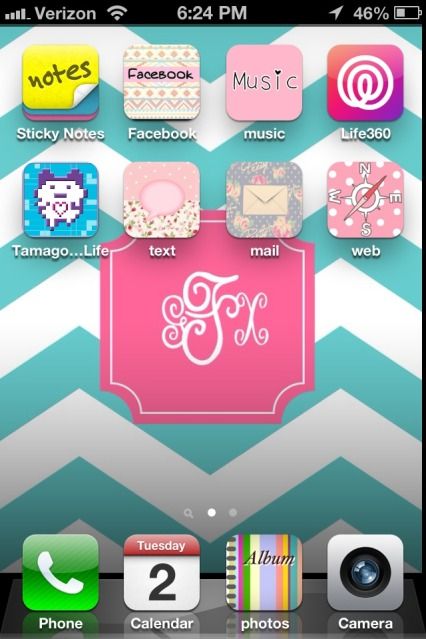
After 1 free app and 1 paid app, voila!

Yeah, I downloaded Tamagotchi.

ALL of the icons came from a free app called CocoPPa and I used StyleFake's instructions, which are not only really thorough but look really tedious to screenshot and repeat myself here, so go read for instructions.  In general, you open the app, find an icon you like, go to "Set up Link," and then click whatever- set up a speed dial number, a direct URL link, search for a specific app to assign, etc.  Then you name it, hit OK, agree to open it in Safari, and click the button that looks like an arrow inside a box (bottom center) and then "Add to Home Screen" at which point the icon shows up on your screen and you can move it just like a normal icon.  However, unless I missed it (it's long) that blog doesn't list all of the possible shortcuts that you can do.

I did figure out a much easier way to actually change your app.  But first, you can't change everything.  Basically the general iPhone apps are mostly there forever.  You can change the Camera icon if you use a 3rd party camera app, and I was able to change the photo album, SMS, e-mail, Safari browser, and music icons as you can see.  You can easily change any 3rd party app's icon and Stylefake shows you how (basically go to an image you like, hit "set up link" and the first option is to search for the app to use- never saw Apple apps, just 3rd party).  You cannot change the camera, phone dialer, calendar, etc.  I tried a few different tricks and couldn't get it to work.

Another important note- this just makes shortcuts.  If you delete the actual apps, nothing will work.  Stick them all in a folder and hide it on page 2 or something (as I did).

Ok, on to my easy way of getting Apple apps to change their icons- after you find an icon and go to "set up link" (again, read Stylefake's photo-heavy instructions, they're great) click "URL" at the bottom like you are setting up an icon to take you directly to Google, your favorite forum, whatever.  Instead of any of those URLs, use these:

Text message- SMS:// 
Music- music:// 
Photos- photos-redirect:// 
Maps-maps:// 
AppStore-http://AppStore.apple.com/ 
Safari-http://google.com  (or any other link that you like, I actually use msn's home page)
E-Mail:  mailto:
ITunes-http://itunes.apple.com/


It's really pretty easy and fast and looks cute.  On the negative side, notifications don't pop up on these icons, you will see a white blank page and then it will go to the actual app (less than a second in my experience), and using this shortcut to access the Apple e-mail app results in it bringing up the new message window, which you have to close to actually see your inbox.  Nothing takes more than a second, but you might find it feels tedious to use.

The other app I downloaded is for the monogrammed wallpaper.  It's called Wall About You and is $1.99.  It is a very no frills custom monogram wallpaper maker.  You could easily make your own wallpaper and e-mail yourself the image, then save it on your phone and set it, but I was in the car and just wanted something fast.

I am by no means an expert on this app.  I just thought it was fun, it was easy to use after I did it once or twice, and it looks cute.  The ONLY URL directs I know of for changing Apple apps I have listed, I don't think it works on a 3GS or lower iPhone, and please don't blame me if you somehow totally brick your phone.  Other than that, have fun with it :)


10.07.2012

Easy Monogram Tack Pumpkin

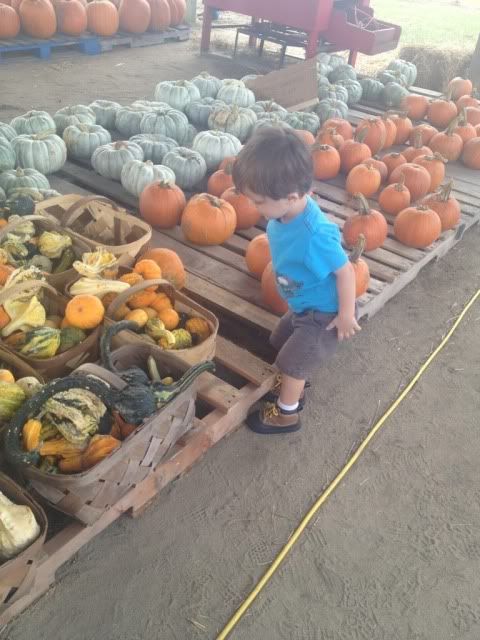
Today, we went to a pumpkin patch!  My son had so much fun checking out all the different sizes and shapes.


I, however, fell in love with the colors.

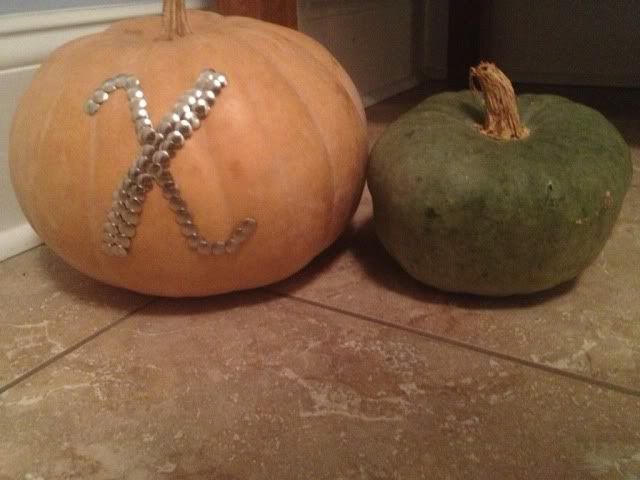
Rather than screaming orange (ok, in addition to, but no screaming orange pumpkins are for me!) I came home with these beauties:


These colors really do not photograph well.  The orange is actually a pale, pale, pale pastel orange, nearly beige with just a tint of orange.  The green is a very pale green-blue, almost a seafoam color.

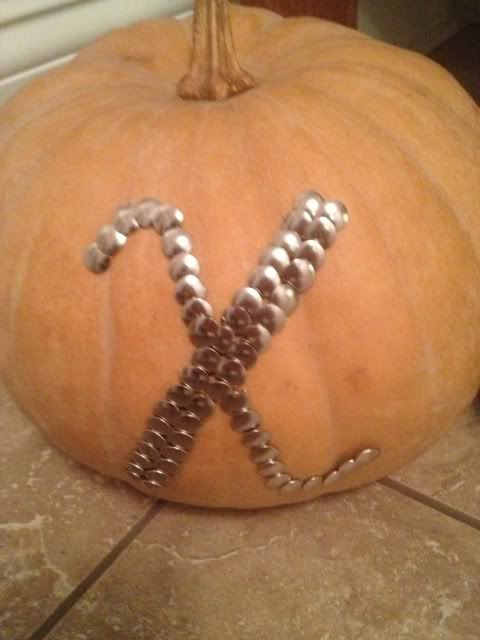
As you can see, I just went for a simple thumb tack monogram on the big one.  I was going to do something with stencils and paint, but I saw this online and it really caught my eye.  As a bonus it only took about 5 minutes to do.


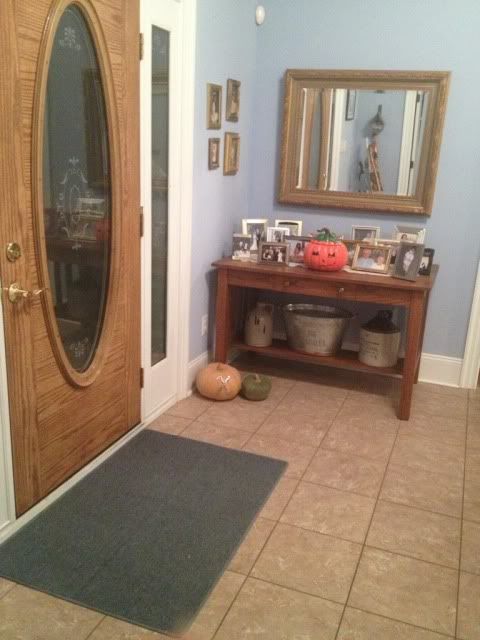
Right now these are sitting by the door, but may get moved to the porch.  The green pumpkin may turn into Frankenstein's head- not sure yet!  We also have our family pumpkin carving contest coming up, and I need to show off all of the Halloween decor around the property!  We've been having a lot of fun!


Showing posts with label monogram. Show all posts

8.09.2013

Our worst kept secret ever

Pregnancy related things are really hard for the hubby and I to keep secret.  Despite 5 miscarriages and a year of fertility treatments to conceive our first child, we still told everyone the second our home test showed up positive, even though almost everyone thought we were crazy not to wait a little bit (that almost kind of hurts- "hey, remember you might fail at this?").  We never regretted it though!

This time around, family & friends knew right away (in fact, I walked straight out of the bathroom, where I called my just-deployed husband, and over to my dad, and started spreading the news!) but we didn't post on Facebook until the ultrasound showed heartbeat.  Why?  I don't know.  Last time my sister actually spilled the Facebook-beans so maybe I would have waited last time too.  Facebook is weird like that.

One thing we tried really, really hard to keep secret is the new baby's name.  With our first, we knew from before we got pregnant what he would be if he was a boy or girl.  With this one, we still had the girl name, but no boy name.  Agreeing on one took months, but we did!  Then hubby decided we should keep it secret.

Secrets can be fun, although my mother in law now knows, since he can never resist her asking :) I thought of a really cool idea though.  What if the "baby announcement" hospital photo of screaming 10 minute old baby was also a name announcement for everyone else?  At least for the Facebook crew, who don't get up to the minute, super close family secret updates.

I set out to re-created a prop for a photo I saw.  And I am IN. LOVE.

I used my Silhouette Cameo to design the whole thing.  Simply resize the mat to whatever your blanket size is (this is 30 x 40 ") and design away.  I then copied the whole thing into a new file, split it up by color, and lined each color up on the mat one by one.  I cut them out of Siser Easyweed HTV (my favorite brand!), weeded & cut the words apart, and then re-created the whole thing on the blanket.  I pressed with my iron and parchment paper (no fancy heat press or teflon sheet here- I think I'm proof that you don't need tons of $$$ equipment to make something awesome!) and total pressing time was about 20 minutes.  I spent extra time going back and forth since the blanket is a waffle weave and I wanted to make sure the HTV really got in there.

So, blog-land friends, please be honored that you now know the name of our soon-to-be-born son!  I can't wait to swaddle him in this blanket and post a photo.


I did try to take a photo of how this would look as a swaddle, but a 14" doll (even my preemie first-born was 17.5"....) whos arms naturally stick out to the sides did not make the best model.  I don't have anything else to use though!  Oh well :)  It'll be on my son one month from today!


I got some questions about the design process so let me show you some screenshots.

Here we have the design mat resized to the blanket size, which is 30" wide and 40" long.  Ignore the red box- that is showing you where the 12x24 cutting mat is.  These are all free fonts from around the web.  


Once that was done (using lots of duplication, resizing, and moving things around) I copied it into a new file and started to split it up by color.  My HTV sheets are 12" x 15" so I resized my mat for those.  You can see here that some colors took 2 sheets- some took 1/4 of one.  It varies.  Anyway, I didn't show it with this screenshot, but don't forgot- MIRROR BEFORE YOU CUT HTV!  Mirror your image!  Select it and hit "flip horizontally."  Also, remember HTV goes on your cutting mat shiny side DOWN!  :)

When I make something with HTV I get asked a LOT about the pressing process.  I don't own a heat press or a teflon sheet.  My iron is from walmart.  It goes from 1-6, temperature-wise, so I set it on 6.  

I press in two stages.  First, I use parchment paper over the HTV with it's little carrier sheet (the shiny sheet) attached.

Next, I remove the carrier sheet, put the parchment paper back down (VERY IMPORTANT!  DO NOT IRON OVER HTV DIRECTLY!) and press it again.  I do about 15-45 seconds of pressing over each area each time.

Here's me removing the carrier sheet after the first press.  The HTV is adhered, but I think the 2nd parchment-paper-only step really helps it adhere well (especially on textured fabrics like this.


I hope that helps some of you who like me don't want to drop $200+ on a heat press, or even $10 on a telfon sheet- I've never felt the need! :)

5.24.2013

Monogram nail art with the Silhouette Cameo

I saw this in a few places online recently, and yesterday I hit a pretty big wall of procrastination.  I'm taking 4 classes to be done with my degree in June, in the middle of buying a house, a PCS move to another state, and of course pregnant and taking care of my 3 year old.  Rather than do ANYTHING on my massive to-do list, I took some vinyl and monogrammed my pedicured toes.

The font is the Circle Monogram from Font Bros. and I used white Oracal 341 for the vinyl.  I wish I could get an accurate idea of the size.  The thing is, when I select an image in Silhouette Studio, the box it puts around it and measure with tends to be a little bigger than the actual design especially when using font.  I believe the total window was 1.42" wide, but the actual design is maybe .80" wide.  It'll depend on your own toes, of course!


While we're on a girly topic, my workstation has gotten pretty girly lately, huh?


I bought two large sheets of self-adhesive rhinestones from Allstarco.com, cut them to size, and adhered to the Cameo.  Took maybe 10 minutes and I didn't use all of the first sheet so I have lots left over to play with :) As for the computer...pink was on sale.  Nobody wanted it.  I got a great deal.  It's growing on me.

4.02.2013

Totally Custom iPhone

Hi, it's been awhile!  The ups and downs of growing another human being will do that I guess :)

I had some fun today customizing my iPhone and it was mostly free. You could probably do it totally free, but I did spend $1.99 on a single app.

I'm sure you all know what an iPhone screen generally looks like.  I have a 4S.  While I did use folders to organize some things, in general:

source:  techradar.com

After 1 free app and 1 paid app, voila!

Yeah, I downloaded Tamagotchi.

ALL of the icons came from a free app called CocoPPa and I used StyleFake's instructions, which are not only really thorough but look really tedious to screenshot and repeat myself here, so go read for instructions.  In general, you open the app, find an icon you like, go to "Set up Link," and then click whatever- set up a speed dial number, a direct URL link, search for a specific app to assign, etc.  Then you name it, hit OK, agree to open it in Safari, and click the button that looks like an arrow inside a box (bottom center) and then "Add to Home Screen" at which point the icon shows up on your screen and you can move it just like a normal icon.  However, unless I missed it (it's long) that blog doesn't list all of the possible shortcuts that you can do.

I did figure out a much easier way to actually change your app.  But first, you can't change everything.  Basically the general iPhone apps are mostly there forever.  You can change the Camera icon if you use a 3rd party camera app, and I was able to change the photo album, SMS, e-mail, Safari browser, and music icons as you can see.  You can easily change any 3rd party app's icon and Stylefake shows you how (basically go to an image you like, hit "set up link" and the first option is to search for the app to use- never saw Apple apps, just 3rd party).  You cannot change the camera, phone dialer, calendar, etc.  I tried a few different tricks and couldn't get it to work.

Another important note- this just makes shortcuts.  If you delete the actual apps, nothing will work.  Stick them all in a folder and hide it on page 2 or something (as I did).

Ok, on to my easy way of getting Apple apps to change their icons- after you find an icon and go to "set up link" (again, read Stylefake's photo-heavy instructions, they're great) click "URL" at the bottom like you are setting up an icon to take you directly to Google, your favorite forum, whatever.  Instead of any of those URLs, use these:

Text message- SMS:// 
Music- music:// 
Photos- photos-redirect:// 
Maps-maps:// 
AppStore-http://AppStore.apple.com/ 
Safari-http://google.com  (or any other link that you like, I actually use msn's home page)
E-Mail:  mailto:
ITunes-http://itunes.apple.com/


It's really pretty easy and fast and looks cute.  On the negative side, notifications don't pop up on these icons, you will see a white blank page and then it will go to the actual app (less than a second in my experience), and using this shortcut to access the Apple e-mail app results in it bringing up the new message window, which you have to close to actually see your inbox.  Nothing takes more than a second, but you might find it feels tedious to use.

The other app I downloaded is for the monogrammed wallpaper.  It's called Wall About You and is $1.99.  It is a very no frills custom monogram wallpaper maker.  You could easily make your own wallpaper and e-mail yourself the image, then save it on your phone and set it, but I was in the car and just wanted something fast.

I am by no means an expert on this app.  I just thought it was fun, it was easy to use after I did it once or twice, and it looks cute.  The ONLY URL directs I know of for changing Apple apps I have listed, I don't think it works on a 3GS or lower iPhone, and please don't blame me if you somehow totally brick your phone.  Other than that, have fun with it :)


10.07.2012

Easy Monogram Tack Pumpkin

Today, we went to a pumpkin patch!  My son had so much fun checking out all the different sizes and shapes.


I, however, fell in love with the colors.

Rather than screaming orange (ok, in addition to, but no screaming orange pumpkins are for me!) I came home with these beauties:


These colors really do not photograph well.  The orange is actually a pale, pale, pale pastel orange, nearly beige with just a tint of orange.  The green is a very pale green-blue, almost a seafoam color.

As you can see, I just went for a simple thumb tack monogram on the big one.  I was going to do something with stencils and paint, but I saw this online and it really caught my eye.  As a bonus it only took about 5 minutes to do.


Right now these are sitting by the door, but may get moved to the porch.  The green pumpkin may turn into Frankenstein's head- not sure yet!  We also have our family pumpkin carving contest coming up, and I need to show off all of the Halloween decor around the property!  We've been having a lot of fun!