Showing posts with label and. Show all posts

8.04.2013

Print and Cut Magnets with the Silhouette Cameo

My son has a Mickey Mouse magnet board and randomly asked me (after we'd been to the mall and several other stores today) for Cars and Turbo magnets to go on it as well.  Luckily I found a pack of Avery magnet paper that I bought who knows when, and voila!

Well it wasn't quite "voila."  I had to find all the images (and nice clean ones without tons of background to mess up the trace), save them, open them one by one, trace them, and get them arranged before printing and cutting.  All the images were hunted down via Google Images.

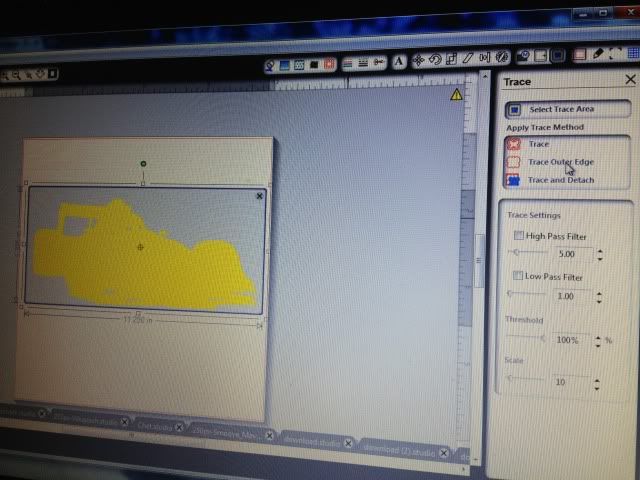
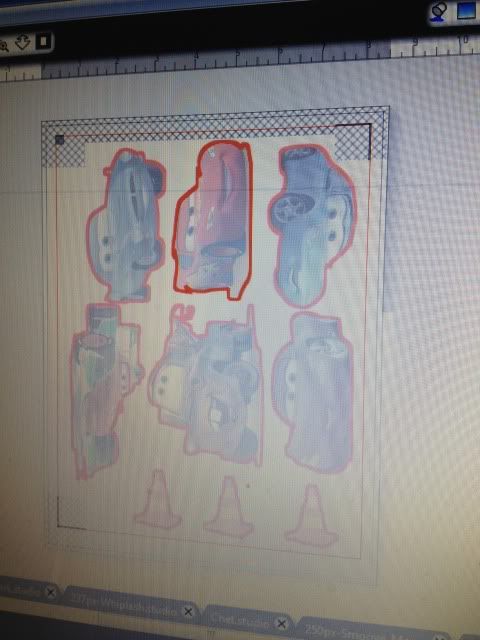
Once open, you have to trace them to get cut lines.  I normally make the image really large, erase anything I don't want (like a logo in the corner), and trace it by turning off High Pass Filter, bumping up the threshold into the 90s, and then hitting "Trace Outer Edge."  Below you can see my settings to trace Francesco.  By hitting Trace Outer Edge it only traces the outer edge as stated, so that white area inside his tail will NOT cut.  If you want to cut out the details like that, hit Trace, not Trace Outer Edge.  I figured that the tail probably wouldn't be that sturdy and this is for a 3 year old so I stuck with the edge.


Arrange everything on your paper- letter size as the magnet paper is, as registration marks on.  I then hit the cut line window just to double check that all the cut lines are turned on.


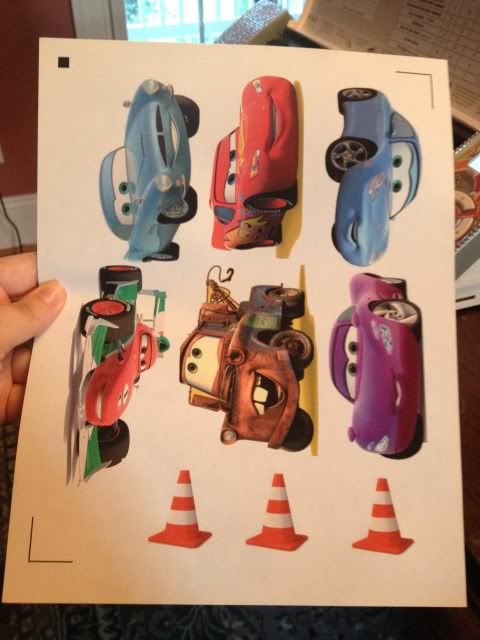
And print!  I set my Preferences to "Best."  The instructions for magnet paper say inkjet printers only.


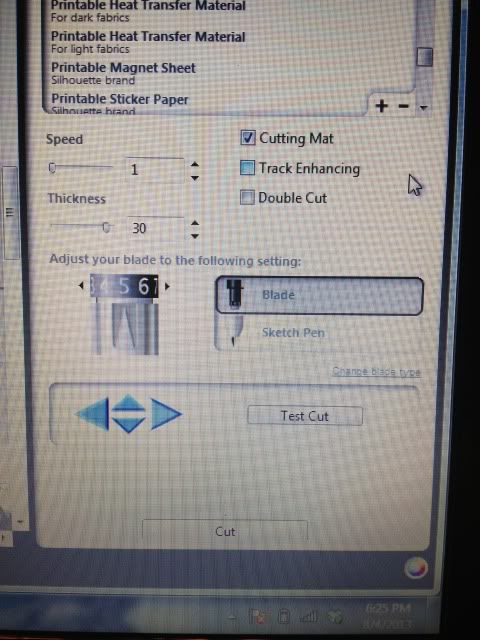
Now on to cutting.  After scanning registration marks, I set it to the preset magnet paper settings, but I bump up the blade from 4 to 5.


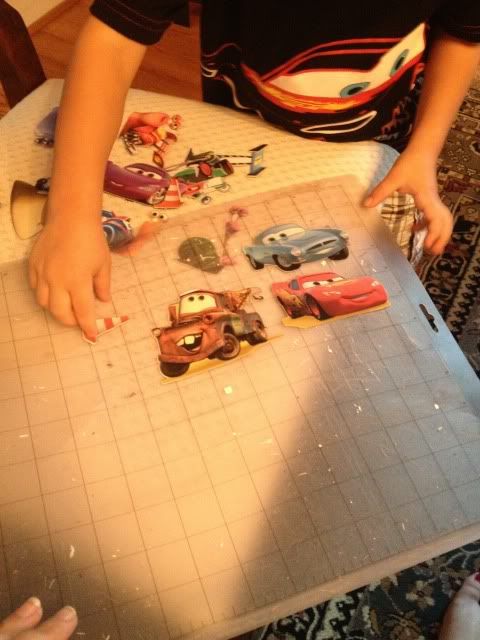
After cutting...well, this is the best photo I could get!  My son was so excited that I made something just for him and he couldn't wait to take them off the mat- all by himself of course.


Now he's occupied playing again.  Score!

7.17.2013

Using Printable HTV (heat transfer vinyl) for dark colors with the Silhouette Cameo

I loooove to make shirts using HTV (heat transfer vinyl) and my favorite brand is Siser Easyweed.  My least favorite is the Silhouette brand...it's awful.  Anyway, as easy as it is to layer Siser Easyweed, sometimes you have projects that just don't work with the limited colors offered, or maybe you want a photo to be ironed on your shirt, or something.  That's where printable HTV comes in.  I have used and liked both Jolee's and Transfermations brands, and been less impressed with the Silhouette brand, though it's not terrible.  As a general rule I like to use the ones made for dark colors even on light colored clothing as it's way more vivid and just looks better in my opinion.

For this shirt I used Transfermations for dark colors.  I either got it at Michael's, Staples, or Walmat, not 100% positive on which.

Normally when you use HTV and even HTV for light colors, you need to mirror the image before you cut.  You do not need to mirror the image with HTV for dark colors.  I'd always read your instructions to be sure but I've used several brands and none require this.

First, get your image all ready in Silhouette Studio.  Get your cut lines situated- if you layered some elements you may need to highlight them and hit "Cut Edge" or whatever works for you.  Do not mirror it!  Turn on registration marks and print it.  I use "Best" settings for quality.  You have to use an Inkjet printer.  If you've found a brand that works with a laser printer, please share!  I've never seen one.

Once it's printed, stick it on your mat and load it into your Cameo.  Have your machine scan the registration marks and get your cut settings ready.

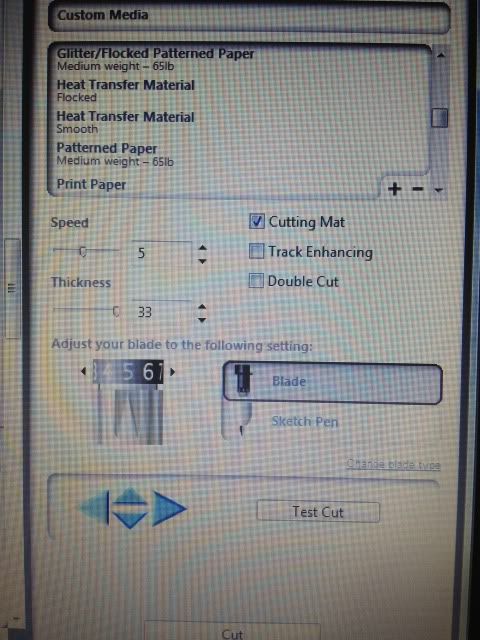
Here's a snap of what settings I use.  I set it to "Flocked HTV" and then change the blade to 5.  That's why it says Custom Media.  ***Note- I get a lot of use out of my blades, but when I switched to a new one, I only had to use HTV Smooth settings, blade on 1!  Big difference!****


Have your machine cut.  You're basically doing Print & Cut, easy, right?  I love Print & Cut and it's the biggest reason I bought my Cameo.

Once your design is cut, you then remove it from it's backing paper.  You'll see that this stuff feels more like Siser Easyweed and not regular printable HTV.

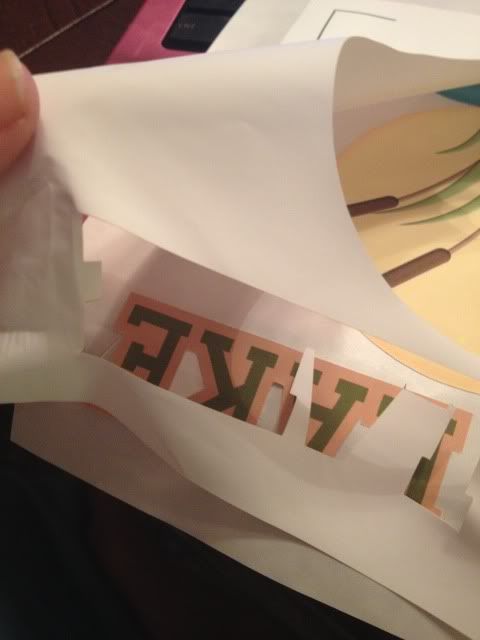
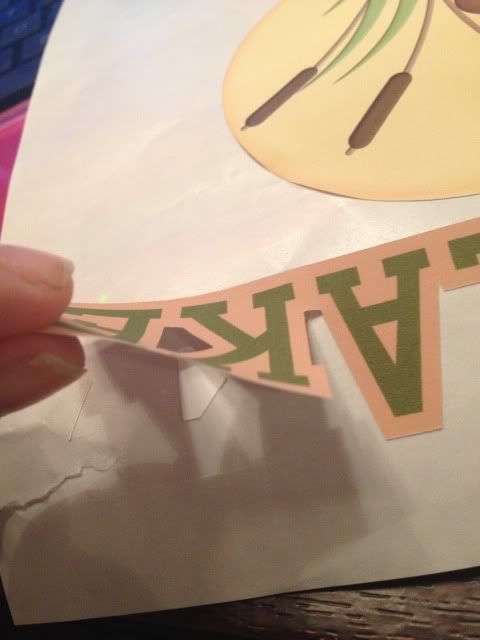
Here's me just peeling up the corner and removing all the excess white- the backing paper does not cut, see it?  I did rip it a little when grabbing that corner but it's almost like the carrier sheet of Siser Easyweed (except not used as such- just that you don't cut that paper, just your HTV.  A kiss cut.  Anyway..)


Aaand here's me peeling my design off the backing paper.  This is the one thing I don't like.  Unlike Siser Easyweed which is on a carrier sheet, I have to line up all these elements by hand separately on the t-shirt and yeah, they end up off center sometimes.  I'm working on that.  Practice makes perfect!

See how it weeds itself in between letters and stuff?  It's pretty nifty.

Your next step is to line everything up on your shirt (iron it first, but let it cool before you start re-arranging stuff on it) and when it's to your liking, grab a sheet of parchment paper.  I've always had 1-2 sheets included in whatever pack of dark color printable HTV I buy, and it lasts for several sheets.

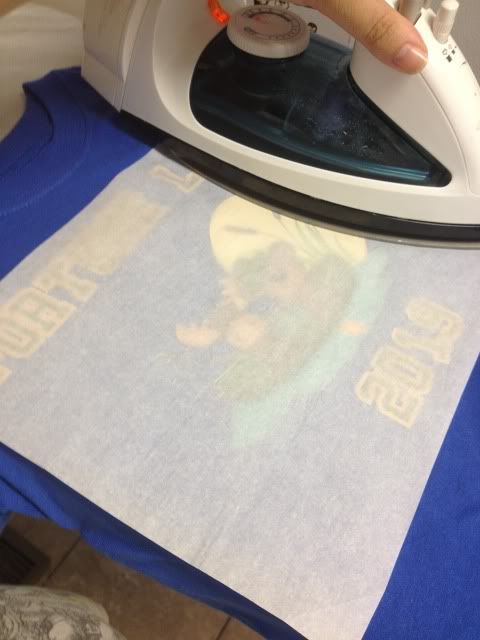
Place that over your design- careful, don't jostle anything- and iron.  My iron goes from 1-6 so I set it on 6, no steam, and press really hard for 20 seconds.  Then I pick it up, move it, press again, until I've done the whole design.  The instructions do say not to drag your iron but to pick up and move it.


When I'm done I just lift the parchment paper- unlike the Siser Easyweed carrier sheets, it's not going to be sticky to your shirt or anything- and voila, shirt!

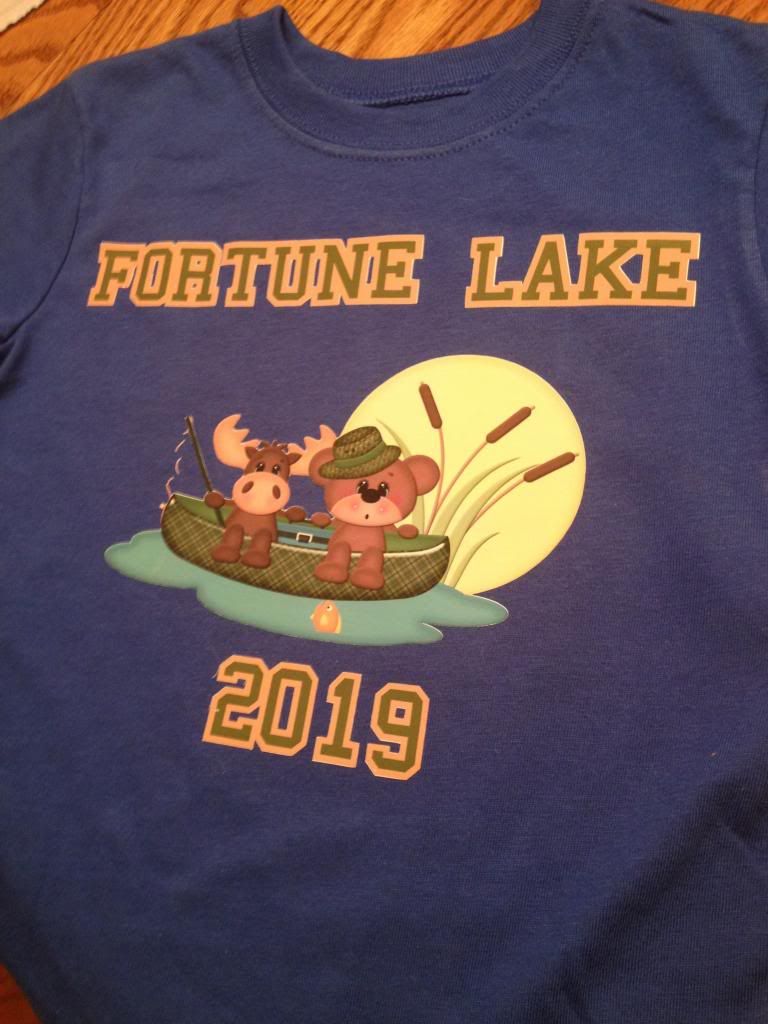
This IS a classic example of me arranging things crooked and/or off center, but on a wiggly 3 year old, it's not very noticeable :) With Siser Easyweed and it's sticky sheets I normally line everything up on the floor and then step back and look at it, and then I can just pick up the shirt and move it to the ironing board, but you can't do that with this stuff- no carrier sheet.  My only pet peeve.

You'll also probably notice that the fishing line is missing some pieces- in removing the design from the backing that part was just too thin and I went too fast, but oh well.  It is what it is.  This is a tiny shirt for a tiny little toddler.


I always wash inside out, and never iron on the design itself, but other than that, I've found this stuff to be very durable!

Showing posts with label and. Show all posts

8.04.2013

Print and Cut Magnets with the Silhouette Cameo

My son has a Mickey Mouse magnet board and randomly asked me (after we'd been to the mall and several other stores today) for Cars and Turbo magnets to go on it as well.  Luckily I found a pack of Avery magnet paper that I bought who knows when, and voila!

Well it wasn't quite "voila."  I had to find all the images (and nice clean ones without tons of background to mess up the trace), save them, open them one by one, trace them, and get them arranged before printing and cutting.  All the images were hunted down via Google Images.

Once open, you have to trace them to get cut lines.  I normally make the image really large, erase anything I don't want (like a logo in the corner), and trace it by turning off High Pass Filter, bumping up the threshold into the 90s, and then hitting "Trace Outer Edge."  Below you can see my settings to trace Francesco.  By hitting Trace Outer Edge it only traces the outer edge as stated, so that white area inside his tail will NOT cut.  If you want to cut out the details like that, hit Trace, not Trace Outer Edge.  I figured that the tail probably wouldn't be that sturdy and this is for a 3 year old so I stuck with the edge.


Arrange everything on your paper- letter size as the magnet paper is, as registration marks on.  I then hit the cut line window just to double check that all the cut lines are turned on.


And print!  I set my Preferences to "Best."  The instructions for magnet paper say inkjet printers only.


Now on to cutting.  After scanning registration marks, I set it to the preset magnet paper settings, but I bump up the blade from 4 to 5.


After cutting...well, this is the best photo I could get!  My son was so excited that I made something just for him and he couldn't wait to take them off the mat- all by himself of course.


Now he's occupied playing again.  Score!

7.17.2013

Using Printable HTV (heat transfer vinyl) for dark colors with the Silhouette Cameo

I loooove to make shirts using HTV (heat transfer vinyl) and my favorite brand is Siser Easyweed.  My least favorite is the Silhouette brand...it's awful.  Anyway, as easy as it is to layer Siser Easyweed, sometimes you have projects that just don't work with the limited colors offered, or maybe you want a photo to be ironed on your shirt, or something.  That's where printable HTV comes in.  I have used and liked both Jolee's and Transfermations brands, and been less impressed with the Silhouette brand, though it's not terrible.  As a general rule I like to use the ones made for dark colors even on light colored clothing as it's way more vivid and just looks better in my opinion.

For this shirt I used Transfermations for dark colors.  I either got it at Michael's, Staples, or Walmat, not 100% positive on which.

Normally when you use HTV and even HTV for light colors, you need to mirror the image before you cut.  You do not need to mirror the image with HTV for dark colors.  I'd always read your instructions to be sure but I've used several brands and none require this.

First, get your image all ready in Silhouette Studio.  Get your cut lines situated- if you layered some elements you may need to highlight them and hit "Cut Edge" or whatever works for you.  Do not mirror it!  Turn on registration marks and print it.  I use "Best" settings for quality.  You have to use an Inkjet printer.  If you've found a brand that works with a laser printer, please share!  I've never seen one.

Once it's printed, stick it on your mat and load it into your Cameo.  Have your machine scan the registration marks and get your cut settings ready.

Here's a snap of what settings I use.  I set it to "Flocked HTV" and then change the blade to 5.  That's why it says Custom Media.  ***Note- I get a lot of use out of my blades, but when I switched to a new one, I only had to use HTV Smooth settings, blade on 1!  Big difference!****


Have your machine cut.  You're basically doing Print & Cut, easy, right?  I love Print & Cut and it's the biggest reason I bought my Cameo.

Once your design is cut, you then remove it from it's backing paper.  You'll see that this stuff feels more like Siser Easyweed and not regular printable HTV.

Here's me just peeling up the corner and removing all the excess white- the backing paper does not cut, see it?  I did rip it a little when grabbing that corner but it's almost like the carrier sheet of Siser Easyweed (except not used as such- just that you don't cut that paper, just your HTV.  A kiss cut.  Anyway..)


Aaand here's me peeling my design off the backing paper.  This is the one thing I don't like.  Unlike Siser Easyweed which is on a carrier sheet, I have to line up all these elements by hand separately on the t-shirt and yeah, they end up off center sometimes.  I'm working on that.  Practice makes perfect!

See how it weeds itself in between letters and stuff?  It's pretty nifty.

Your next step is to line everything up on your shirt (iron it first, but let it cool before you start re-arranging stuff on it) and when it's to your liking, grab a sheet of parchment paper.  I've always had 1-2 sheets included in whatever pack of dark color printable HTV I buy, and it lasts for several sheets.

Place that over your design- careful, don't jostle anything- and iron.  My iron goes from 1-6 so I set it on 6, no steam, and press really hard for 20 seconds.  Then I pick it up, move it, press again, until I've done the whole design.  The instructions do say not to drag your iron but to pick up and move it.


When I'm done I just lift the parchment paper- unlike the Siser Easyweed carrier sheets, it's not going to be sticky to your shirt or anything- and voila, shirt!

This IS a classic example of me arranging things crooked and/or off center, but on a wiggly 3 year old, it's not very noticeable :) With Siser Easyweed and it's sticky sheets I normally line everything up on the floor and then step back and look at it, and then I can just pick up the shirt and move it to the ironing board, but you can't do that with this stuff- no carrier sheet.  My only pet peeve.

You'll also probably notice that the fishing line is missing some pieces- in removing the design from the backing that part was just too thin and I went too fast, but oh well.  It is what it is.  This is a tiny shirt for a tiny little toddler.


I always wash inside out, and never iron on the design itself, but other than that, I've found this stuff to be very durable!