Showing posts with label paper. Show all posts

8.10.2015

League of Legends / World of Warcraft Christmas Stocking Custom

It's been forever since I posted and quite awhile since Christmas, obviously.  Regardless, I wanted to share this adorable stocking I made for my boyfriend.  He came to my place for Christmas and I didn't want him to feel left out of the stocking part of things, so I made this for him and filled it up.

I used to love Warcraft and he humored me by playing it a bit with me.  He loves League of Legends so I learned how to play for him.  I decided to combine both and make something cute and personal.

First, I took the World of Warcraft logo, and removed the words, so I was left with the overall shape and texture:
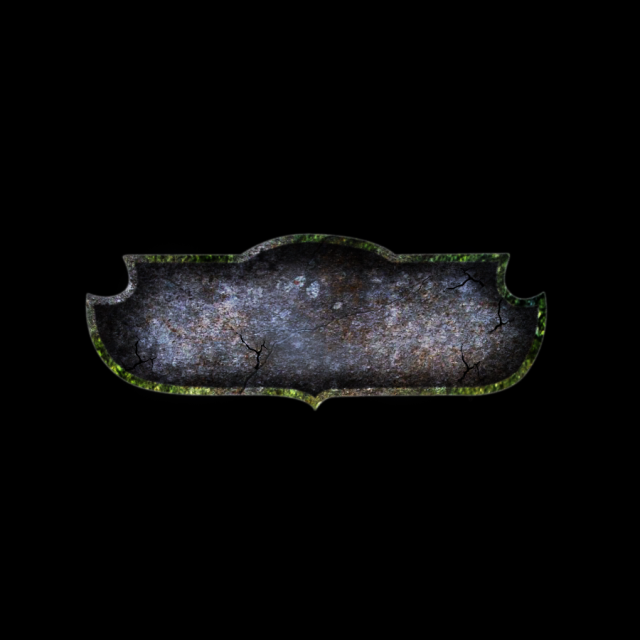

Next, I traced that with my Silhouette Cameo so it'd be a separate cut file.

I wrote his name with the Warcraft-style font found here: http://www.dafont.com/lifecraft.font and added some contrasting border to the letters.

The next thing I did was start looking around for holiday-themed League of Legends images.  This wasn't hard, as they even put earmuffs on one of the miniboss style mobs during the game that time of year.

One adorable Christmas-fied minion later, I had everything in my Silhouette Studio program and traced for cutting.  First was obviously printing- I used Avery Inkject Paper for Dark Colors as this type of paper is basically fabric that you print on, cut, and iron on.  If you use paper for light colors, you're basically just transferring ink, so it doesn't work on dark colors and not very well on textures either.  This stocking is red & fuzzy, so dark it is.  Everything cut without a hitch in the Cameo- settings were for HTV but I ramped the blade up a notch.

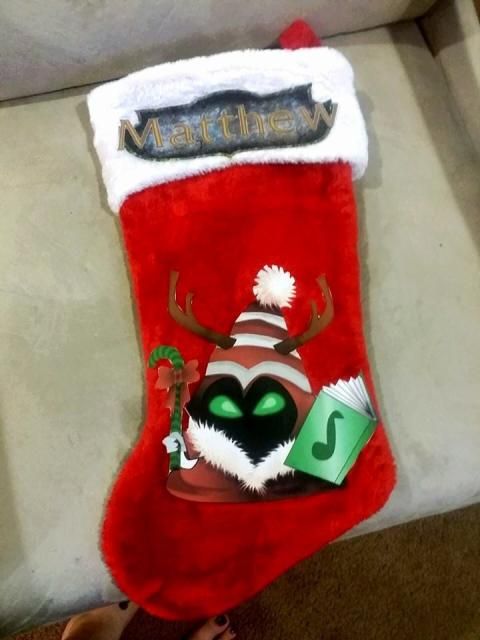
I don't have a heat press, so I used an iron on the highest settings with a piece of teflon in between the transfer and the iron.  It took a bit of time and pressure due to the texture of the iron, but I think ti was completely worth the effort:

My boyfriend told me that he shared it with some online gaming groups and it was pretty well received, so that made me happy :)  It was his idea to post it here too, so hopefully I'll be around and more active again!  Can't wait to see the new machines Silhouette has coming out next month!


8.04.2013

Print and Cut Magnets with the Silhouette Cameo

My son has a Mickey Mouse magnet board and randomly asked me (after we'd been to the mall and several other stores today) for Cars and Turbo magnets to go on it as well.  Luckily I found a pack of Avery magnet paper that I bought who knows when, and voila!

Well it wasn't quite "voila."  I had to find all the images (and nice clean ones without tons of background to mess up the trace), save them, open them one by one, trace them, and get them arranged before printing and cutting.  All the images were hunted down via Google Images.

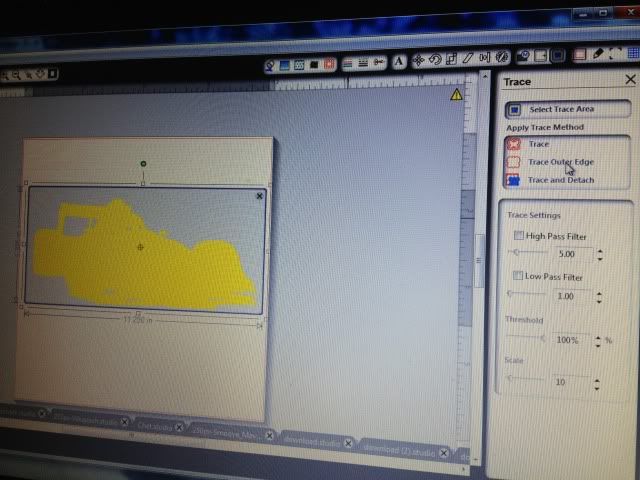
Once open, you have to trace them to get cut lines.  I normally make the image really large, erase anything I don't want (like a logo in the corner), and trace it by turning off High Pass Filter, bumping up the threshold into the 90s, and then hitting "Trace Outer Edge."  Below you can see my settings to trace Francesco.  By hitting Trace Outer Edge it only traces the outer edge as stated, so that white area inside his tail will NOT cut.  If you want to cut out the details like that, hit Trace, not Trace Outer Edge.  I figured that the tail probably wouldn't be that sturdy and this is for a 3 year old so I stuck with the edge.


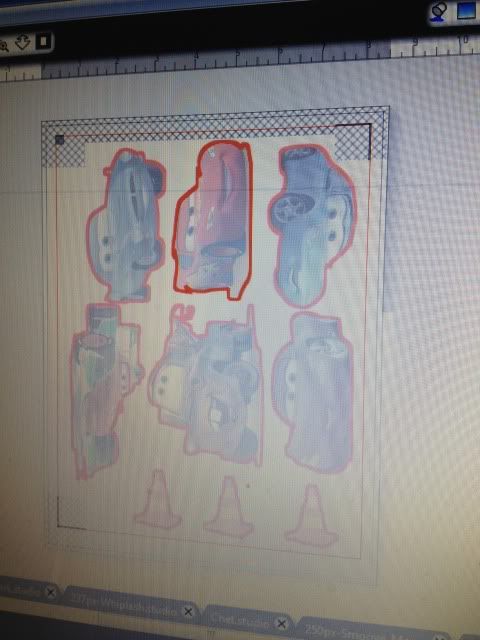
Arrange everything on your paper- letter size as the magnet paper is, as registration marks on.  I then hit the cut line window just to double check that all the cut lines are turned on.


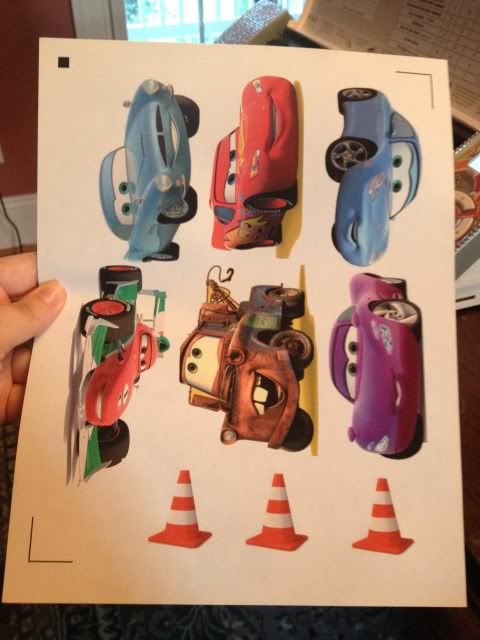
And print!  I set my Preferences to "Best."  The instructions for magnet paper say inkjet printers only.


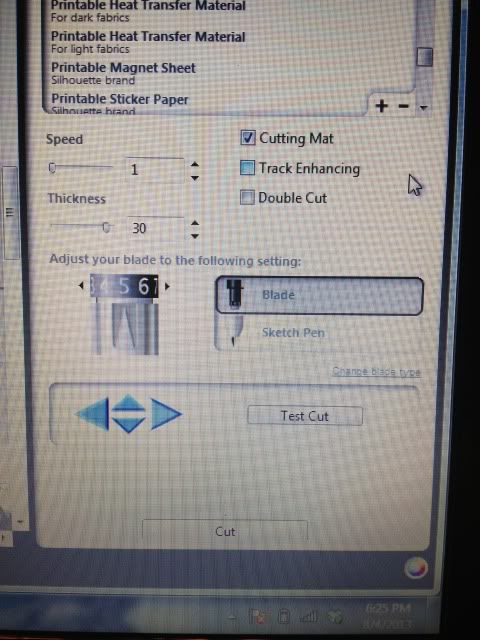
Now on to cutting.  After scanning registration marks, I set it to the preset magnet paper settings, but I bump up the blade from 4 to 5.


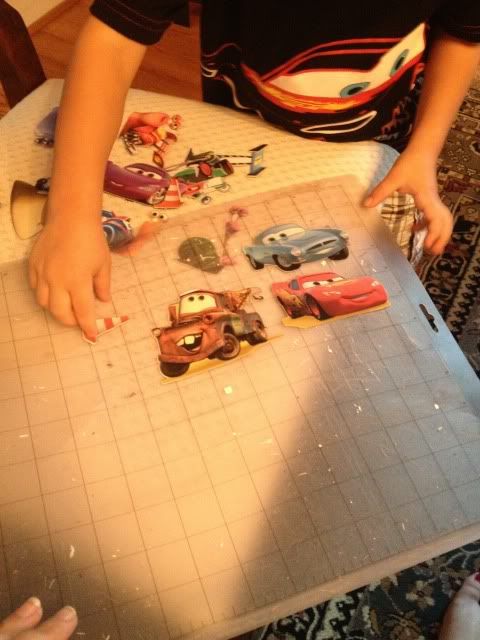
After cutting...well, this is the best photo I could get!  My son was so excited that I made something just for him and he couldn't wait to take them off the mat- all by himself of course.


Now he's occupied playing again.  Score!
Showing posts with label paper. Show all posts

8.10.2015

League of Legends / World of Warcraft Christmas Stocking Custom

It's been forever since I posted and quite awhile since Christmas, obviously.  Regardless, I wanted to share this adorable stocking I made for my boyfriend.  He came to my place for Christmas and I didn't want him to feel left out of the stocking part of things, so I made this for him and filled it up.

I used to love Warcraft and he humored me by playing it a bit with me.  He loves League of Legends so I learned how to play for him.  I decided to combine both and make something cute and personal.

First, I took the World of Warcraft logo, and removed the words, so I was left with the overall shape and texture:


Next, I traced that with my Silhouette Cameo so it'd be a separate cut file.

I wrote his name with the Warcraft-style font found here: http://www.dafont.com/lifecraft.font and added some contrasting border to the letters.

The next thing I did was start looking around for holiday-themed League of Legends images.  This wasn't hard, as they even put earmuffs on one of the miniboss style mobs during the game that time of year.

One adorable Christmas-fied minion later, I had everything in my Silhouette Studio program and traced for cutting.  First was obviously printing- I used Avery Inkject Paper for Dark Colors as this type of paper is basically fabric that you print on, cut, and iron on.  If you use paper for light colors, you're basically just transferring ink, so it doesn't work on dark colors and not very well on textures either.  This stocking is red & fuzzy, so dark it is.  Everything cut without a hitch in the Cameo- settings were for HTV but I ramped the blade up a notch.

I don't have a heat press, so I used an iron on the highest settings with a piece of teflon in between the transfer and the iron.  It took a bit of time and pressure due to the texture of the iron, but I think ti was completely worth the effort:


My boyfriend told me that he shared it with some online gaming groups and it was pretty well received, so that made me happy :)  It was his idea to post it here too, so hopefully I'll be around and more active again!  Can't wait to see the new machines Silhouette has coming out next month!


8.04.2013

Print and Cut Magnets with the Silhouette Cameo

My son has a Mickey Mouse magnet board and randomly asked me (after we'd been to the mall and several other stores today) for Cars and Turbo magnets to go on it as well.  Luckily I found a pack of Avery magnet paper that I bought who knows when, and voila!

Well it wasn't quite "voila."  I had to find all the images (and nice clean ones without tons of background to mess up the trace), save them, open them one by one, trace them, and get them arranged before printing and cutting.  All the images were hunted down via Google Images.

Once open, you have to trace them to get cut lines.  I normally make the image really large, erase anything I don't want (like a logo in the corner), and trace it by turning off High Pass Filter, bumping up the threshold into the 90s, and then hitting "Trace Outer Edge."  Below you can see my settings to trace Francesco.  By hitting Trace Outer Edge it only traces the outer edge as stated, so that white area inside his tail will NOT cut.  If you want to cut out the details like that, hit Trace, not Trace Outer Edge.  I figured that the tail probably wouldn't be that sturdy and this is for a 3 year old so I stuck with the edge.


Arrange everything on your paper- letter size as the magnet paper is, as registration marks on.  I then hit the cut line window just to double check that all the cut lines are turned on.


And print!  I set my Preferences to "Best."  The instructions for magnet paper say inkjet printers only.


Now on to cutting.  After scanning registration marks, I set it to the preset magnet paper settings, but I bump up the blade from 4 to 5.


After cutting...well, this is the best photo I could get!  My son was so excited that I made something just for him and he couldn't wait to take them off the mat- all by himself of course.


Now he's occupied playing again.  Score!