Showing posts with label silhouette cameo. Show all posts

11.10.2012

Silhouette Card Making

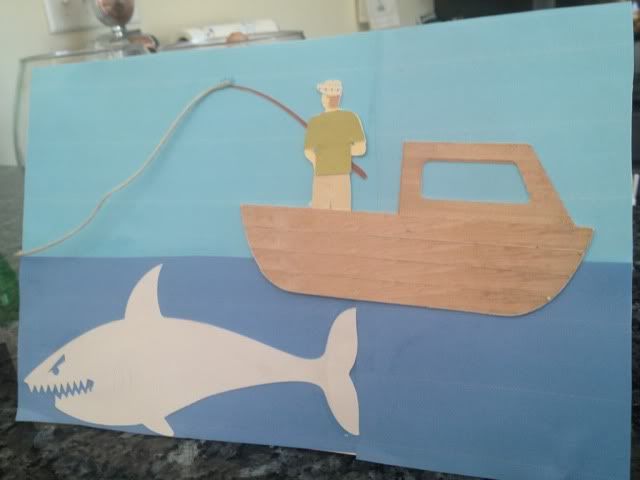
I rarely give cards when I give gifts.  They always seem like a waste of trees to me.  I have been slowly getting into card making with my Cameo and just wanted to share some!


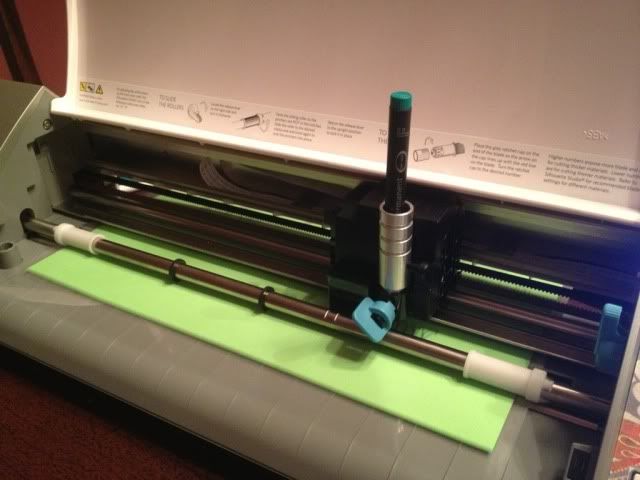
This first one was done for my dad's birthday, using a Chomas Creations pen holder.  Want to win a marker holder??  GO HERE!  Closes in 10 hours :)


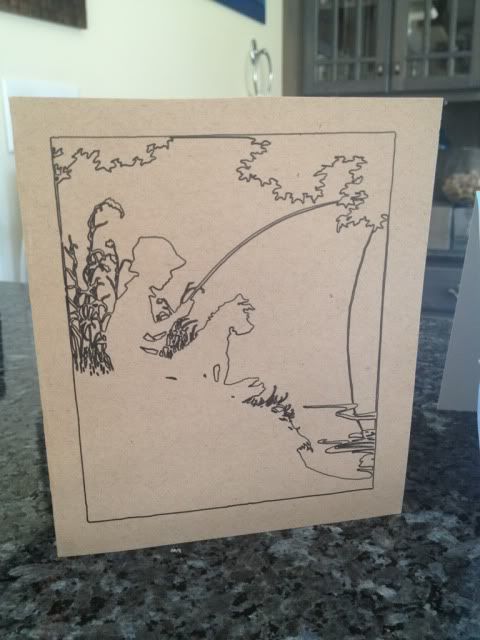
Print & cut card, also for my dad, using free files from Bird's Cards and brown twine


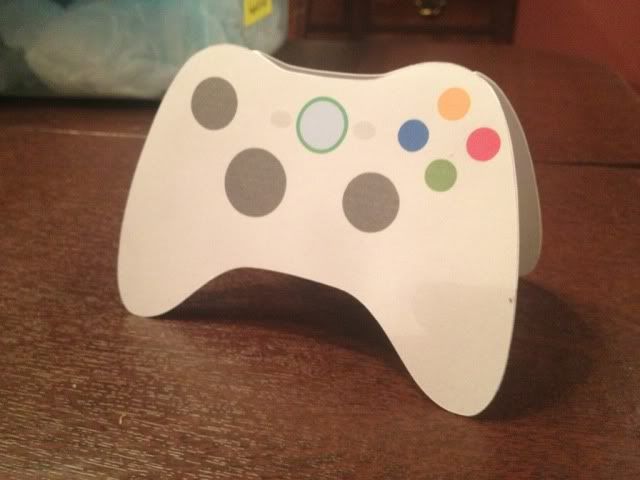
Xbox controller print & cut, also from Bird's Cards


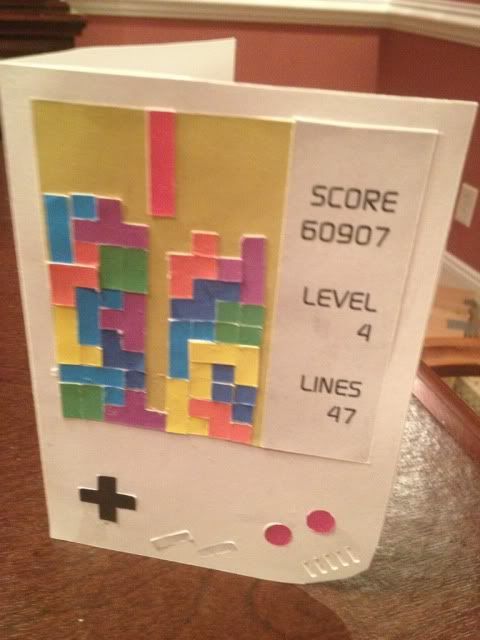
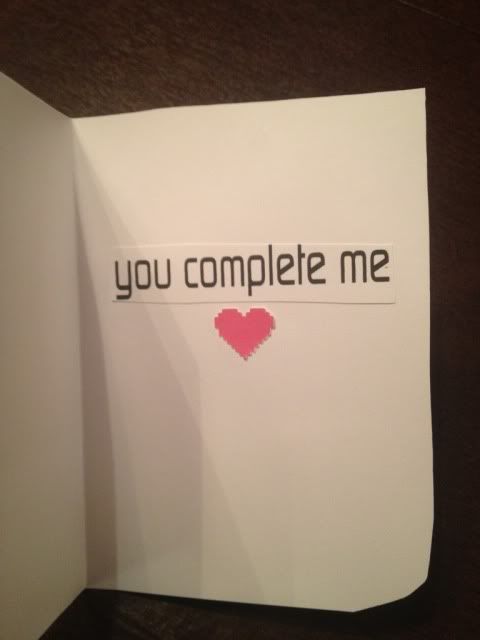
Tetris Card- it was free somewhere on the internets, I think I found it on 4Shared but I cannot find it!  Also, each block was individual.  Shoot me.


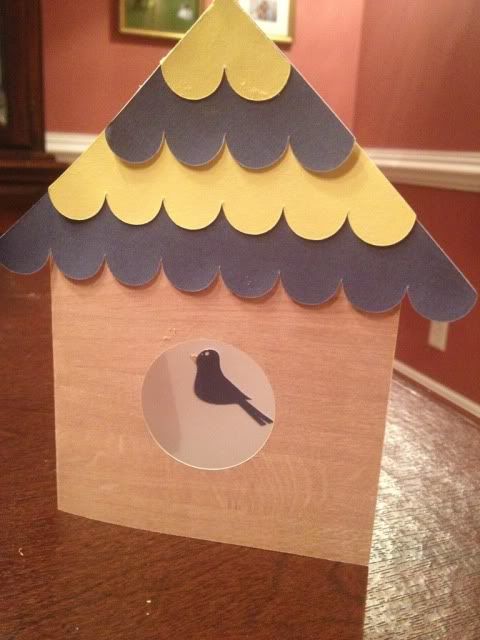
Bird house- also from Bird's Cards


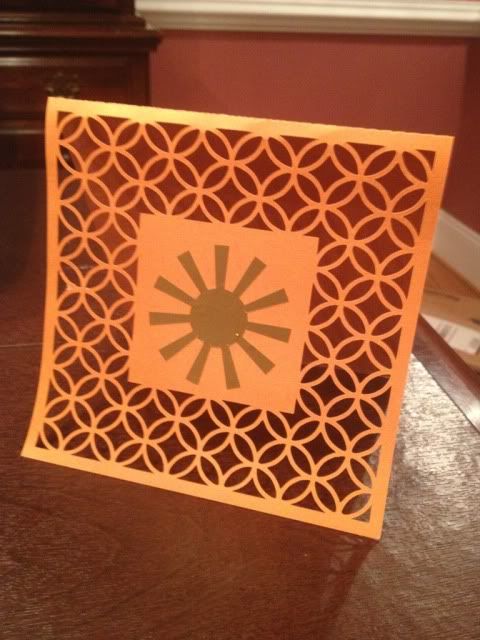
Pretty card, card shape also Bird's Cards (sense a theme?  Lots of great free files there!), sun shape I believe was cameo stock and cut in gold vinyl.


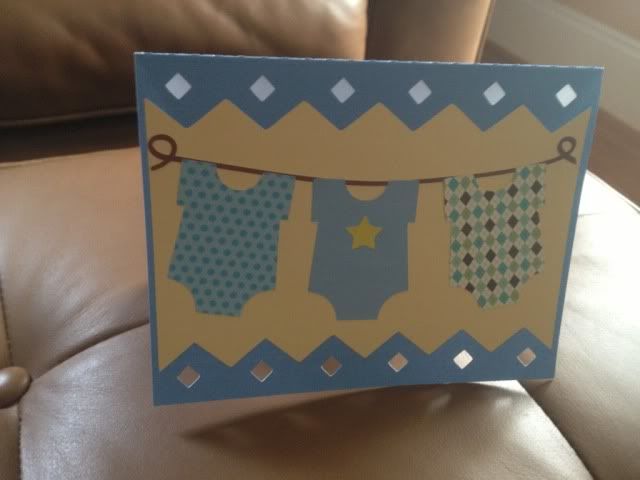
New baby card for my cousin.  Card is from the Silhouette Store and everything was colored with Print & Cut.


11.05.2012

iFontMaker Review


***First- if you want to win a marker holder for your Silhouette Cameo completely FREE, go here!***


I don't get paid to write reviews.  Usually whoever I am reviewing has no idea that their products are being reviewed.  I don't get compensated in any way.

Now that that's out of the way, yesterday I read about an app called iFontMaker.  Since making my own handwriting font was something I always wanted to do, but never wanted to pay for, I started looking it up.  It's $6.99 on the app store, which is more than I normally spend on apps, but I feel like it's worth the money.

You download the app and using the height guidelines draw your own strokes for A-Z, a-z, 0-9, !-), and the punctuation symbols.

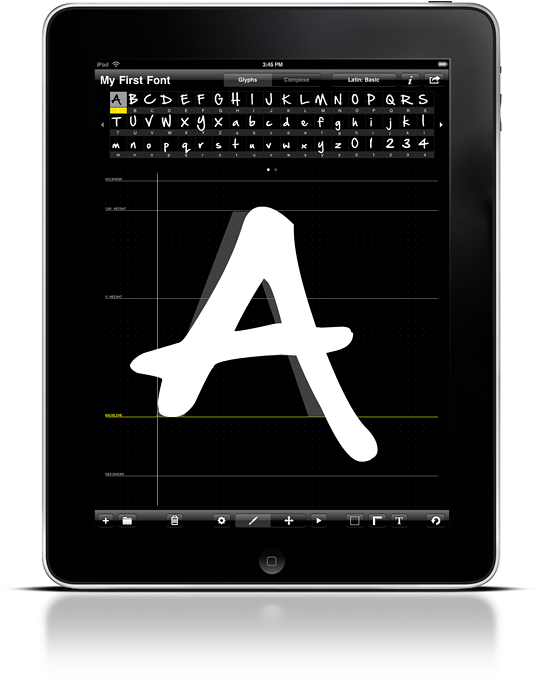
Stock Image


When you are done, you can e-mail yourself a link to download the .ttf file.  Go to Control Panel, Fonts, and drag the .ttf file into the Fonts folder.  There, it's installed!  Any program that uses your font library will see it now (if they were open when you installed the font you'll have to restart them to see it).

You can use 3 different types of brushes, adjust the radius of each, adjust the spacing, and a bunch of other tweaks in the app itself.  It's so easy!  I do wish I could find my stylus.  It's not really my handwriting since I used my index finger, but it's close.


BUT!

I love WingDings.  Especially with the Silhouette Studio software.  They're like free cutting files.  Could I draw my own WingDings?

Each flower made with a different brush type, but I hadn't adjusted the radius.  Zig Zag/Chevron lines had it adjusted pretty thin

Yes, yes I could!

I got to thinking about signatures.  When you see letters & flyers that have what looks like stamped signatures, maybe it wasn't really a stamp.  Maybe it was a font?

Letter "N" makes this signature for me, because that's the letter I drew my signature in


What if you wanted to hand write the closer above your signature?


Same font as my signature, but letters O, P, Q, R, S, T, U, V, & W


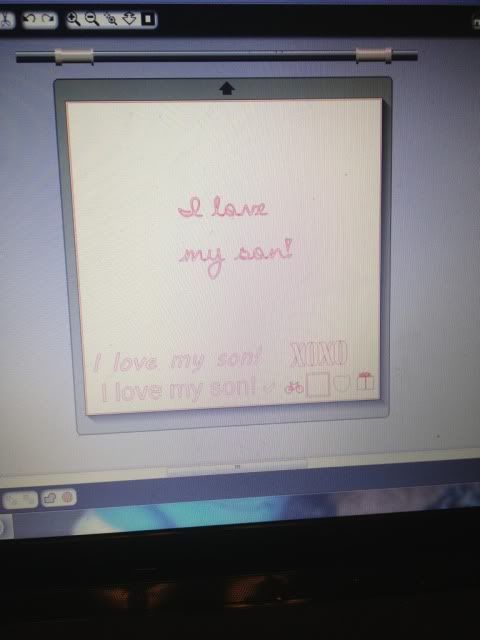
And the best part is I can make my own fonts and WingDings for crafting!  Here's my handwriting typing out "I love my son!" and I filled in in black in case I wanted to use the Cameo's Print & Cut feature.  Below that is my signature in a regular cut line file, meaning no printing needed, just cut on cardstock/vinyl/whatever.

I didn't actually print or cut with my Silhouette for this particular post.  The link at the top of the page that takes you to my giveaway should give you some ideas of how the Silhouette Software handles fonts.


Now if only I could figure out how to make Blogger see more than 7 fonts!

11.03.2012

Silhouette Cameo & Chomas Creations Marker Holder- and a GIVEAWAY!

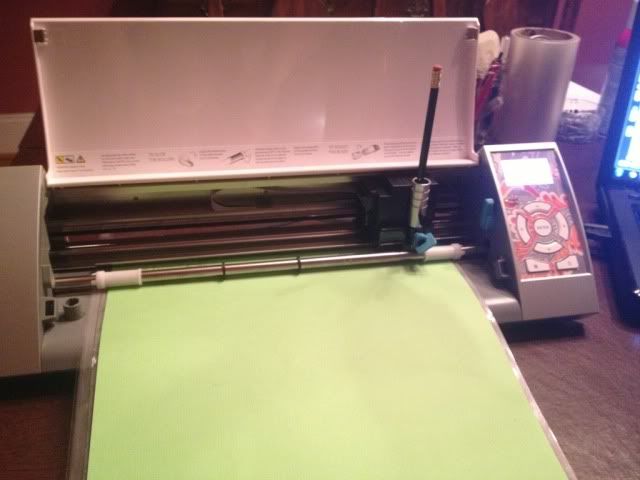
Today I got the Chomas Creations Marker Holder in the mail.  It lets you replace your Silhouette blade with any writing tool that fits.

So the first thing I did was try:

A red gel pen with a fat, flexible grip
A common wooden pencil
A green permanent marker knock-off brand skinny...something.  Felt tip.
A typical white Bic pen

All drawing the same image, a flourish that came stock.

Because there is no lip on the Cameo there's no height limit on your pens.


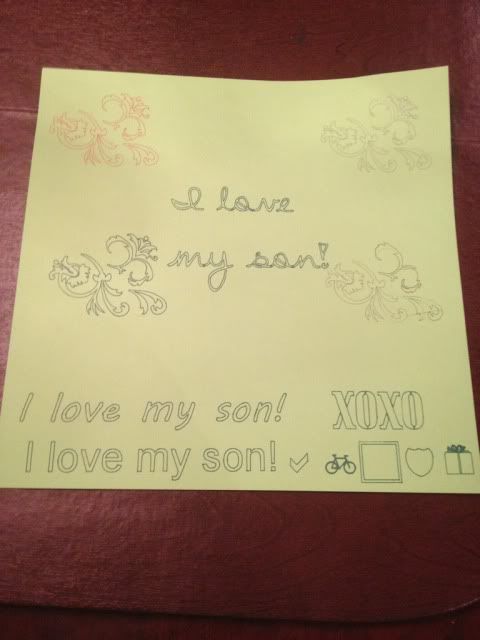
After I tried the shape with 4 different writing tools, I opened up a bunch of fonts and just stuck with the pen that was in there.

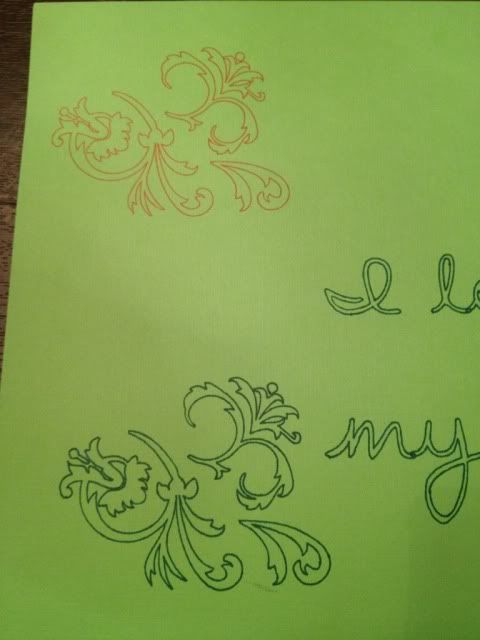
Top left- Red Gel Pen.  Top Right- Pencil (and it came out perfect, but pencil is light and the flash was bright).  Bottom left- Felt tip green pen.  Bottom right- Bic pen.  

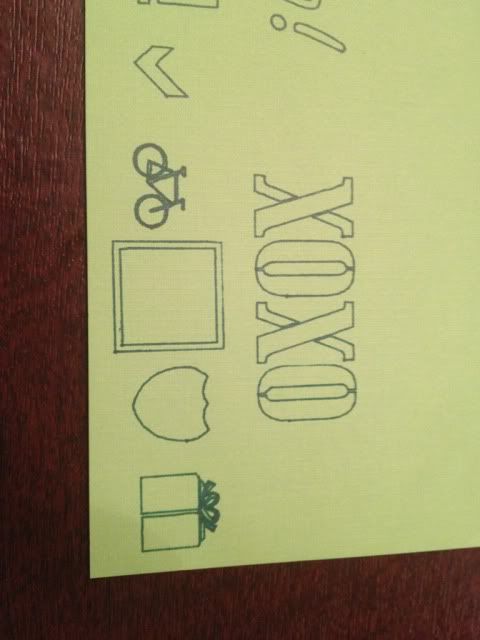
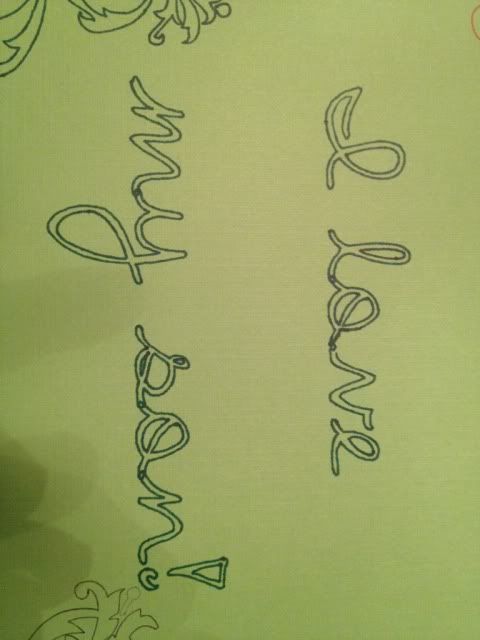
Fonts- Felt tip greenpen.  The bottom right font, under XOXO, is ABCDE but in WingDings font.


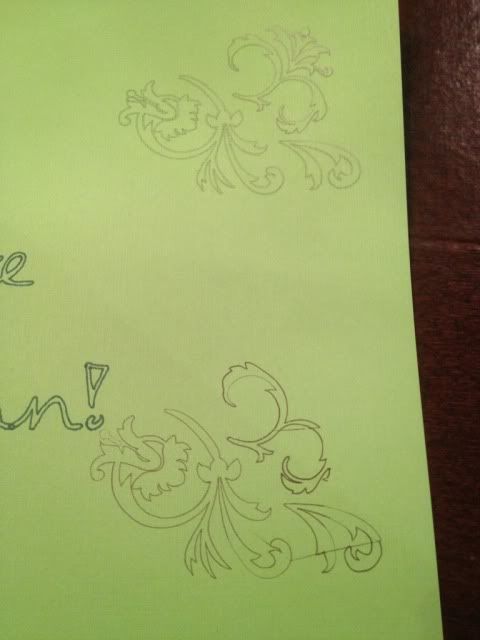
Here are some close ups:


So, the hollow font thing.

This is how fonts look in design studio:


It turns out that to have a not-hollow font, it needs to be a "single line" font.  I was told the only program right now that can handle those is Make-the-Cut.  Until then, I have downloaded over 100 free "thin" fonts and am slowly testing them out, a 12x12 page a time.  Look for updates on that!  Hollow fonts can look cool, and I could color them in by hand if I wanted, but sometimes it would be nice to just have a nice normal font drawn out.

I wrote this blog post several weeks ago and it has been a draft ever since.  I wanted to update this with customer service raves for Amy of Chomas Creations.  Initially, this post was called "Chomas Creations Marker Holder" because I ordered the marker holder.  As I was testing out the holder and putting this post together, I realized...no markers fit.  I went back to Amy's site and compared photos.  Then I asked a friend of mine with the pen holder what fits in her pen holder and compared it to my should-be-marker holder.  It turns out, I received the pen holder- and Amy is sending me my correct order PLUS allowing me to keep the pen holder I was sent by mistake!  How many companies would do that?  Not many!  Don't you love supporting the ones that have great customer service?  Amy also has marker and pen holders for other machines like Cricuts and Gazelles, along with other fun products, for sale on her website.

Now, for the GIVEAWAY! 

I am giving away a Chomas Creations Marker Holder, completely free, shipped anywhere in the US, Canada, or APO/FPO Box.

Here's how to enter!

1)  Follow my blog- Instructions if needed =1 entry, mandatory

2)  Spread the word!  There are a few ways to do this:
      A)  Reblog any post from my blog =1 entry, optional
      B)  Pin any post on Pinterest from my blog =1 entry, optional

3)  Leave me a comment on this post with your e-mail address, confirmation that  you did steps 1 & 2, and an idea you have that you'd use the Chomas Creations Marker Holder to make.  OR if you already have the Chomas Creations Pen Holder, leave a pic of what you've made with that!  1 entry, optional, except I do need to be able to get in touch with you!

If you do all 4, that's 4 entries!  And let's be honest; this isn't a huge blog, your chances are very good!

This is being done with the Rafflecopter widget.  You don't need to sign up with Rafflecopter; just complete the tasks & confirm here in the widget.


a Rafflecopter giveaway
Contest will be open from 04 November 2012 until 11 November 2012.  I am not liable for any drama as a result of this post.  Must be 18 to enter/win and let's keep it mature & fun.  There is no fee to enter, just follow the easy steps above.  I will contact the winner at the e-mail address posted for their shipping address.  Both this post and this contest are not affiliated with Chomas Creations nor is Chomas Creations responsible for the content of the post or outcome of the giveaway.  The winner will receive 1 Chomas Creations Marker Holder via USPS.  And don't follow me just to win and then disappear, because that's not cool and the sort of thing that makes bloggers not want to bother with giveaways.  Entries will  be moderated for accuracy.  The winner will have 72 hours to provide shipping information before I move on to the next winner.

Good luck!

10.25.2012

Dollar Tree Tumbler Wraps

***The giveaway for a FREE Chomas Creations Marker Holder for the Silhouette Cameo is coming soon!  Open to blog followers only and you can earn up to 4 entries per person.  Follow my blog if you aren't already and stay tuned!***

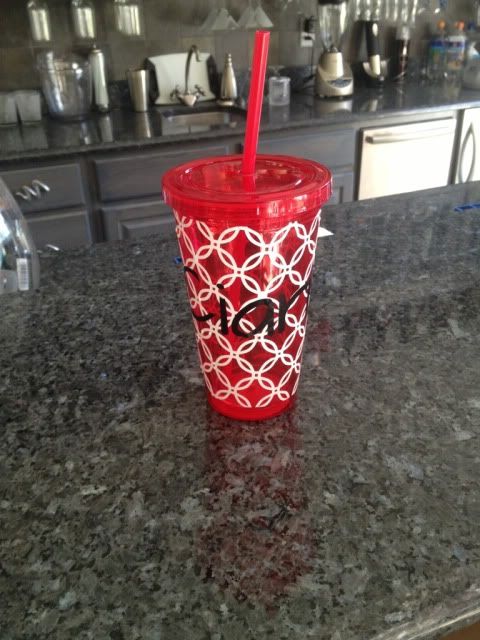
I was excited today to see tumblers at Dollar Tree (where they actually were $1- at Dollar General the exact same ones are $2.50!) and started looking for a way to personalize them.  All 16oz tumblers can vary a bit in dimensions, but I found a blank that did not fit on Michelle's Digital Creations blog (no fault of hers, she made them for a different brand.  It actually *almost* fit).  I used her file as a guide, since the curve would give me headaches if I tried to freehand it.

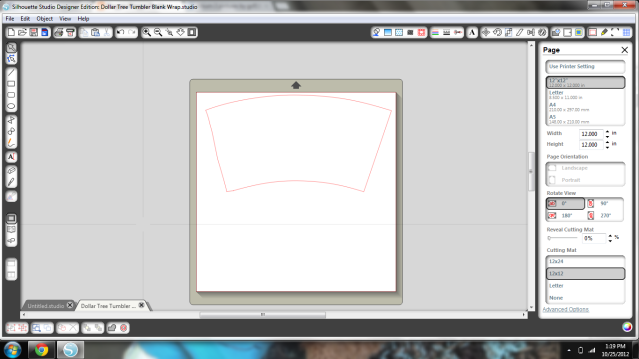
It took some time and a lot of test cutting but I finally got a blank that fits the 16oz Dollar Tree tumblers and you can download it right here for free.   If you use my guide for your Dollar Tree tumblers, look at your tumbler around the bottom.  Notice how it's double walled?  And that the inner liquid holding cup starts a tiny bit above the real bottom of the cup?  Line the bottom of this blank up with the bottom of that inner cup and it will match up perfectly.

Can you see the red cut lines?  I'm sorry that it's so hard to see!  I found that highlighting this picture helps somewhat.

I then took my blank file and decided that my day wasn't hectic enough, I needed to make pretty pattern and weed it.  All the tiny pieces of it.  Then wrapped it around- which has a learning curve!- and cut a vinyl name to go over it.  This was done by filling the blank with a cut file pattern so that it cut the pattern in the shape of the wrap itself.

I'm basically calling this attempt 1.  I will most likely peel it off and try a simpler pattern, or just the name + embellishments and not a full pattern.  The pattern isn't 100% smooth due to me not ever having wrapped on a curve before, and the name is too big for my liking ("Ciarra").


On the vinyl note, outdoor grade vinyl (such as Oracle 651) is recommended since tumblers will need to be washed if you drink out of them.  Many say to hand wash, some have used the dishwasher with no issues.


I share my files on 4Shared, which is free but may require registration.  Please do not upload my files anywhere without my permission, but feel free to share either blog post links or the 4Shared link itself.

10.23.2012

Personalized Wipes Case

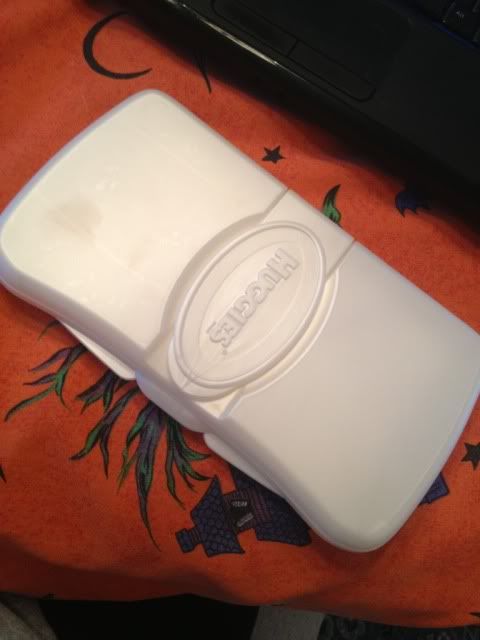
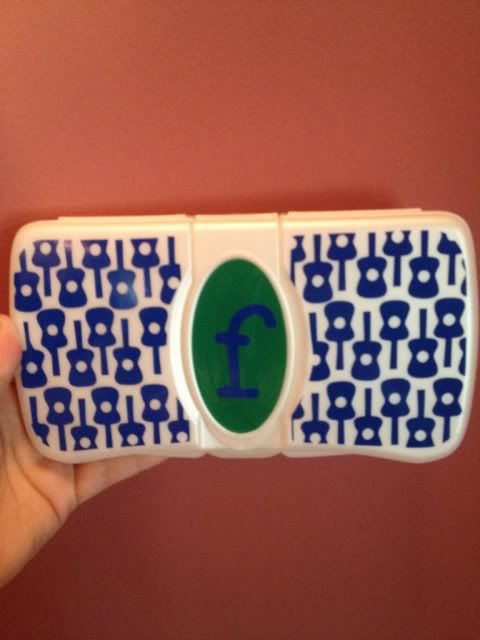
With my son going to preschool, we decided to send him in disposable diapers rather than cloth.  I also had to get a little wipes case to send with the diapers.  It was boring and could easily get mixed up.


Not any more!


Designed with Oracle 341 Vinyl & the Silhouette Cameo.  341 is a removable grade so that when I get bored and start changing it up weekly, it'll be easy(ish).

10.20.2012

Framed Transportation Room Decor- free cutting file!

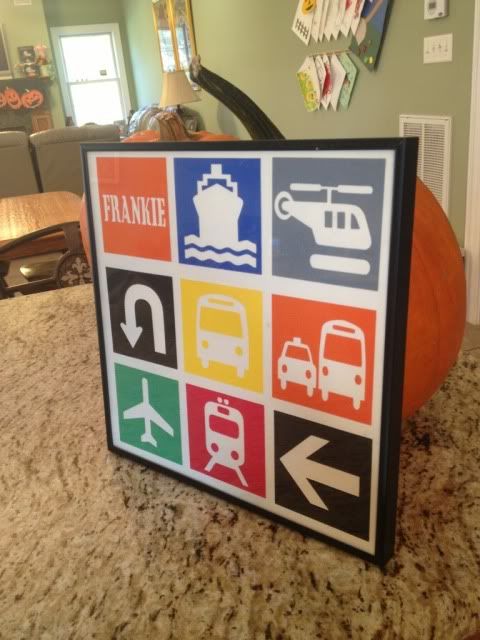
I saw the cutest framed vinyl 12x12 project the other day.  All I saw was a photo.  I poked around and decided it would be easier to just re-create it myself using card stock instead of vinyl.  My son's room is ALL cars...mostly the Disney movie, but cars in general are his thing right now, and we had a blank spot on the wall that this is perfect for!


The first thing I had to do was get supplies.

Frame- 12x12 scrapbook frame at Michaels
Package of colored card stock
1 piece of white card stock (wasn't in the colored package)
1 piece of card stock with a grid pattern- not really necessary but you'll see that I used it to help line everything up.

Total (with two coupons):  $9.09 tax included, and I have about 75 pieces of 12x12 card stock left over

So first, I had to find all the images.  Lots of google helped here.  I saved them all and then traced them in Silhouette Studio.

Untraced images

Next came the grid.  I wanted this to fill most of a 12x12, evenly spaced.  I wanted the squares to be actual squares also.  I drew one, resized it, and duplicated it til everything was lined up.


Next I cut this blank grid out to help with spacing.  I used my paper that had a grid just to give me a little more help.  I paperclipped this guide to the white cardstock that I'd be gluing on to.

Not at the gluing step yet, but showing the grid!

So now I took all of those images that I traced and resized each to fit inside the grid.  My son's name is a font called Cargo Crate.


I liked how it looked.  Now I separated them into what would be colored what- in this case, both arrows are black, so I just kept those two on to cut on black cardstock.  Then the oranges, red, yellow, green, blue, & grey.  One by one, moving things on and off the cutting area.


Everything gets glued inside the grid (look up 3 pictures if you've forgotten).  Since I used the outer area and not the shape itself that was cut (I don't know if there are proper terms here), I stuck all the shapes in an envelope for another day.  After everything was placed I unclipped the grid and let it sit to dry for a few minutes.


Want to make one yourself?  You're in luck, because I'm sharing the file for free right here!  Also, go here if you need to download the blank grid (maybe fill it with tiaras and flowers instead of vehicles, for a girl?).  All you need is a free font called Cargo Crate to fill in the name square and the proper materials for actually cutting & framing. I hope you enjoy it and if you use it to make something, please come share a pic! :)

Also, that giveaway for a free Chomas Creations Marker Holder is coming soon- open to blog followers (and you're chances are pretty high!), so stay tuned!

10.18.2012

Silhouette Dial Calender

***In a few days I will be doing a giveawy for a FREE Chomas Creations Marker Holder for the Silhouette Cameo- open to followers only & you can earn up to 4 entries!  Your odds here are pretty good- stay tuned!**

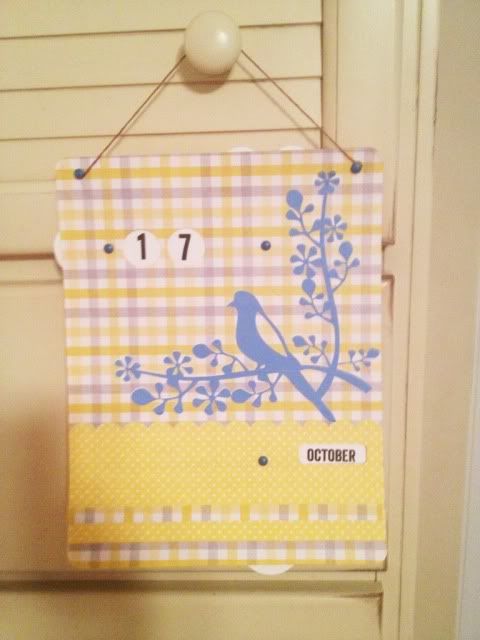
In the Silhouette Store there is a 99 cent dial calender shape.  I bought it when I was browsing the store before my Cameo had even arrived.  It looks boring in the stock photo (sorry, Samantha Walker Designs, it does!) but I had an idea that I could spruce it up.  My original idea was filling the blank space with a sticky note pad and a pen.

Then my Cameo got here and all the blank space looked intimidating in the Studio software, so I left it alone.

A few days ago the dial calender was featured on the Silhouette Blog and I decided to give it a try.  Seeing that blank space filled up actually helped me visualize it better.  I abandoned the idea of adding a note pad and just embellished with a cute 99 cent bird & branch shape.

The yellow papers are all 59 cent card stock from Michael's.  The dials with the numbers and months, as well as the bird & branch shape, were made with Print & Cut onto white card stock.  Steel blue brads and brown twine finish everything off.

I'm glad I gave it a shot.  I like how it came out.


10.17.2012

iPhone 4S Shape Insert with the Silhouette Cameo- FREE DOWNLOAD!

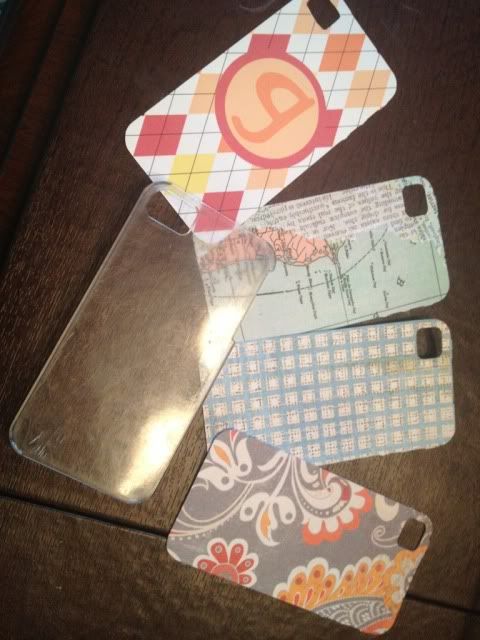
I love making customized inserts for my iPhone 4S case!  I've made a bunch before, but never on the cameo before.  This is one project where Print & Cut comes in handy- design, print, and cut, all within the same software.


The bottom 3 are just patterned paper scraps I had- I don't normally save scraps but this is a good way to use them up!  The top one with my initial was designed using Print & Cut in the Silhouette Software.

If you are just using patterned paper, just open the shape, load your paper, and cut it out.


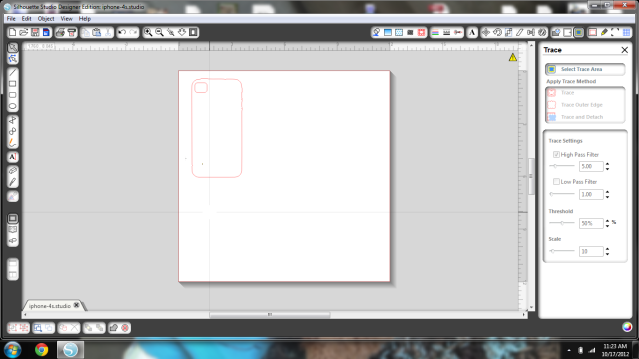
Every clear case is slightly different as far as the camera hole.  The camera hole cut out is more than enough to be clear of your lens and flash, which is really all that matters.  Some cases have a tiny oval opening, some have a large square.  I really don't mind the extra tiny bit of paper because it doesn't bother the camera.

If you want to personalize it, you can do that right there in Silhouette Studio.  

I just used a patterned fill that came stock, drew two circles (one bigger for the border), matched the colors, typed "g" and found a font I liked.  I grouped those shapes together and placed it onto the iPhone shape, and then went to Cut Options and selected "No Cut" for the monogram shape.  Otherwise it would cut all of that out and not work for what we're doing here.


This way, the edge and the camera hole still cut, but your monogram isn't cut to pieces in the process.


My case is a $5 clear plastic case from Radio Shack.  I've had it since February of this year and it's in great shape.  A few scratches, but no cracks, and it's been abused like you wouldn't believe.  My two year old has even stood on my iPhone while this case was on and both are fine.  I love the versatility and personalization that can be done, the only limit is your imagination and you won't spend a fortune every time you want a new case!

Want to design your own?  Click here to go to 4Shared and download my cutting file!  DO NOT RESIZE THIS SHAPE!  If you do, don't save!  Close & reopen it and it should be the correct size, IF you didn't save it resized!


***In a few days I will be doing a giveaway for a free Chomas Creations Marker Holder for the Silhouette Cameo- Following my blog is required and you can earn up to 4 entries in the drawing!  Stay tuned!


10.16.2012

Silhouette Rhinestone Kit- A Review

Last time I posted I was so excited to receive a few early birthday gifts and one was the Silhouette Rhinestone Kit!


In addition I got a bunch of extra rhinestones and I was really excited to try this one out.

When it comes to crafting I always say that I suffer from craft over confidence.  I just never, ever think that I can't do something and I rarely will abandon a project, even if I have to tweak or otherwise change it...or even if it ends up looking wonky when it's finished.

How does that relate to the rhinestone kit?  This kit- heck, the ability to make templates in general- is such a great idea that is an utter pain in the butt when executed.

Starts off easy- the kit comes with a bunch of free templates and each template has 3 sizes.  All my rhinestones were 10ss which is the smallest size.  For obvious hole-size reasons you can't resize the templates.

So, I picked this cute star, deleted the two bigger sizes, and positioned it.


It cuts the small holes, and not that nicely unfortunately.  I followed the Silhouette settings exactly- chose the correct paper option, blade set as indicated- and it cut completely through the template and the backing, yet some of the circles in the top layer weren't cleanly cut.  Don't ask me how- I mean, the bottom layer was cut clean through!- but I had to spend a few minutes poking the holes out of the top layer.


Place a rhinestone board into a box (for rhinestone corralling), peel off the template that was just cut, and stick it on the board.


Now for the real pain.

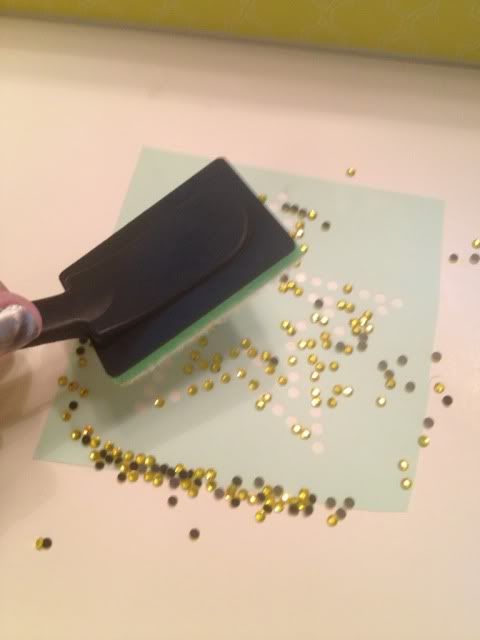
The directions say to pour some rhinestones over it and brush with the included rhinestone brush to get them in the holes.


Ok, here's the thing.  Most designs are not just one color, even for rhinestones.  In fact this was a patriotic colored design in the Silhouette store, with the inner and outer stars being different colors.  How does that happen with a brush?  It doesn't.

You have to slowly, painfully, mind-numbingly use tweezers with a teeeeeeny bit of glue on the end (and the hook tool, to push them off), remove all of the ones in the spot you DIDN'T want that color, put them all into place, and then fill in the other color one by one since you can't brush or it'll mess it up.  

Silhouette says that with the brush, "most" of the rhinestones should be in place and they sell a pick up tool for the ones that aren't, which is cheap and I'll probably buy it, but I'll be hunting to see if Silhouette addressed the multi color issue.

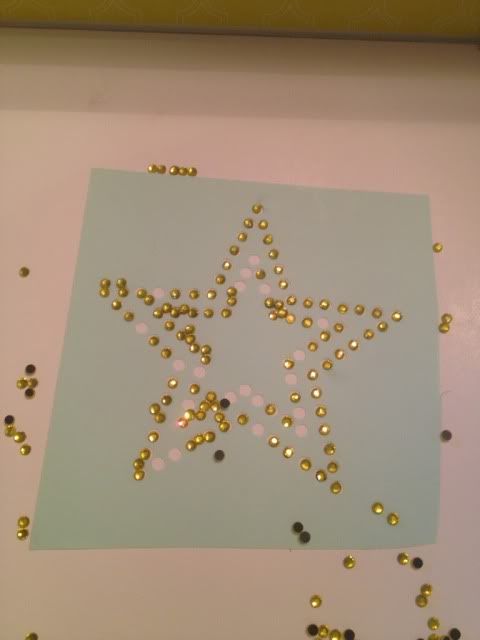
For the sake of argument  here's how many were in place after the brushing.  Except, the inner star isn't going to be gold.


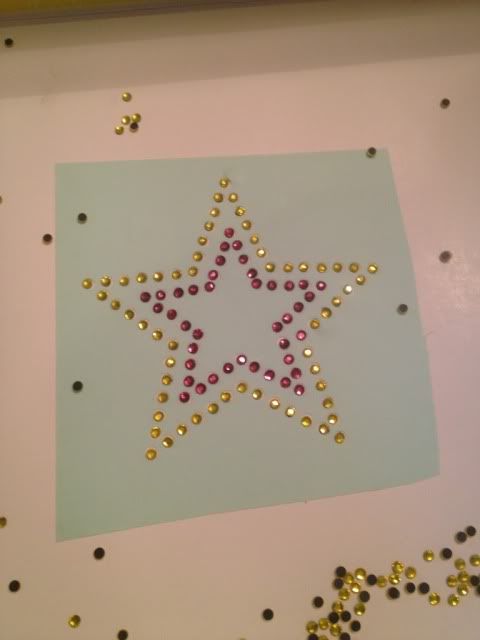
One by one, I removed the strays, finished off the outer star, and then (slowly) filled in the inner star.


About 25 minutes went by while I put the rhinestones in the correct places.  No kidding.

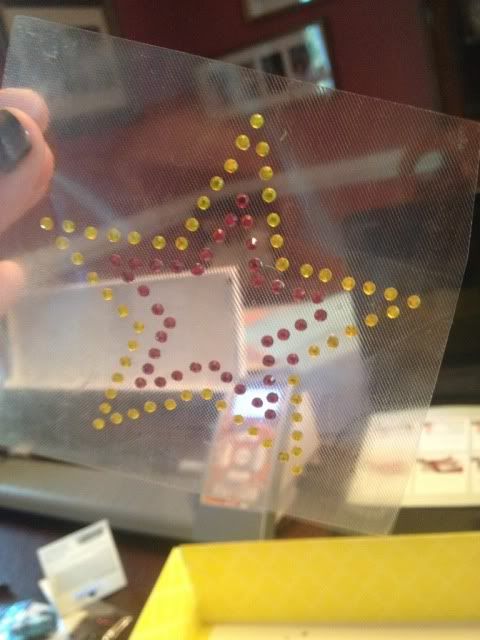
Now that they are (finally!) in place, stick some transfer tape over...


The directions don't mention to rub this several times but I really think it's a necessity.  The rhinestones did not just "stick" upon contact with this tape.


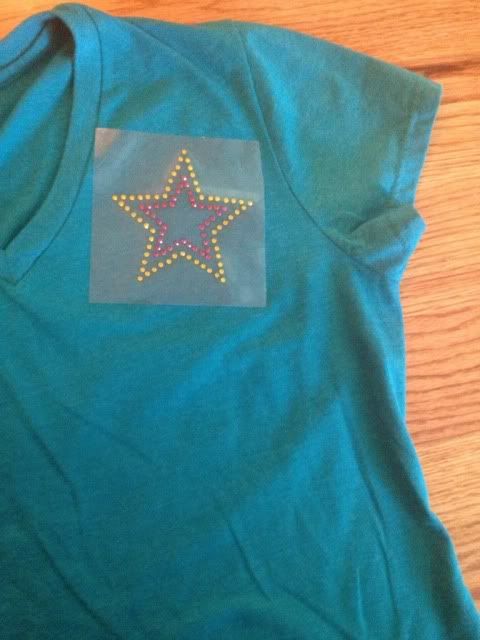
Once I used the tweezers AGAIN to fix the holes- and the one pink where a gold should have been- I placed it on the shirt where I wanted it and pressed all over.


The directions say to place a drop cloth over the top, iron on the wool setting for 45-60 seconds, turn the shirt inside out, and repeat.

I did.

Rhinestones still peeled off with the transfer tape.

I stuck it back down and tried again.


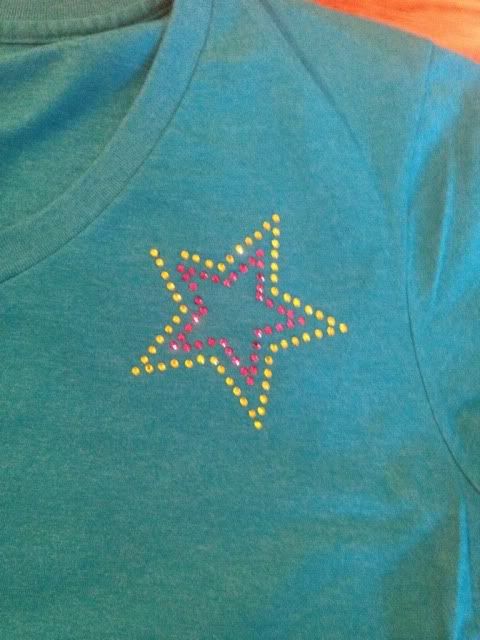
Only two missing this time, score!

I got some fabric glue and tweezered the last two into place using it.


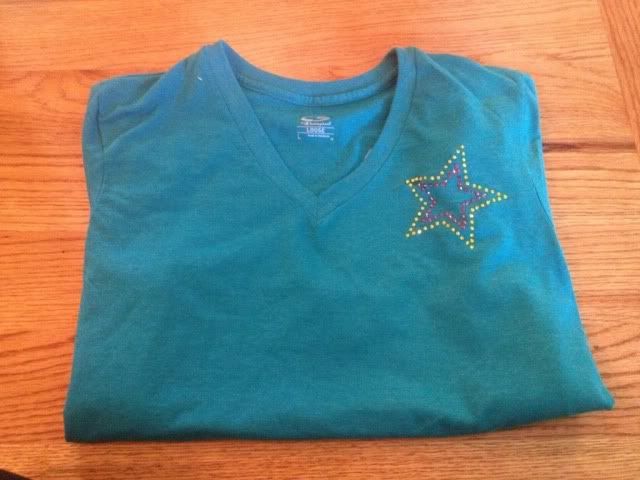
It's cute, but I'm pretty much terrified to wear or wash it.  The only thing that has me NOT cursing and having a strong drink is the hope that somehow this technique improves with practice.

Showing posts with label silhouette cameo. Show all posts

11.10.2012

Silhouette Card Making

I rarely give cards when I give gifts.  They always seem like a waste of trees to me.  I have been slowly getting into card making with my Cameo and just wanted to share some!


This first one was done for my dad's birthday, using a Chomas Creations pen holder.  Want to win a marker holder??  GO HERE!  Closes in 10 hours :)


Print & cut card, also for my dad, using free files from Bird's Cards and brown twine


Xbox controller print & cut, also from Bird's Cards


Tetris Card- it was free somewhere on the internets, I think I found it on 4Shared but I cannot find it!  Also, each block was individual.  Shoot me.


Bird house- also from Bird's Cards


Pretty card, card shape also Bird's Cards (sense a theme?  Lots of great free files there!), sun shape I believe was cameo stock and cut in gold vinyl.


New baby card for my cousin.  Card is from the Silhouette Store and everything was colored with Print & Cut.


11.05.2012

iFontMaker Review


***First- if you want to win a marker holder for your Silhouette Cameo completely FREE, go here!***


I don't get paid to write reviews.  Usually whoever I am reviewing has no idea that their products are being reviewed.  I don't get compensated in any way.

Now that that's out of the way, yesterday I read about an app called iFontMaker.  Since making my own handwriting font was something I always wanted to do, but never wanted to pay for, I started looking it up.  It's $6.99 on the app store, which is more than I normally spend on apps, but I feel like it's worth the money.

You download the app and using the height guidelines draw your own strokes for A-Z, a-z, 0-9, !-), and the punctuation symbols.

Stock Image


When you are done, you can e-mail yourself a link to download the .ttf file.  Go to Control Panel, Fonts, and drag the .ttf file into the Fonts folder.  There, it's installed!  Any program that uses your font library will see it now (if they were open when you installed the font you'll have to restart them to see it).

You can use 3 different types of brushes, adjust the radius of each, adjust the spacing, and a bunch of other tweaks in the app itself.  It's so easy!  I do wish I could find my stylus.  It's not really my handwriting since I used my index finger, but it's close.


BUT!

I love WingDings.  Especially with the Silhouette Studio software.  They're like free cutting files.  Could I draw my own WingDings?

Each flower made with a different brush type, but I hadn't adjusted the radius.  Zig Zag/Chevron lines had it adjusted pretty thin

Yes, yes I could!

I got to thinking about signatures.  When you see letters & flyers that have what looks like stamped signatures, maybe it wasn't really a stamp.  Maybe it was a font?

Letter "N" makes this signature for me, because that's the letter I drew my signature in


What if you wanted to hand write the closer above your signature?


Same font as my signature, but letters O, P, Q, R, S, T, U, V, & W


And the best part is I can make my own fonts and WingDings for crafting!  Here's my handwriting typing out "I love my son!" and I filled in in black in case I wanted to use the Cameo's Print & Cut feature.  Below that is my signature in a regular cut line file, meaning no printing needed, just cut on cardstock/vinyl/whatever.

I didn't actually print or cut with my Silhouette for this particular post.  The link at the top of the page that takes you to my giveaway should give you some ideas of how the Silhouette Software handles fonts.


Now if only I could figure out how to make Blogger see more than 7 fonts!

11.03.2012

Silhouette Cameo & Chomas Creations Marker Holder- and a GIVEAWAY!

Today I got the Chomas Creations Marker Holder in the mail.  It lets you replace your Silhouette blade with any writing tool that fits.

So the first thing I did was try:

A red gel pen with a fat, flexible grip
A common wooden pencil
A green permanent marker knock-off brand skinny...something.  Felt tip.
A typical white Bic pen

All drawing the same image, a flourish that came stock.

Because there is no lip on the Cameo there's no height limit on your pens.


After I tried the shape with 4 different writing tools, I opened up a bunch of fonts and just stuck with the pen that was in there.

Top left- Red Gel Pen.  Top Right- Pencil (and it came out perfect, but pencil is light and the flash was bright).  Bottom left- Felt tip green pen.  Bottom right- Bic pen.  

Fonts- Felt tip greenpen.  The bottom right font, under XOXO, is ABCDE but in WingDings font.


Here are some close ups:


So, the hollow font thing.

This is how fonts look in design studio:


It turns out that to have a not-hollow font, it needs to be a "single line" font.  I was told the only program right now that can handle those is Make-the-Cut.  Until then, I have downloaded over 100 free "thin" fonts and am slowly testing them out, a 12x12 page a time.  Look for updates on that!  Hollow fonts can look cool, and I could color them in by hand if I wanted, but sometimes it would be nice to just have a nice normal font drawn out.

I wrote this blog post several weeks ago and it has been a draft ever since.  I wanted to update this with customer service raves for Amy of Chomas Creations.  Initially, this post was called "Chomas Creations Marker Holder" because I ordered the marker holder.  As I was testing out the holder and putting this post together, I realized...no markers fit.  I went back to Amy's site and compared photos.  Then I asked a friend of mine with the pen holder what fits in her pen holder and compared it to my should-be-marker holder.  It turns out, I received the pen holder- and Amy is sending me my correct order PLUS allowing me to keep the pen holder I was sent by mistake!  How many companies would do that?  Not many!  Don't you love supporting the ones that have great customer service?  Amy also has marker and pen holders for other machines like Cricuts and Gazelles, along with other fun products, for sale on her website.
Now, for the GIVEAWAY! 

I am giving away a Chomas Creations Marker Holder, completely free, shipped anywhere in the US, Canada, or APO/FPO Box.
Here's how to enter!

1)  Follow my blog- Instructions if needed =1 entry, mandatory

2)  Spread the word!  There are a few ways to do this:
      A)  Reblog any post from my blog =1 entry, optional
      B)  Pin any post on Pinterest from my blog =1 entry, optional

3)  Leave me a comment on this post with your e-mail address, confirmation that  you did steps 1 & 2, and an idea you have that you'd use the Chomas Creations Marker Holder to make.  OR if you already have the Chomas Creations Pen Holder, leave a pic of what you've made with that!  1 entry, optional, except I do need to be able to get in touch with you!

If you do all 4, that's 4 entries!  And let's be honest; this isn't a huge blog, your chances are very good!

This is being done with the Rafflecopter widget.  You don't need to sign up with Rafflecopter; just complete the tasks & confirm here in the widget.


a Rafflecopter giveaway
Contest will be open from 04 November 2012 until 11 November 2012.  I am not liable for any drama as a result of this post.  Must be 18 to enter/win and let's keep it mature & fun.  There is no fee to enter, just follow the easy steps above.  I will contact the winner at the e-mail address posted for their shipping address.  Both this post and this contest are not affiliated with Chomas Creations nor is Chomas Creations responsible for the content of the post or outcome of the giveaway.  The winner will receive 1 Chomas Creations Marker Holder via USPS.  And don't follow me just to win and then disappear, because that's not cool and the sort of thing that makes bloggers not want to bother with giveaways.  Entries will  be moderated for accuracy.  The winner will have 72 hours to provide shipping information before I move on to the next winner.

Good luck!

10.25.2012

Dollar Tree Tumbler Wraps

***The giveaway for a FREE Chomas Creations Marker Holder for the Silhouette Cameo is coming soon!  Open to blog followers only and you can earn up to 4 entries per person.  Follow my blog if you aren't already and stay tuned!***

I was excited today to see tumblers at Dollar Tree (where they actually were $1- at Dollar General the exact same ones are $2.50!) and started looking for a way to personalize them.  All 16oz tumblers can vary a bit in dimensions, but I found a blank that did not fit on Michelle's Digital Creations blog (no fault of hers, she made them for a different brand.  It actually *almost* fit).  I used her file as a guide, since the curve would give me headaches if I tried to freehand it.

It took some time and a lot of test cutting but I finally got a blank that fits the 16oz Dollar Tree tumblers and you can download it right here for free.   If you use my guide for your Dollar Tree tumblers, look at your tumbler around the bottom.  Notice how it's double walled?  And that the inner liquid holding cup starts a tiny bit above the real bottom of the cup?  Line the bottom of this blank up with the bottom of that inner cup and it will match up perfectly.

Can you see the red cut lines?  I'm sorry that it's so hard to see!  I found that highlighting this picture helps somewhat.

I then took my blank file and decided that my day wasn't hectic enough, I needed to make pretty pattern and weed it.  All the tiny pieces of it.  Then wrapped it around- which has a learning curve!- and cut a vinyl name to go over it.  This was done by filling the blank with a cut file pattern so that it cut the pattern in the shape of the wrap itself.

I'm basically calling this attempt 1.  I will most likely peel it off and try a simpler pattern, or just the name + embellishments and not a full pattern.  The pattern isn't 100% smooth due to me not ever having wrapped on a curve before, and the name is too big for my liking ("Ciarra").


On the vinyl note, outdoor grade vinyl (such as Oracle 651) is recommended since tumblers will need to be washed if you drink out of them.  Many say to hand wash, some have used the dishwasher with no issues.


I share my files on 4Shared, which is free but may require registration.  Please do not upload my files anywhere without my permission, but feel free to share either blog post links or the 4Shared link itself.

10.23.2012

Personalized Wipes Case

With my son going to preschool, we decided to send him in disposable diapers rather than cloth.  I also had to get a little wipes case to send with the diapers.  It was boring and could easily get mixed up.


Not any more!


Designed with Oracle 341 Vinyl & the Silhouette Cameo.  341 is a removable grade so that when I get bored and start changing it up weekly, it'll be easy(ish).

10.20.2012

Framed Transportation Room Decor- free cutting file!

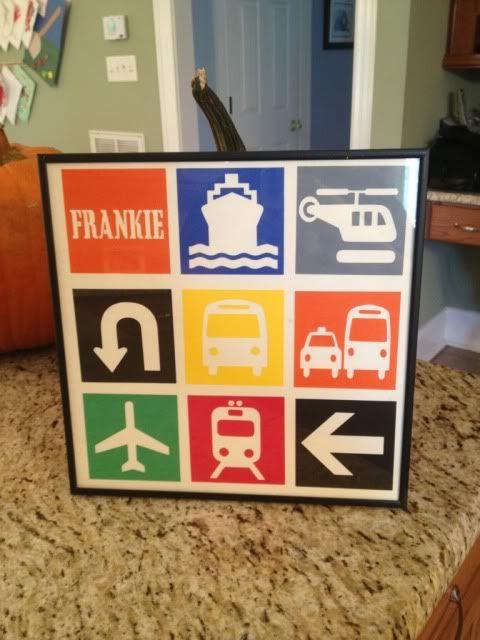
I saw the cutest framed vinyl 12x12 project the other day.  All I saw was a photo.  I poked around and decided it would be easier to just re-create it myself using card stock instead of vinyl.  My son's room is ALL cars...mostly the Disney movie, but cars in general are his thing right now, and we had a blank spot on the wall that this is perfect for!


The first thing I had to do was get supplies.

Frame- 12x12 scrapbook frame at Michaels
Package of colored card stock
1 piece of white card stock (wasn't in the colored package)
1 piece of card stock with a grid pattern- not really necessary but you'll see that I used it to help line everything up.

Total (with two coupons):  $9.09 tax included, and I have about 75 pieces of 12x12 card stock left over

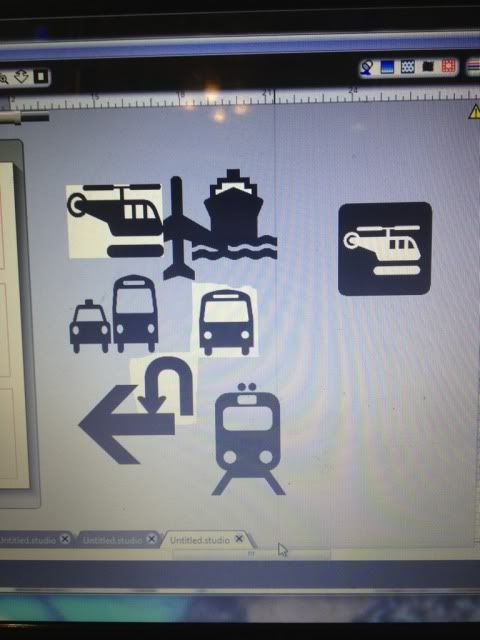
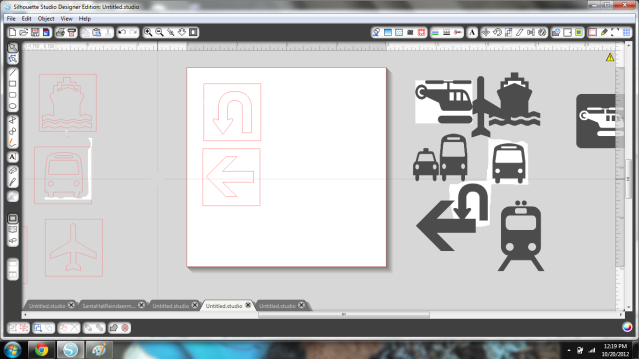
So first, I had to find all the images.  Lots of google helped here.  I saved them all and then traced them in Silhouette Studio.

Untraced images

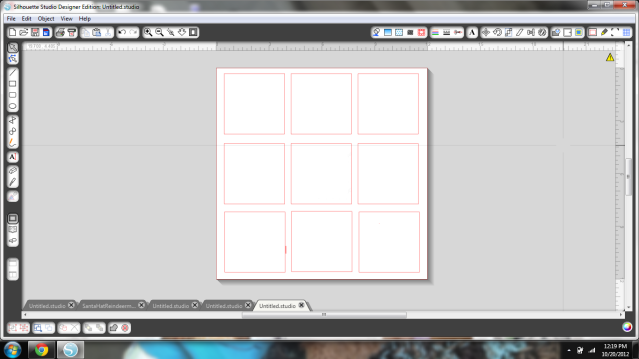
Next came the grid.  I wanted this to fill most of a 12x12, evenly spaced.  I wanted the squares to be actual squares also.  I drew one, resized it, and duplicated it til everything was lined up.


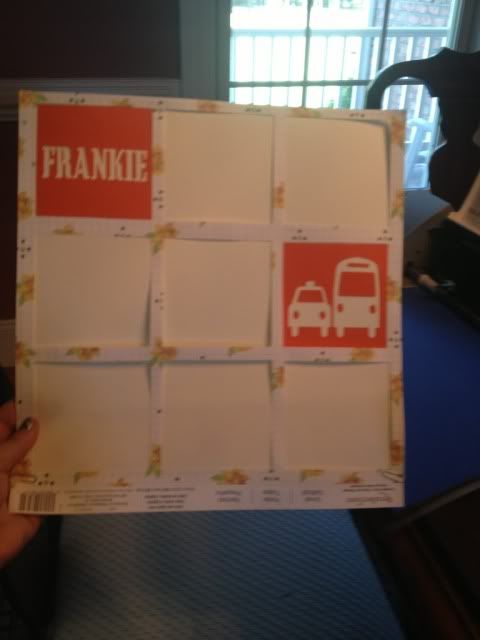
Next I cut this blank grid out to help with spacing.  I used my paper that had a grid just to give me a little more help.  I paperclipped this guide to the white cardstock that I'd be gluing on to.

Not at the gluing step yet, but showing the grid!

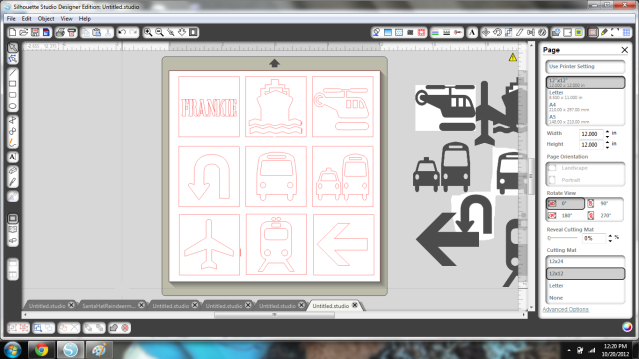
So now I took all of those images that I traced and resized each to fit inside the grid.  My son's name is a font called Cargo Crate.


I liked how it looked.  Now I separated them into what would be colored what- in this case, both arrows are black, so I just kept those two on to cut on black cardstock.  Then the oranges, red, yellow, green, blue, & grey.  One by one, moving things on and off the cutting area.


Everything gets glued inside the grid (look up 3 pictures if you've forgotten).  Since I used the outer area and not the shape itself that was cut (I don't know if there are proper terms here), I stuck all the shapes in an envelope for another day.  After everything was placed I unclipped the grid and let it sit to dry for a few minutes.


Want to make one yourself?  You're in luck, because I'm sharing the file for free right here!  Also, go here if you need to download the blank grid (maybe fill it with tiaras and flowers instead of vehicles, for a girl?).  All you need is a free font called Cargo Crate to fill in the name square and the proper materials for actually cutting & framing. I hope you enjoy it and if you use it to make something, please come share a pic! :)

Also, that giveaway for a free Chomas Creations Marker Holder is coming soon- open to blog followers (and you're chances are pretty high!), so stay tuned!

10.18.2012

Silhouette Dial Calender

***In a few days I will be doing a giveawy for a FREE Chomas Creations Marker Holder for the Silhouette Cameo- open to followers only & you can earn up to 4 entries!  Your odds here are pretty good- stay tuned!**

In the Silhouette Store there is a 99 cent dial calender shape.  I bought it when I was browsing the store before my Cameo had even arrived.  It looks boring in the stock photo (sorry, Samantha Walker Designs, it does!) but I had an idea that I could spruce it up.  My original idea was filling the blank space with a sticky note pad and a pen.

Then my Cameo got here and all the blank space looked intimidating in the Studio software, so I left it alone.

A few days ago the dial calender was featured on the Silhouette Blog and I decided to give it a try.  Seeing that blank space filled up actually helped me visualize it better.  I abandoned the idea of adding a note pad and just embellished with a cute 99 cent bird & branch shape.

The yellow papers are all 59 cent card stock from Michael's.  The dials with the numbers and months, as well as the bird & branch shape, were made with Print & Cut onto white card stock.  Steel blue brads and brown twine finish everything off.

I'm glad I gave it a shot.  I like how it came out.


10.17.2012

iPhone 4S Shape Insert with the Silhouette Cameo- FREE DOWNLOAD!

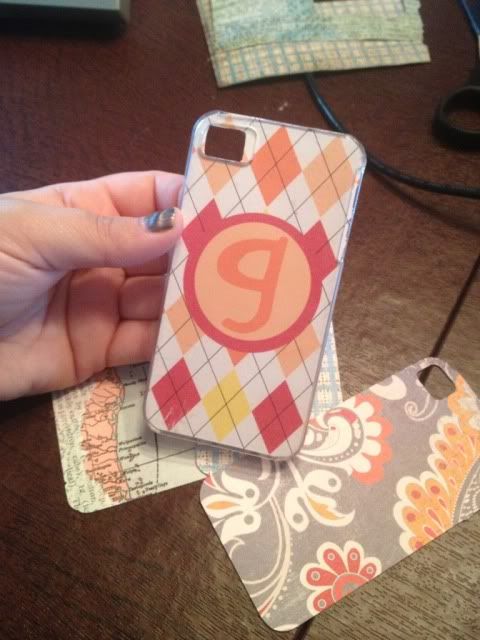
I love making customized inserts for my iPhone 4S case!  I've made a bunch before, but never on the cameo before.  This is one project where Print & Cut comes in handy- design, print, and cut, all within the same software.


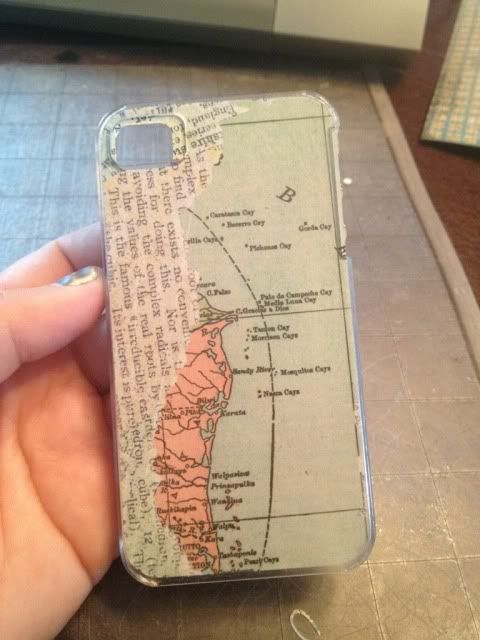
The bottom 3 are just patterned paper scraps I had- I don't normally save scraps but this is a good way to use them up!  The top one with my initial was designed using Print & Cut in the Silhouette Software.

If you are just using patterned paper, just open the shape, load your paper, and cut it out.


Every clear case is slightly different as far as the camera hole.  The camera hole cut out is more than enough to be clear of your lens and flash, which is really all that matters.  Some cases have a tiny oval opening, some have a large square.  I really don't mind the extra tiny bit of paper because it doesn't bother the camera.

If you want to personalize it, you can do that right there in Silhouette Studio.  

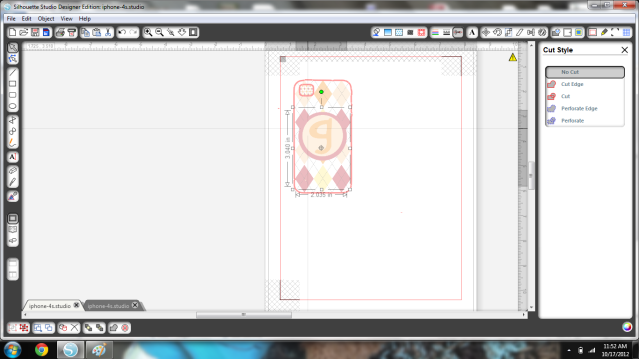
I just used a patterned fill that came stock, drew two circles (one bigger for the border), matched the colors, typed "g" and found a font I liked.  I grouped those shapes together and placed it onto the iPhone shape, and then went to Cut Options and selected "No Cut" for the monogram shape.  Otherwise it would cut all of that out and not work for what we're doing here.


This way, the edge and the camera hole still cut, but your monogram isn't cut to pieces in the process.


My case is a $5 clear plastic case from Radio Shack.  I've had it since February of this year and it's in great shape.  A few scratches, but no cracks, and it's been abused like you wouldn't believe.  My two year old has even stood on my iPhone while this case was on and both are fine.  I love the versatility and personalization that can be done, the only limit is your imagination and you won't spend a fortune every time you want a new case!

Want to design your own?  Click here to go to 4Shared and download my cutting file!  DO NOT RESIZE THIS SHAPE!  If you do, don't save!  Close & reopen it and it should be the correct size, IF you didn't save it resized!


***In a few days I will be doing a giveaway for a free Chomas Creations Marker Holder for the Silhouette Cameo- Following my blog is required and you can earn up to 4 entries in the drawing!  Stay tuned!


10.16.2012

Silhouette Rhinestone Kit- A Review

Last time I posted I was so excited to receive a few early birthday gifts and one was the Silhouette Rhinestone Kit!


In addition I got a bunch of extra rhinestones and I was really excited to try this one out.

When it comes to crafting I always say that I suffer from craft over confidence.  I just never, ever think that I can't do something and I rarely will abandon a project, even if I have to tweak or otherwise change it...or even if it ends up looking wonky when it's finished.

How does that relate to the rhinestone kit?  This kit- heck, the ability to make templates in general- is such a great idea that is an utter pain in the butt when executed.

Starts off easy- the kit comes with a bunch of free templates and each template has 3 sizes.  All my rhinestones were 10ss which is the smallest size.  For obvious hole-size reasons you can't resize the templates.

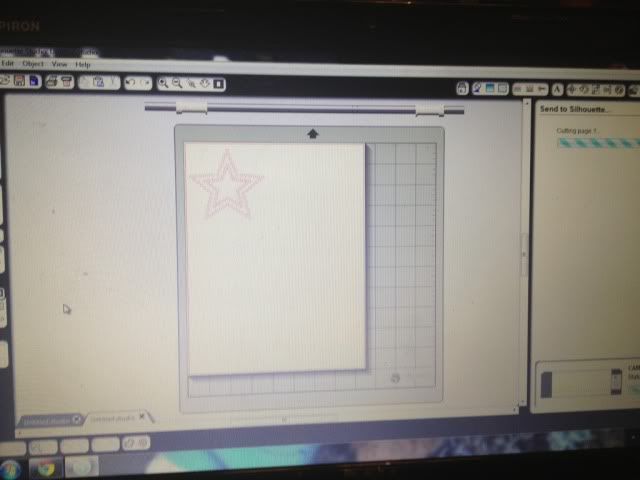
So, I picked this cute star, deleted the two bigger sizes, and positioned it.


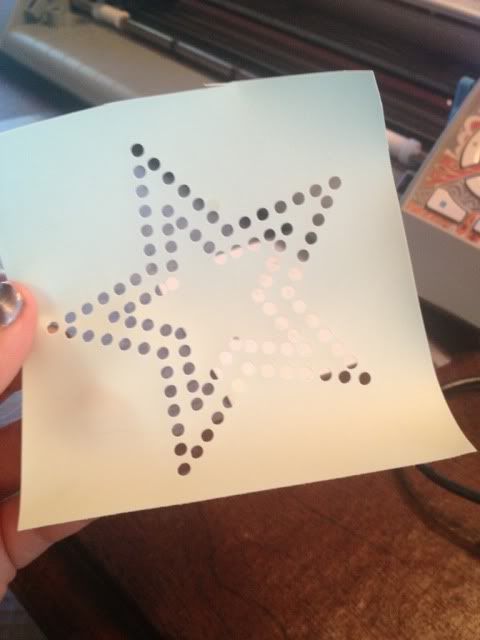
It cuts the small holes, and not that nicely unfortunately.  I followed the Silhouette settings exactly- chose the correct paper option, blade set as indicated- and it cut completely through the template and the backing, yet some of the circles in the top layer weren't cleanly cut.  Don't ask me how- I mean, the bottom layer was cut clean through!- but I had to spend a few minutes poking the holes out of the top layer.


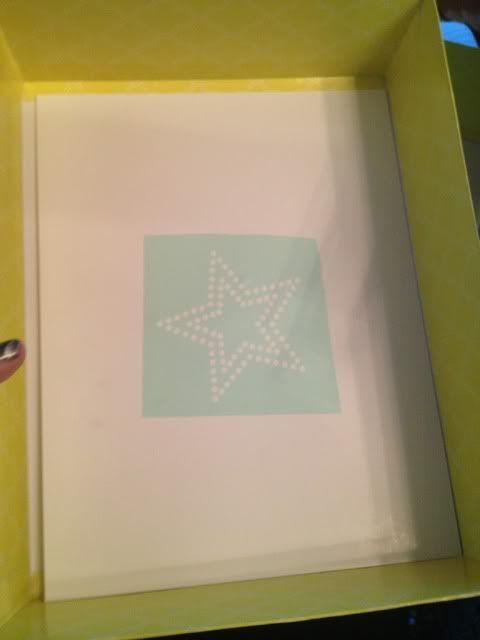
Place a rhinestone board into a box (for rhinestone corralling), peel off the template that was just cut, and stick it on the board.


Now for the real pain.

The directions say to pour some rhinestones over it and brush with the included rhinestone brush to get them in the holes.


Ok, here's the thing.  Most designs are not just one color, even for rhinestones.  In fact this was a patriotic colored design in the Silhouette store, with the inner and outer stars being different colors.  How does that happen with a brush?  It doesn't.

You have to slowly, painfully, mind-numbingly use tweezers with a teeeeeeny bit of glue on the end (and the hook tool, to push them off), remove all of the ones in the spot you DIDN'T want that color, put them all into place, and then fill in the other color one by one since you can't brush or it'll mess it up.  

Silhouette says that with the brush, "most" of the rhinestones should be in place and they sell a pick up tool for the ones that aren't, which is cheap and I'll probably buy it, but I'll be hunting to see if Silhouette addressed the multi color issue.

For the sake of argument  here's how many were in place after the brushing.  Except, the inner star isn't going to be gold.


One by one, I removed the strays, finished off the outer star, and then (slowly) filled in the inner star.


About 25 minutes went by while I put the rhinestones in the correct places.  No kidding.

Now that they are (finally!) in place, stick some transfer tape over...


The directions don't mention to rub this several times but I really think it's a necessity.  The rhinestones did not just "stick" upon contact with this tape.


Once I used the tweezers AGAIN to fix the holes- and the one pink where a gold should have been- I placed it on the shirt where I wanted it and pressed all over.


The directions say to place a drop cloth over the top, iron on the wool setting for 45-60 seconds, turn the shirt inside out, and repeat.

I did.

Rhinestones still peeled off with the transfer tape.

I stuck it back down and tried again.


Only two missing this time, score!

I got some fabric glue and tweezered the last two into place using it.


It's cute, but I'm pretty much terrified to wear or wash it.  The only thing that has me NOT cursing and having a strong drink is the hope that somehow this technique improves with practice.