Showing posts with label iPhone. Show all posts

4.02.2013

Totally Custom iPhone

Hi, it's been awhile!  The ups and downs of growing another human being will do that I guess :)

I had some fun today customizing my iPhone and it was mostly free. You could probably do it totally free, but I did spend $1.99 on a single app.

I'm sure you all know what an iPhone screen generally looks like.  I have a 4S.  While I did use folders to organize some things, in general:

source:  techradar.com

After 1 free app and 1 paid app, voila!
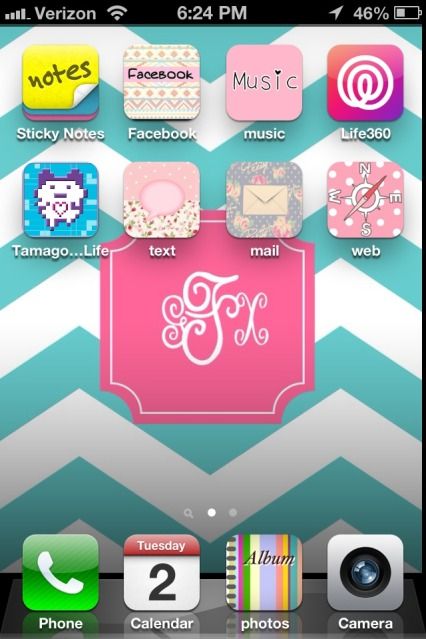
Yeah, I downloaded Tamagotchi.

ALL of the icons came from a free app called CocoPPa and I used StyleFake's instructions, which are not only really thorough but look really tedious to screenshot and repeat myself here, so go read for instructions.  In general, you open the app, find an icon you like, go to "Set up Link," and then click whatever- set up a speed dial number, a direct URL link, search for a specific app to assign, etc.  Then you name it, hit OK, agree to open it in Safari, and click the button that looks like an arrow inside a box (bottom center) and then "Add to Home Screen" at which point the icon shows up on your screen and you can move it just like a normal icon.  However, unless I missed it (it's long) that blog doesn't list all of the possible shortcuts that you can do.

I did figure out a much easier way to actually change your app.  But first, you can't change everything.  Basically the general iPhone apps are mostly there forever.  You can change the Camera icon if you use a 3rd party camera app, and I was able to change the photo album, SMS, e-mail, Safari browser, and music icons as you can see.  You can easily change any 3rd party app's icon and Stylefake shows you how (basically go to an image you like, hit "set up link" and the first option is to search for the app to use- never saw Apple apps, just 3rd party).  You cannot change the camera, phone dialer, calendar, etc.  I tried a few different tricks and couldn't get it to work.

Another important note- this just makes shortcuts.  If you delete the actual apps, nothing will work.  Stick them all in a folder and hide it on page 2 or something (as I did).

Ok, on to my easy way of getting Apple apps to change their icons- after you find an icon and go to "set up link" (again, read Stylefake's photo-heavy instructions, they're great) click "URL" at the bottom like you are setting up an icon to take you directly to Google, your favorite forum, whatever.  Instead of any of those URLs, use these:

Text message- SMS:// 
Music- music:// 
Photos- photos-redirect:// 
Maps-maps:// 
AppStore-http://AppStore.apple.com/ 
Safari-http://google.com  (or any other link that you like, I actually use msn's home page)
E-Mail:  mailto:
ITunes-http://itunes.apple.com/


It's really pretty easy and fast and looks cute.  On the negative side, notifications don't pop up on these icons, you will see a white blank page and then it will go to the actual app (less than a second in my experience), and using this shortcut to access the Apple e-mail app results in it bringing up the new message window, which you have to close to actually see your inbox.  Nothing takes more than a second, but you might find it feels tedious to use.

The other app I downloaded is for the monogrammed wallpaper.  It's called Wall About You and is $1.99.  It is a very no frills custom monogram wallpaper maker.  You could easily make your own wallpaper and e-mail yourself the image, then save it on your phone and set it, but I was in the car and just wanted something fast.

I am by no means an expert on this app.  I just thought it was fun, it was easy to use after I did it once or twice, and it looks cute.  The ONLY URL directs I know of for changing Apple apps I have listed, I don't think it works on a 3GS or lower iPhone, and please don't blame me if you somehow totally brick your phone.  Other than that, have fun with it :)


10.17.2012

iPhone 4S Shape Insert with the Silhouette Cameo- FREE DOWNLOAD!

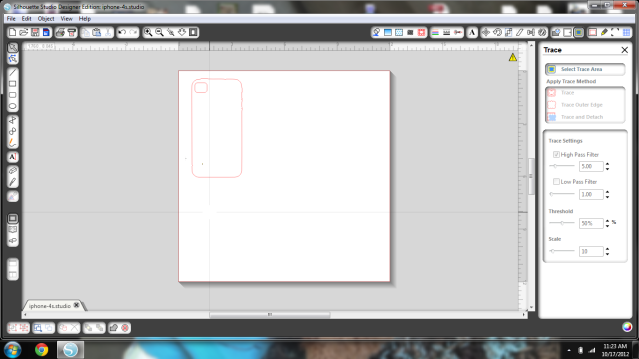
I love making customized inserts for my iPhone 4S case!  I've made a bunch before, but never on the cameo before.  This is one project where Print & Cut comes in handy- design, print, and cut, all within the same software.


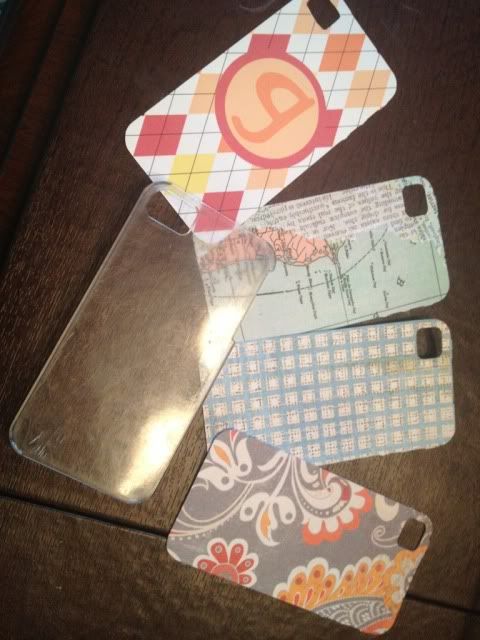
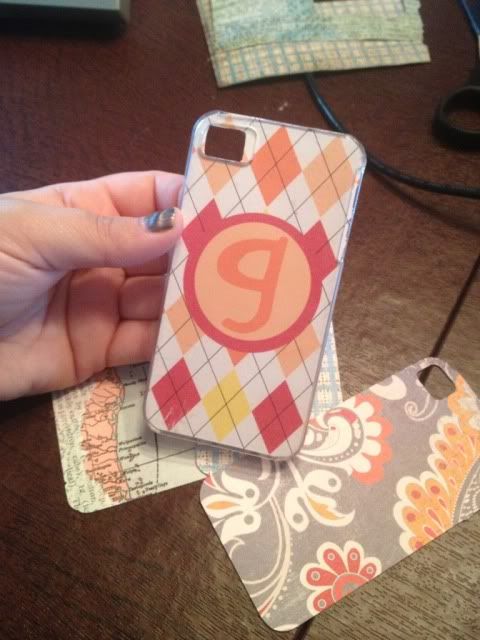
The bottom 3 are just patterned paper scraps I had- I don't normally save scraps but this is a good way to use them up!  The top one with my initial was designed using Print & Cut in the Silhouette Software.

If you are just using patterned paper, just open the shape, load your paper, and cut it out.


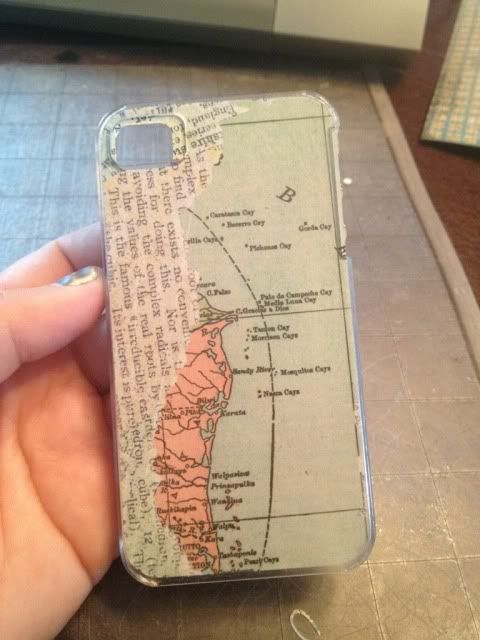
Every clear case is slightly different as far as the camera hole.  The camera hole cut out is more than enough to be clear of your lens and flash, which is really all that matters.  Some cases have a tiny oval opening, some have a large square.  I really don't mind the extra tiny bit of paper because it doesn't bother the camera.

If you want to personalize it, you can do that right there in Silhouette Studio.  

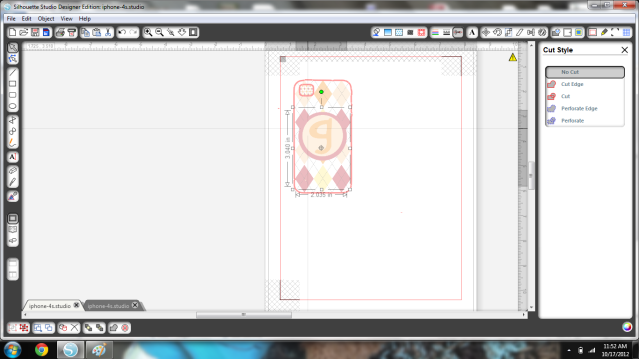
I just used a patterned fill that came stock, drew two circles (one bigger for the border), matched the colors, typed "g" and found a font I liked.  I grouped those shapes together and placed it onto the iPhone shape, and then went to Cut Options and selected "No Cut" for the monogram shape.  Otherwise it would cut all of that out and not work for what we're doing here.


This way, the edge and the camera hole still cut, but your monogram isn't cut to pieces in the process.


My case is a $5 clear plastic case from Radio Shack.  I've had it since February of this year and it's in great shape.  A few scratches, but no cracks, and it's been abused like you wouldn't believe.  My two year old has even stood on my iPhone while this case was on and both are fine.  I love the versatility and personalization that can be done, the only limit is your imagination and you won't spend a fortune every time you want a new case!

Want to design your own?  Click here to go to 4Shared and download my cutting file!  DO NOT RESIZE THIS SHAPE!  If you do, don't save!  Close & reopen it and it should be the correct size, IF you didn't save it resized!


***In a few days I will be doing a giveaway for a free Chomas Creations Marker Holder for the Silhouette Cameo- Following my blog is required and you can earn up to 4 entries in the drawing!  Stay tuned!


Showing posts with label iPhone. Show all posts

4.02.2013

Totally Custom iPhone

Hi, it's been awhile!  The ups and downs of growing another human being will do that I guess :)

I had some fun today customizing my iPhone and it was mostly free. You could probably do it totally free, but I did spend $1.99 on a single app.

I'm sure you all know what an iPhone screen generally looks like.  I have a 4S.  While I did use folders to organize some things, in general:

source:  techradar.com

After 1 free app and 1 paid app, voila!

Yeah, I downloaded Tamagotchi.

ALL of the icons came from a free app called CocoPPa and I used StyleFake's instructions, which are not only really thorough but look really tedious to screenshot and repeat myself here, so go read for instructions.  In general, you open the app, find an icon you like, go to "Set up Link," and then click whatever- set up a speed dial number, a direct URL link, search for a specific app to assign, etc.  Then you name it, hit OK, agree to open it in Safari, and click the button that looks like an arrow inside a box (bottom center) and then "Add to Home Screen" at which point the icon shows up on your screen and you can move it just like a normal icon.  However, unless I missed it (it's long) that blog doesn't list all of the possible shortcuts that you can do.

I did figure out a much easier way to actually change your app.  But first, you can't change everything.  Basically the general iPhone apps are mostly there forever.  You can change the Camera icon if you use a 3rd party camera app, and I was able to change the photo album, SMS, e-mail, Safari browser, and music icons as you can see.  You can easily change any 3rd party app's icon and Stylefake shows you how (basically go to an image you like, hit "set up link" and the first option is to search for the app to use- never saw Apple apps, just 3rd party).  You cannot change the camera, phone dialer, calendar, etc.  I tried a few different tricks and couldn't get it to work.

Another important note- this just makes shortcuts.  If you delete the actual apps, nothing will work.  Stick them all in a folder and hide it on page 2 or something (as I did).

Ok, on to my easy way of getting Apple apps to change their icons- after you find an icon and go to "set up link" (again, read Stylefake's photo-heavy instructions, they're great) click "URL" at the bottom like you are setting up an icon to take you directly to Google, your favorite forum, whatever.  Instead of any of those URLs, use these:

Text message- SMS:// 
Music- music:// 
Photos- photos-redirect:// 
Maps-maps:// 
AppStore-http://AppStore.apple.com/ 
Safari-http://google.com  (or any other link that you like, I actually use msn's home page)
E-Mail:  mailto:
ITunes-http://itunes.apple.com/


It's really pretty easy and fast and looks cute.  On the negative side, notifications don't pop up on these icons, you will see a white blank page and then it will go to the actual app (less than a second in my experience), and using this shortcut to access the Apple e-mail app results in it bringing up the new message window, which you have to close to actually see your inbox.  Nothing takes more than a second, but you might find it feels tedious to use.

The other app I downloaded is for the monogrammed wallpaper.  It's called Wall About You and is $1.99.  It is a very no frills custom monogram wallpaper maker.  You could easily make your own wallpaper and e-mail yourself the image, then save it on your phone and set it, but I was in the car and just wanted something fast.

I am by no means an expert on this app.  I just thought it was fun, it was easy to use after I did it once or twice, and it looks cute.  The ONLY URL directs I know of for changing Apple apps I have listed, I don't think it works on a 3GS or lower iPhone, and please don't blame me if you somehow totally brick your phone.  Other than that, have fun with it :)


10.17.2012

iPhone 4S Shape Insert with the Silhouette Cameo- FREE DOWNLOAD!

I love making customized inserts for my iPhone 4S case!  I've made a bunch before, but never on the cameo before.  This is one project where Print & Cut comes in handy- design, print, and cut, all within the same software.


The bottom 3 are just patterned paper scraps I had- I don't normally save scraps but this is a good way to use them up!  The top one with my initial was designed using Print & Cut in the Silhouette Software.

If you are just using patterned paper, just open the shape, load your paper, and cut it out.


Every clear case is slightly different as far as the camera hole.  The camera hole cut out is more than enough to be clear of your lens and flash, which is really all that matters.  Some cases have a tiny oval opening, some have a large square.  I really don't mind the extra tiny bit of paper because it doesn't bother the camera.

If you want to personalize it, you can do that right there in Silhouette Studio.  

I just used a patterned fill that came stock, drew two circles (one bigger for the border), matched the colors, typed "g" and found a font I liked.  I grouped those shapes together and placed it onto the iPhone shape, and then went to Cut Options and selected "No Cut" for the monogram shape.  Otherwise it would cut all of that out and not work for what we're doing here.


This way, the edge and the camera hole still cut, but your monogram isn't cut to pieces in the process.


My case is a $5 clear plastic case from Radio Shack.  I've had it since February of this year and it's in great shape.  A few scratches, but no cracks, and it's been abused like you wouldn't believe.  My two year old has even stood on my iPhone while this case was on and both are fine.  I love the versatility and personalization that can be done, the only limit is your imagination and you won't spend a fortune every time you want a new case!

Want to design your own?  Click here to go to 4Shared and download my cutting file!  DO NOT RESIZE THIS SHAPE!  If you do, don't save!  Close & reopen it and it should be the correct size, IF you didn't save it resized!


***In a few days I will be doing a giveaway for a free Chomas Creations Marker Holder for the Silhouette Cameo- Following my blog is required and you can earn up to 4 entries in the drawing!  Stay tuned!